

This is the short path from a new account to your first confirmed crew. You'll set up the positions your team uses, add a few crew members, create an event and assign people to it. Each step links to a detailed guide if you want more.
Everything here works on the Free plan.
Short version
Sign up, add your positions under Team Admin → Positions, add crew from Add Crew Member, create an event, then assign crew to its positions. Each assignment emails an invite with Yes, I can work and I can't work buttons.
Create your team
Go to crewdup.com, click Start for free, and fill in your team name and your account details. Whoever creates the team becomes its team admin. CrewdUp also creates a "Default Workspace" for you, so you can start adding events straight away.
See create your account and your team for the plan choice and the Google option.
Set up your positions
Positions are the jobs on an event, such as Camera Operator, A1 or Replay Operator. You can't type a new position name on an event, so build the list first.
- Click Team Admin in the sidebar.
- Open the Positions tab.
- Add one title for each role your crew covers.
The Team Admin page also has tabs for Members, Workspaces, Join Links, Skill Tags, Regions and Templates. You can come back to those later. See set up your team's position list.
Add your crew
- On the Dashboard, click Add Crew Member in Quick Actions.
- Enter First Name, Last Name and Email Address. Phone, state, region and skills are optional.
- Click Add Crew Member. You'll see "Crew member added successfully".
Adding someone sends no email. The card says "Invite new team member", but nothing goes out until you assign them to an event. The first email a crew member gets from CrewdUp is the event invitation.
The person is linked to you as their manager. That link decides which of your events they can see when they sign in. See add a crew member.
Free plan limit
Free covers 10 crew and talent combined. Plan your first roster around that, or see plans and limits.
Create your first event
On the Dashboard, click Create New Event in Quick Actions, or Create Your First Event if you have no events yet. You need an Event Title, a Location, a Start Date, a Start Time, a Crew Call Time and a Timezone. Everything else can wait.
Follow create your first event for the field-by-field walkthrough.
New events are hidden from crew. That's fine for assigning: invites go out by email either way. If you want crew to see the event on their dashboard and raise a hand for it, open the event, edit it and tick Visible to Crew. See hide or show an event to crew.
Assign crew
- Open the event.
- Add the positions the event needs.
- Fill each position with someone from your roster.
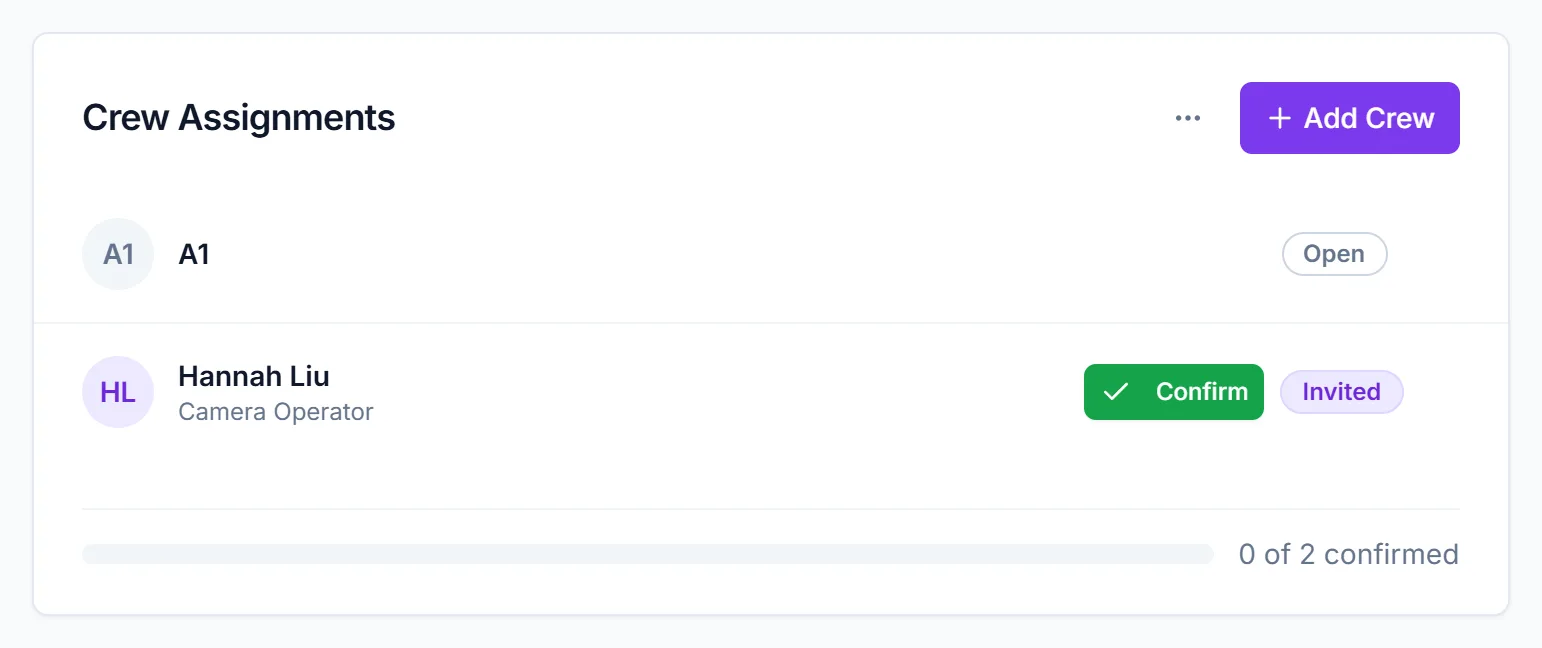
As soon as you pick a person, CrewdUp emails them the "Event Invitation" email. There's no separate send step. See assign crew to positions.
Assigning sends email right away
Each assignment emails that person immediately. Only assign people you actually want to invite.
Watch the confirmations come in
The invite shows the position, date, event time, crew call and location, with two buttons: Yes, I can work and I can't work. Crew don't need an account to answer, and the links work for 7 days.
- When someone accepts, their assignment changes to confirmed, you get an email alert, and they get a confirmation email with a calendar file.
- When someone declines, their assignment changes to declined and you get an email alert.
See track who has confirmed for following up on people who haven't answered.
Things to know
- Join links need Starter. On Free, add crew one at a time from Add Crew Member.
- Free limits: 1 manager seat, 10 crew and talent, 1 workspace and 25 events.
- Crew answer from the email. There are no accept or decline buttons on the crew dashboard.
Checklist
- Team created
- Positions added under Team Admin → Positions
- Crew added with correct email addresses
- First event created
- Visible to Crew ticked, if you want crew to see it
- Positions filled and invites sent
- Confirmations tracked