

Your crew roster lives on the Crew Members page in the sidebar. Everyone you want to assign to an event position has to be on it first. Adding someone takes a name and an email address, and you can tag their skills and region at the same time.
Adding a crew member doesn't email them. It creates a record on your team's roster. They hear from CrewdUp when you assign them to an event.
Short version
Go to Crew Members and click Add Crew Member. Enter a first name, last name and email, tick any skills, then click Add Crew Member. No email goes out.
Before you start
- Set up skill tags first. The dialog shows a checkbox for each of your team's crew skill tags, but you can't create a tag from it. If there are none, you'll see "No skills available". See tag crew and talent by skill.
- Set up regions if you use them. The Region (Optional) field only appears once your team has at least one region. See group crew by region.
- Check your plan's limit. Crew and talent count together: 10 on Free, 50 on Starter and 200 on Pro. People you invited who never signed up still count.
- Who can add crew: team admins and managers. Crew don't see the button.
Add the crew member
- Click Crew Members in the sidebar.
- Click Add Crew Member at the top right. On a phone, it sits under the search box. If your roster is empty, click Add Your First Crew Member instead.
- Fill in the fields in the Add Crew Member dialog (see the table below).
- Under Skills (Optional), tick every skill this person has.
- Click Add Crew Member. The button shows "Adding..." while it saves.
You'll see the toast "Crew member added successfully" and the person appears on the roster.
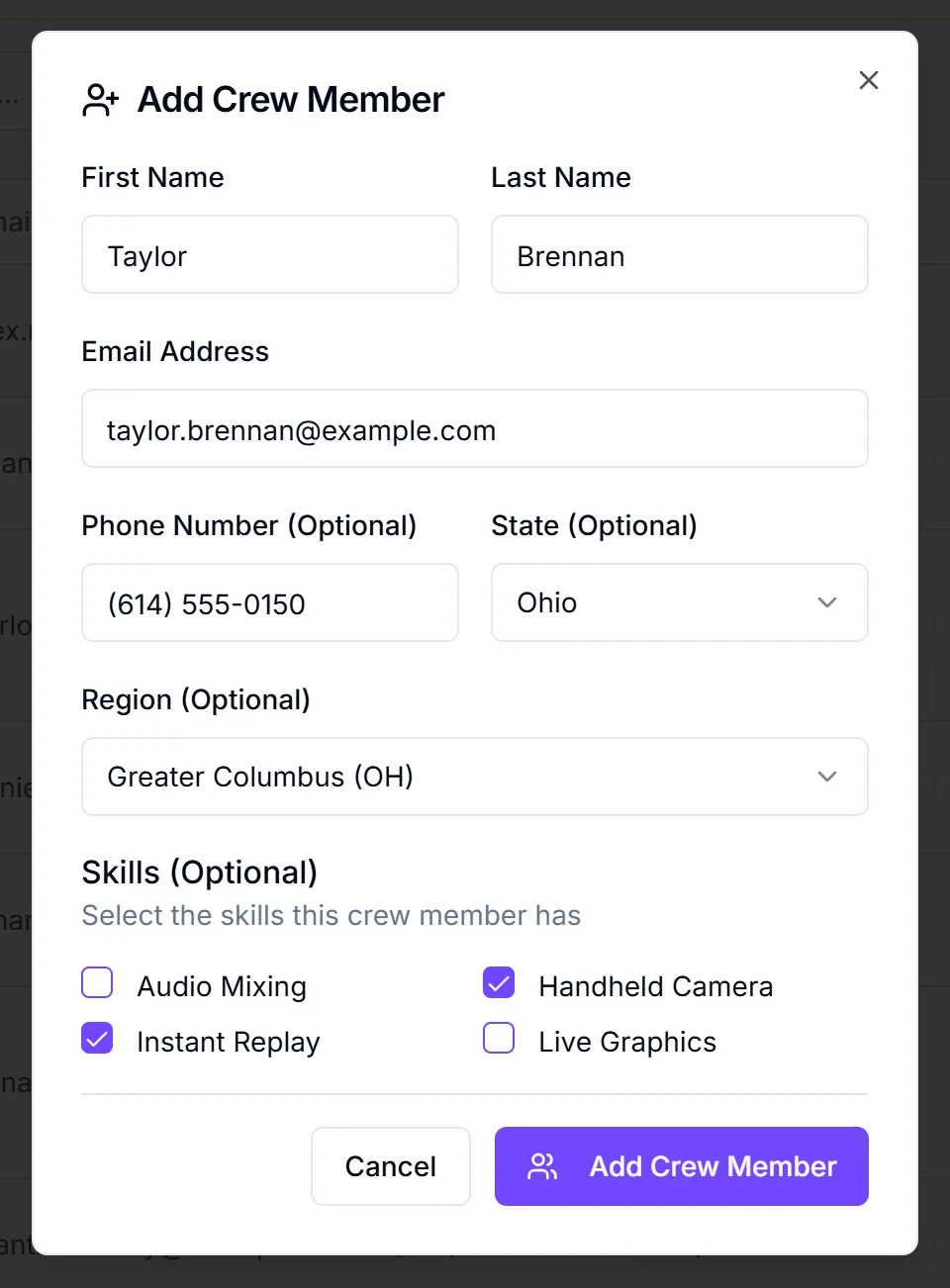
The fields
| Field | Required | Notes |
|---|---|---|
| First Name | Yes | "First name is required" if blank |
| Last Name | Yes | "Last name is required" if blank |
| Email Address | Yes | Must be a valid email address |
| Phone Number (Optional) | No | Free text, no format check |
| State (Optional) | No | The 50 US states |
| Region (Optional) | No | Only shown when your team has regions |
| Skills (Optional) | No | A checkbox per crew skill tag |
The email address matters most. It's where event invites go, and it's how CrewdUp links this record to the person's account if they sign up later.
What happens next
- You become their manager. Whoever adds the record is set as its Crew Manager and as its first assigned manager. That's true for team admins too. To change who manages them, see assign managers to crew and talent.
- No email is sent. There's no welcome or sign-up email. The person has no login yet.
- You can assign them right away. They show up in the picker on any event's Crew Assignments card. Assigning them sends the event invite. See assign crew to positions.
- If they sign up later, through a crew join link or a team email invite, CrewdUp links their new account to this record when the email matches, and keeps their assignments. Join links and email invites are on Starter and Pro. See create join links.
Things to know
- There's no duplicate check. You can add the same email twice. Search the roster before you add someone.
- At your plan limit, the upgrade prompt opens and the dialog shows "Failed to add crew member. Please try again." The person isn't added.
- Washington, D.C. isn't in this dialog's state list. It is in the state list on the crew profile, but saving the profile clears the region (see below).
- Set the region now. The region can only be set when you add someone. Editing a crew profile currently clears its region; we're fixing this.
- Adding lots of people? On Starter and Pro you can bulk upload crew from a CSV instead.
Checklist
- Skill tags and regions set up
- Searched the roster to avoid a duplicate
- First name, last name and a working email entered
- Skills ticked and region chosen
- Person shows on the Crew Members list