

Every crew position you add to an event, such as Camera Operator, A1 or Replay Operator, comes from your team's position list. Managers can't type a new position name on the event, so the list needs to be in place before anyone starts staffing.
The list lives on the Team Admin page. Team admins add and remove positions. Managers and team admins both use the list.
Short version
A team admin goes to Team Admin → Positions, enters a Position Title and clicks Add Position. Repeat for every role your crew covers.
Add a position
- Click Team Admin in the sidebar.
- Open the Positions tab.
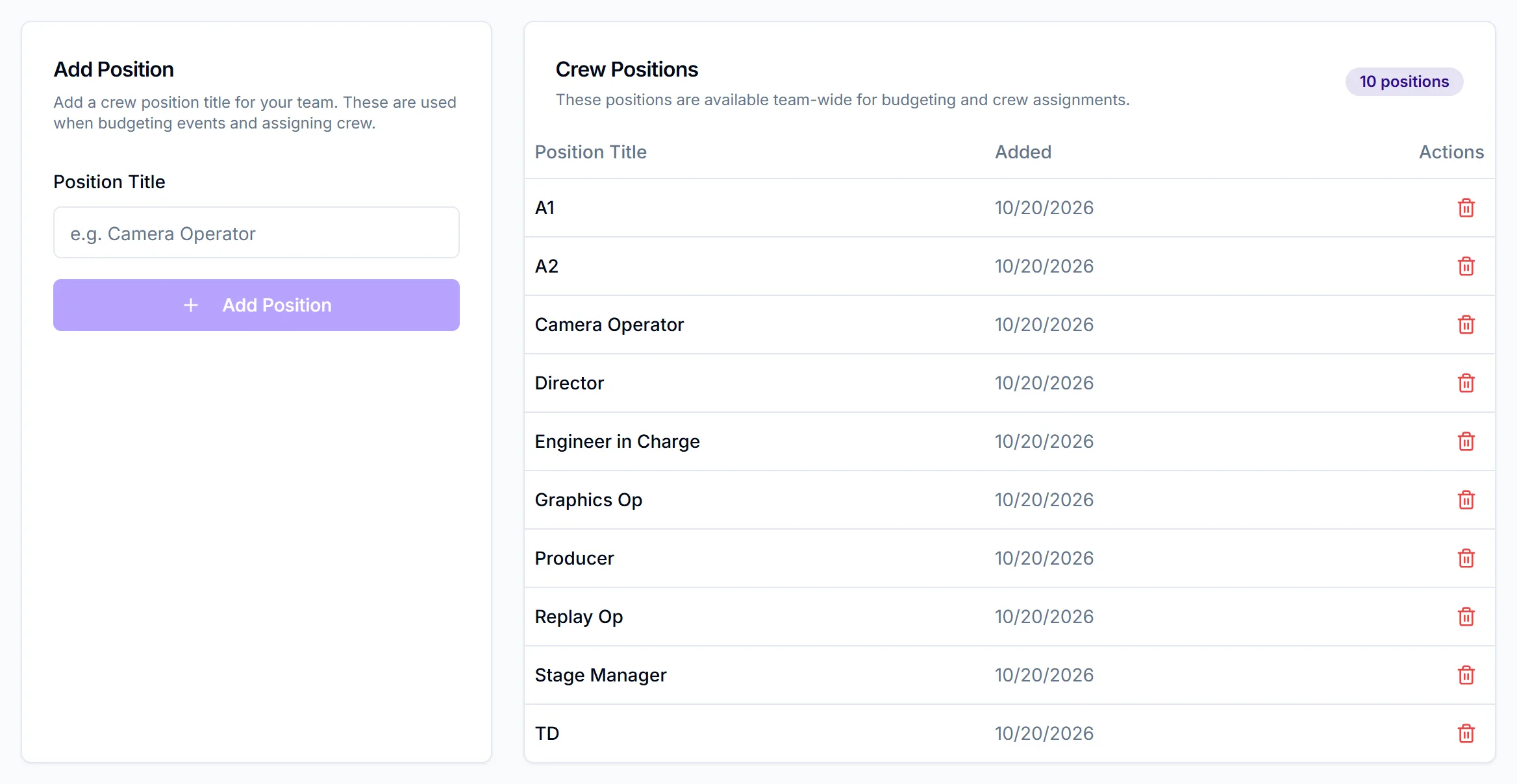
- In the Add Position card, enter a Position Title, for example "Camera Operator".
- Click Add Position, or press Enter in the title box.
You'll see "Position added", and the title appears in the Crew Positions list with the date it was added. The badge at the top shows how many positions your team has.
Add one title per role, not per slot. If an event needs three camera operators, the manager adds "Camera Operator" to that event three times.
Where positions are used
| Where | How |
|---|---|
| The event's Crew Assignments card | Managers pick from this list when they click Add Crew. See assign crew to positions |
| Event budgets | Positions are the rows you budget against. See set an event budget |
| Crew and talent profiles | Typical Position in Internal Information is picked from this list. See crew profiles |
Crew position templates are different. Template positions are typed as free text and aren't linked to this list. See crew position templates.
Remove a position
- In the Crew Positions list, click the trash icon on the position.
- Read the Remove Position? dialog, then click Remove.
You'll see "Position removed". Existing event assignments that already use the position aren't affected. Crew who had it as their Typical Position lose it, and that field goes blank.
Things to know
- Names must be unique. Adding a title that's already on the list shows "Position already exists".
- There's no rename. To change a title, add the new one and remove the old one. Remember that removing it clears Typical Position for anyone who had it.
- Use the names your crew use. The title is what crew see on their invite and their assignment, so "A1" or "Audio Mixer" should match how your team talks.
- Managers can't edit the list. Only team admins can open Team Admin. If a manager needs a new position, a team admin adds it.
Checklist
- Every role your crew covers is on the list
- Titles match what your crew call them
- No near-duplicates such as "Camera Op" and "Camera Operator"
- Managers know the list is ready