

Everything in CrewdUp hangs off an event: crew positions, invites, talent, the tech book and the budget. Creating one takes a minute. You only need a title, a location, a date and two times. Everything else can wait until you know it.
Short version
Go to Events in the sidebar and click Create Event. Fill in Event Title, Location, Start Date, Crew Call Time and Start Time, then click Create Event at the bottom. The event is saved hidden from crew, and no emails go out.
Before you start
- Check your role. Team admins and managers can create events. Crew and talent can open events but have no create button.
- Pick a workspace. If your team uses workspaces, select one first. The new event goes into the active workspace. With no workspace selected, it's created with no workspace.
- Know your limit. Free includes 25 events, Starter 100 and Pro 250. The count covers every event owned by anyone on your team.
Open the Create New Event form
- Click Events in the sidebar.
- Click Create Event. On a desktop it's at the top right of the page.
- The Create New Event form opens.
If you have no events yet, the page says "No events found" with "Get started by creating your first event". Use the Create Event button at the top.
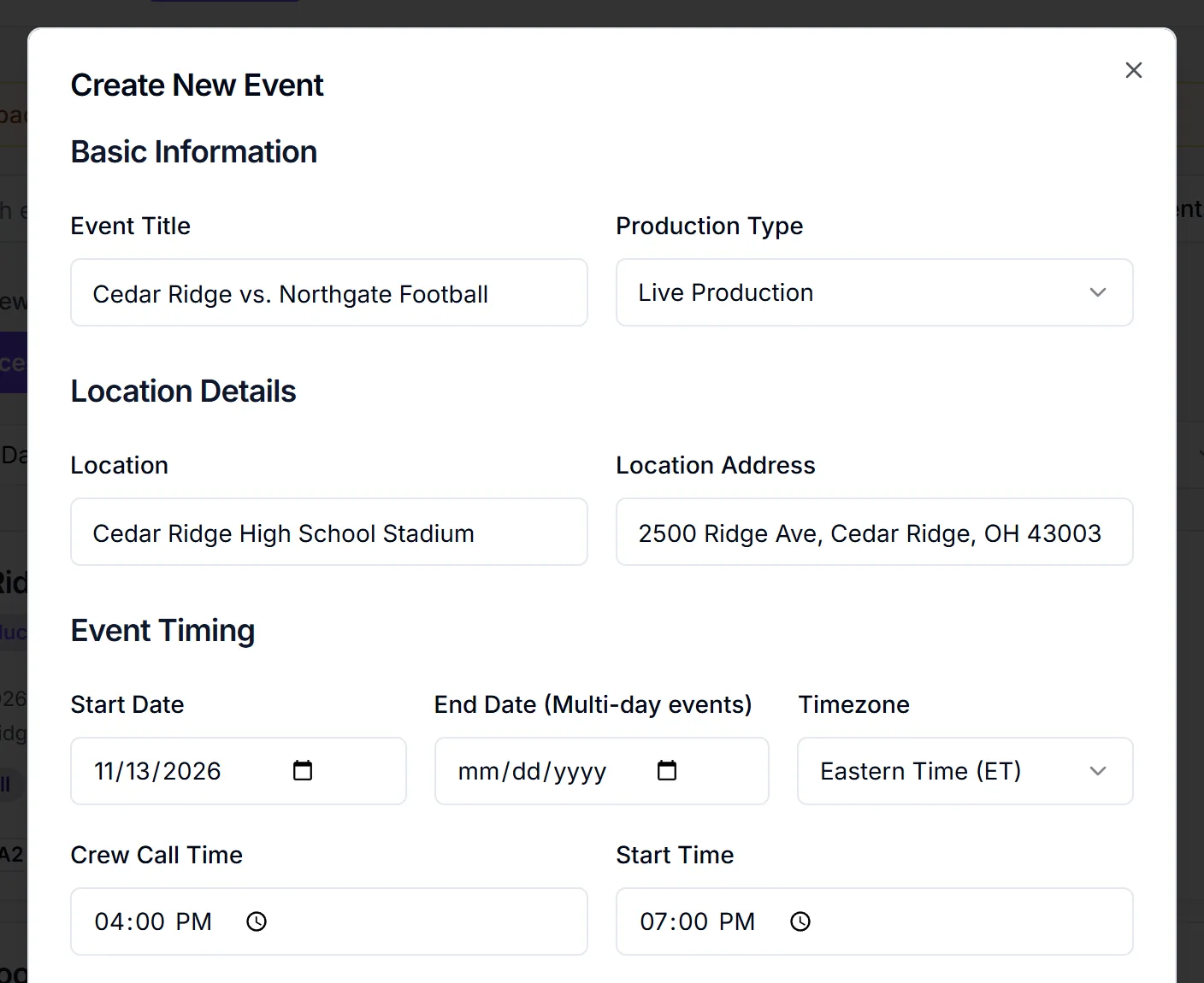
Fill in the fields that matter today
The form is long, but only these are required:
| Field | Section | What to enter |
|---|---|---|
| Event Title | Basic Information | The name crew will see, such as "Region 3 Final" |
| Location | Location Details | The venue name, for example "MetLife Stadium" |
| Start Date | Event Timing | The day of the event |
| Timezone | Event Timing | Already set to Eastern. Change it if the venue is elsewhere |
| Crew Call Time | Event Timing | When crew should arrive |
| Start Time | Event Timing | When the show or game starts |
Two optional fields are worth filling now:
- Location Address, so crew can find the venue.
- End Date (Multi-day events), if the event runs more than one day. For tournaments, see set up a multi-day event.
Leave Production Type on Live Production.
Enter times as venue time
The Timezone field is a label. CrewdUp doesn't convert times for each viewer. If the game starts at 7:00 PM at the venue, type 7:00 PM and pick the venue's timezone. Everyone sees 7:00 PM with that timezone next to it.
Use a crew position template (optional)
If your team has saved crew position templates, a Crew Setup section appears near the bottom with Crew Position Template (optional). Pick one and its positions are added to the event's crew list after the event is created. If your team has no templates, this section doesn't show.
The other sections, such as Technical Configuration, Contact Information, Event Details and Game Details, are all optional. You can fill them in later. Every event field explained covers each one.
Save the event
Click Create Event at the bottom of the form. The button reads "Creating..." while it saves.
If something required is missing, a message appears under the field, such as "Event title is required" or "Crew call time is required". Email fields must be valid addresses or blank, and link fields must be full URLs or blank.
What happens next
- You see "Event created" and the event appears in your list.
- If you picked a template and it couldn't be applied, you see "Crew template not applied". The event is still created, and you can apply the template from the event later.
- No emails go out. Creating an event doesn't contact anyone.
- The event starts hidden from crew. Crew can't see it in their Events list until you tick Visible to Crew. See hide or show an event to crew.
From here, open the event and assign crew to positions.
Things to know
- At your plan's event limit, creating fails with an error that says how many events your plan allows. Deleting old events frees up slots.
- There's no edit form. To change anything later, open the event and click Edit Event.
Checklist
- Workspace selected, if you use them
- Title, location, date, crew call and start time entered
- Timezone set to the venue's timezone, with times typed as venue time
- Template picked, if you have one
- Event saved, and crew assigned next