

Every event in CrewdUp has a Crew Assignments card. You add the positions the event needs, such as camera operators, a replay operator and an A1, then fill each one with someone from your crew roster. As soon as you pick a person, CrewdUp emails them an invite with accept and decline buttons. They don't need an account to respond.
Short version
Open the event, go to Event Details, and find Crew Assignments. Click Add Crew to add a position, then click the Open row and pick a crew member. The invite email goes out right away.
Before you start
- Set up your team's positions. The position list comes from your team settings, and you can't type a new position name on the event. If the list is empty, you'll see "No positions configured yet". See set up your team's position list.
- Add your crew. You can only assign people who are already on your crew roster. See add a crew member.
- Check your access. You need to own the event, or be a collaborator with Edit or Full access. If you only have view access, you'll see the card but not the buttons.
Add positions to the event
- Open the event from Events in the sidebar.
- On the Event Details tab, scroll to the Crew Assignments card.
- Click Add Crew. The dialog is titled Add Position: this step adds an empty slot, not a person.
- Choose a position from Position, then click Add Position.
- Repeat for every slot. If you need three camera operators, add the camera position three times.
Each new slot shows as Open until you fill it.
Or start from a template
If your team has saved crew position templates, click the ⋯ menu on the card, choose Apply Template and pick one. CrewdUp adds one open slot for every position in the template.
Applying a template replaces what's there
If the event already has crew positions, CrewdUp asks Replace Current Positions? Confirming removes every current crew position on the event, along with the people assigned to them and any budget figures on those rows. This can't be undone. Apply templates before you start assigning people.
Fill each position
- Click an Open row. A search box opens with your whole crew roster.
- Type part of a name to narrow the list, then click the person.
- The row changes to show their name, with the position underneath, and an Invited badge.
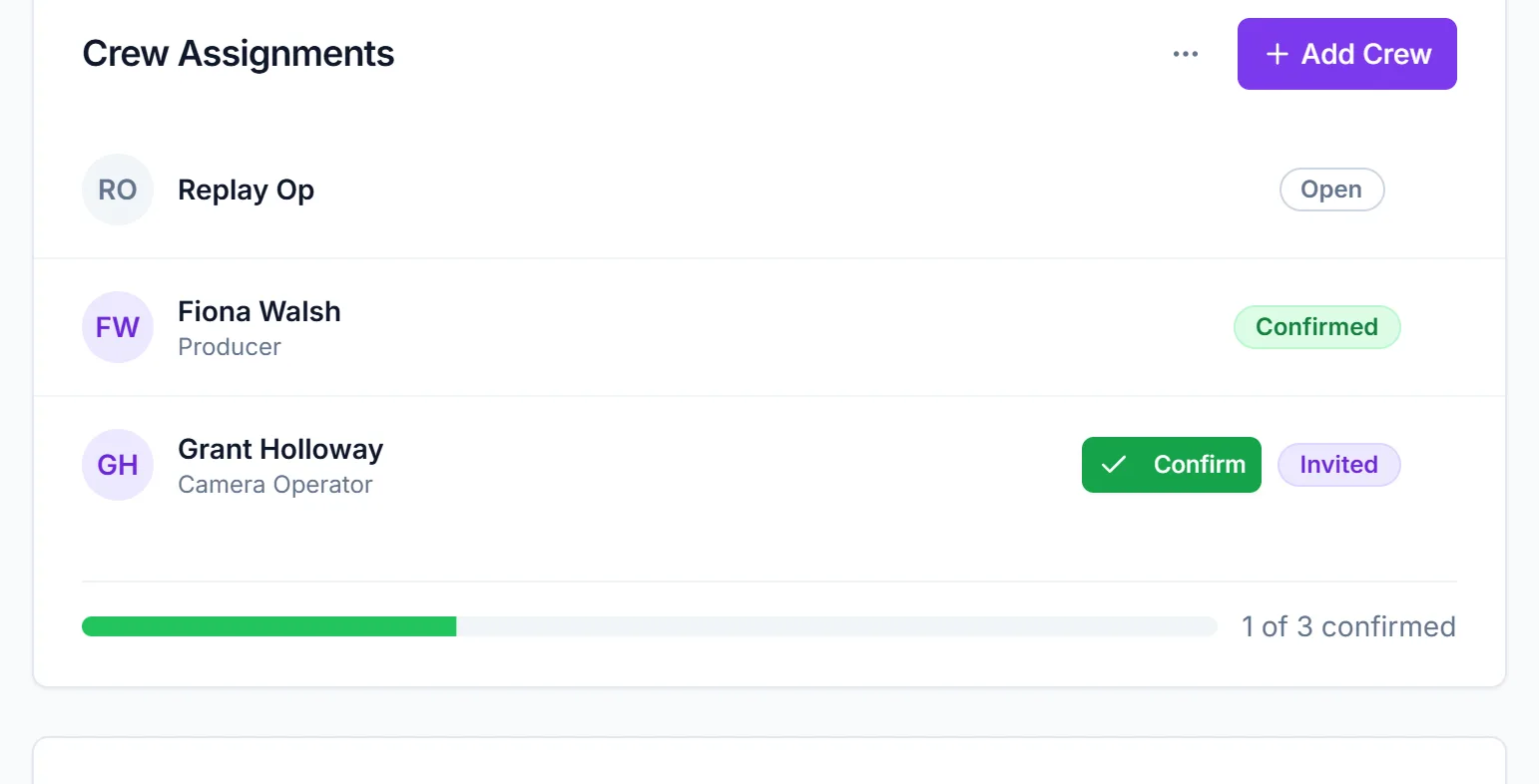
That's it: the invite email is already on its way. There's no separate send step, and no way to assign someone quietly and invite them later. If you're still deciding, leave the slot open.
You can put the same person in more than one slot, for example a camera operator who also covers a replay position. Each slot sends its own invite.
Finding the right person
The search matches names only. To see who has a given skill or works in a given region, filter your list on the Crew Members page first, then come back and assign them.
What your crew receives
Each person gets an email titled "Event Invitation", followed by the event name and date. It shows the position, date, event time, crew call and location, with two buttons: Yes, I can work and I can't work. The links work without signing in and stay valid for 7 days.
When they answer, the badge on the row changes to Confirmed or Declined, and the event's owner gets an email alert. If they accept, they also get a confirmation email with a calendar file for Google, Apple or Outlook. For the full details, see what happens when you assign someone.
Track progress
The bottom of the card shows a progress bar and a count, such as 3 of 8 confirmed. The total includes open slots, so the count only reaches 8 of 8 when every position is filled and confirmed.
- Someone confirmed by text or phone? Click the green Confirm button on their row to record an offline confirmation.
- Someone declined? Their name stays in the slot. Remove them to reopen it, then assign someone else. See move or remove an assignment.
- No answer yet? The badge stays on Invited. On Starter and Pro you can resend the invite from the row. See send or resend an invite.
Things to know
- The row buttons appear when you hover. The pencil, mail, X and trash icons on each row only show when your mouse is over it. On a tablet, tap the row first.
- Deleting an open slot has no confirmation. The trash icon on an open row removes it straight away.
- The picker shows everyone on your team's crew roster, not only the crew assigned to you as a manager.
- Talent is separate. On-air talent is assigned on the Games & Talent tab. See assign talent by game.
Checklist
- Team positions are set up
- Crew are on your roster with correct email addresses
- Positions added (or a template applied) before you assign anyone
- Every slot filled
- Confirmations tracked, and declines replaced