

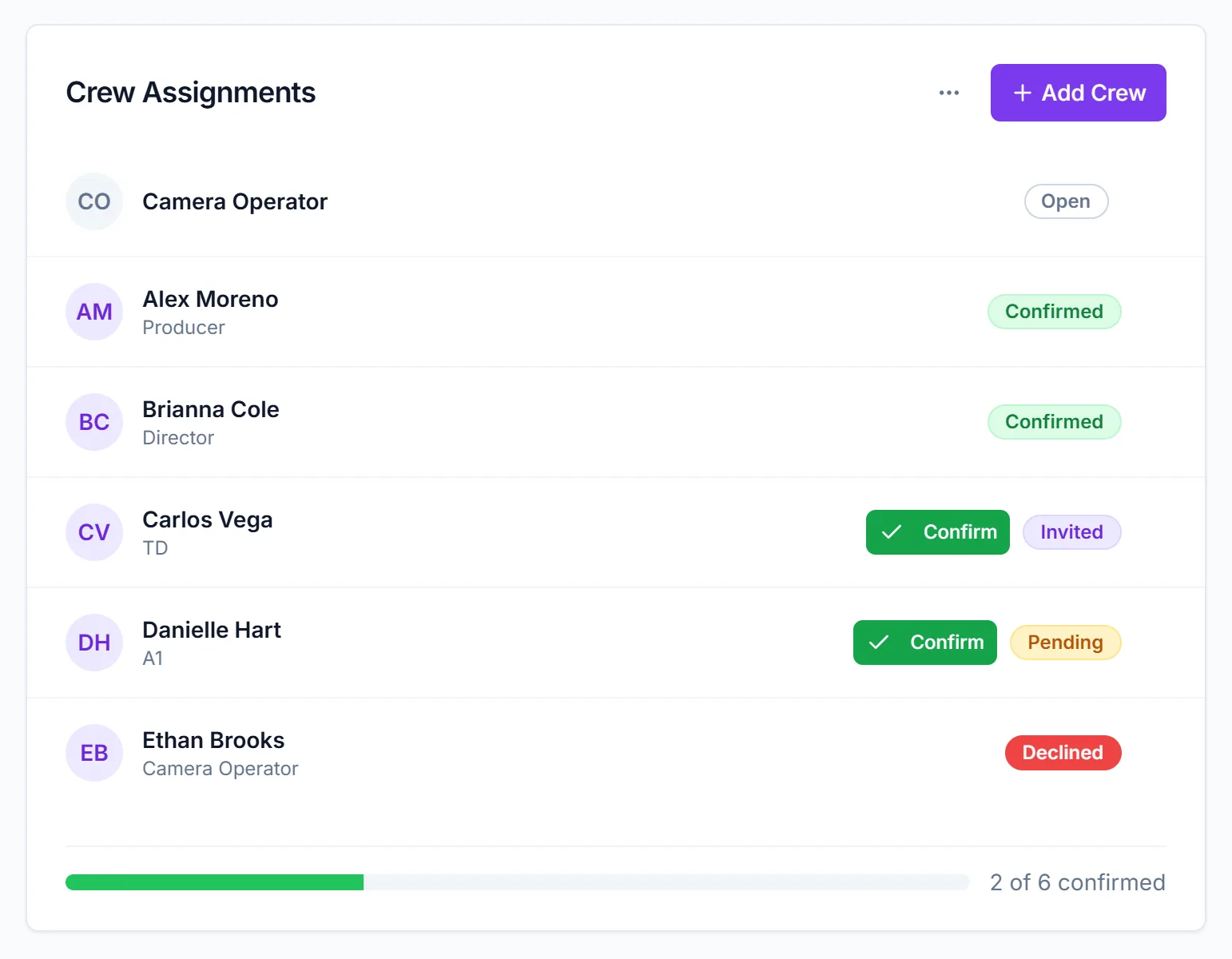
Once invites are out, the Crew Assignments card on each event shows where every slot stands. The Events list gives you a quick count across all your events. When the event is covered, you can mark it Fully Staffed so crew stop seeing it.
Short version
Each row on Crew Assignments has a badge: Open, Invited, Pending, Confirmed or Declined. The footer shows "{confirmed} of {total} confirmed". When you're done, click Edit Event and tick Fully Staffed.
What each badge means
| Badge | Meaning |
|---|---|
| Open | No one is assigned to this slot yet. |
| Invited | Someone is assigned and hasn't answered. Every new assignment starts here, whether or not the email went out. |
| Pending | You sent or resent the invite from the row's mail icon, and they haven't answered. |
| Confirmed | They accepted by email, you marked them confirmed offline, or you approved them after they raised a hand. |
| Declined | They clicked I can't work in the invite. |
Open slots are listed first, then filled ones. You may occasionally see another word, such as Draft on an event copied from another workspace.
The confirmed count
The bottom of the card shows a progress bar and "{confirmed} of {total} confirmed". The total counts every crew slot, open ones included. A declined person still counts toward the total, so the bar can't reach full until you replace them.
The Events list
Each event on the Events page shows "{filled}/{total} crewed". Filled means a slot has someone in it, including people who declined. Use it as a rough check, then open the event to see who has actually confirmed. Events you've marked Fully Staffed show that label, and in Table view the row is tinted.
Mark an event Fully Staffed
- Open the event and click Edit Event.
- In the Basic Information card, tick Fully Staffed, next to Visible to Crew.
- It saves the moment you tick it, not when you click Save. You'll see Staffing Status Updated.
The help text changes to "Event is fully crewed and automatically hidden from crew members".
Fully Staffed hides the event from crew
Ticking Fully Staffed also turns Visible to Crew off, so crew can no longer see the event or raise a hand for it. Unticking Fully Staffed doesn't turn visibility back on. If you reopen hiring, tick Visible to Crew again yourself. See hide an event from crew.
Things to know
- Fully Staffed is manual. CrewdUp doesn't set it when every slot is confirmed.
- The checkbox is greyed out until you click Edit Event. Only managers and team admins with edit rights on the event can change it.
- Declined slots don't reopen by themselves. Remove the person to reopen the slot. See move or remove an assignment.
- No live updates. Reload the page to see answers that came in while it was open.
- "Invited" isn't proof of delivery. If an invite failed to send, the badge still says Invited. A Send invite mail icon on the row is the sign it failed.
Checklist
- No Open slots left
- Every Declined person removed and replaced
- Anyone still on Invited or Pending followed up
- Footer reads "{total} of {total} confirmed"
- Fully Staffed ticked when hiring is done