

Plenty of crew answer a text faster than an email. If someone tells you yes outside CrewdUp, you can mark their assignment Confirmed from the Crew Assignments card. Your confirmed count updates, and the event is ready for scheduling and payroll tracking.
Short version
On the event's Crew Assignments card, click the green Confirm button on the person's row, choose how they confirmed, tick the box, and click Mark Confirmed. CrewdUp also emails the crew member.
When the button shows
The green Confirm button appears on a person's row while they haven't answered: their badge reads Invited or Pending. Its tooltip says to use it when they accepted outside CrewdUp.
It doesn't appear once someone is Confirmed or Declined. You can't mark a declined person confirmed. You need edit rights on the event: you own it, or you're a collaborator with Edit or Full access.
Mark someone confirmed
- Open the event from Events in the sidebar.
- On the Event Details tab, scroll to Crew Assignments.
- Click the green Confirm button on the person's row.
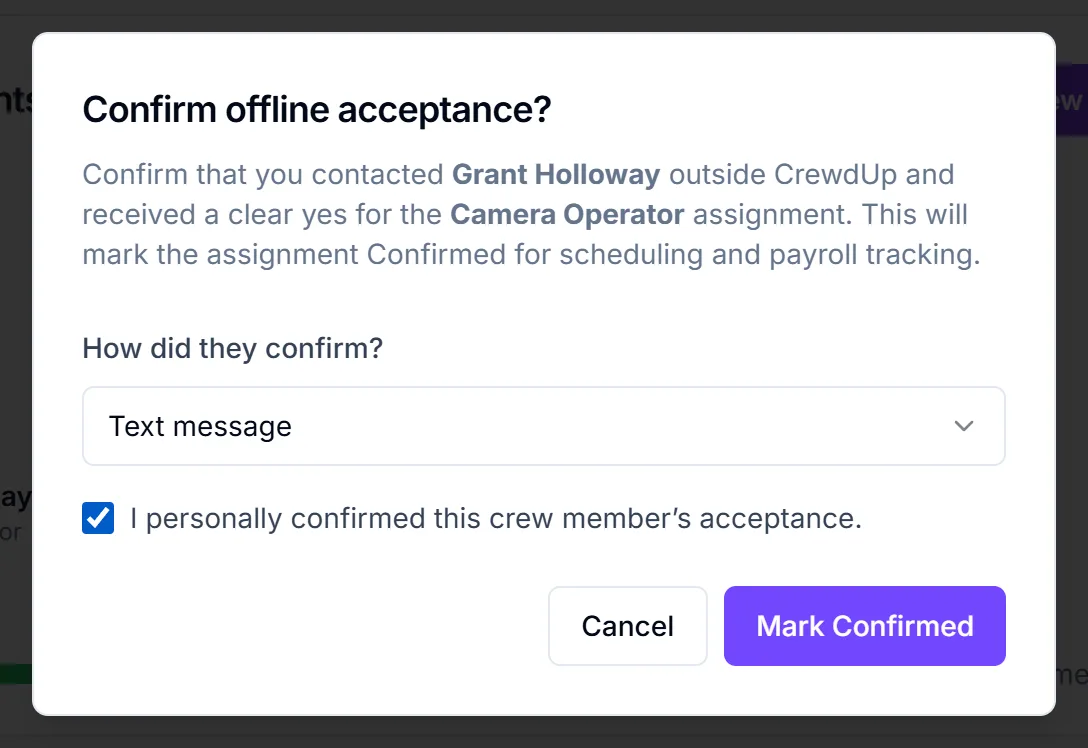
- The dialog Confirm offline acceptance? asks you to confirm that you contacted them and got a clear yes for that position.
- Under How did they confirm?, choose Text message, Email, Phone call or Other offline method. It starts on Text message.
- Tick I personally confirmed this crew member’s acceptance. The button stays greyed out until you do.
- Click Mark Confirmed.
You'll see Crew member confirmed ("The assignment was marked confirmed."), and the badge changes to Confirmed.
This can't be undone from the row
There's no "unconfirm". If you confirmed the wrong person, remove the assignment or change their position, which resets them and sends a new invite. See move or remove an assignment.
What happens next
- The badge changes to Confirmed, and the count at the bottom of the card goes up.
- The crew member gets an email right away. Replies go to the event's owner.
- Your notification bell shows "{name} accepted". See manager alerts.
The email currently uses CrewdUp's approval wording: the subject is "Approved for {position} - {event}" and it says their interest has been approved, even though they never raised a hand. It doesn't include a calendar file. If they need one for their calendar, send the details yourself.
Things to know
- The method is stored, not shown. CrewdUp saves whether you picked text, email, phone or other, but you won't see it anywhere on the card.
- Errors: "Could not confirm assignment" appears if the person has already answered ("Only invited or pending assignments can be manually confirmed") or no method was chosen.
- No live refresh. If the crew member answers the email around the same time, reload the page to see the current badge.
Checklist
- You have a clear yes from the crew member
- Right method picked under How did they confirm?
- Badge shows Confirmed
- Crew member told to expect an "Approved" email with no calendar file