

Plans change. On the Crew Assignments card you can move a person to a different position or take them off the event. The two actions behave very differently: changing a position emails the person and asks them to confirm again, while removing them is instant and sends nothing.
Short version
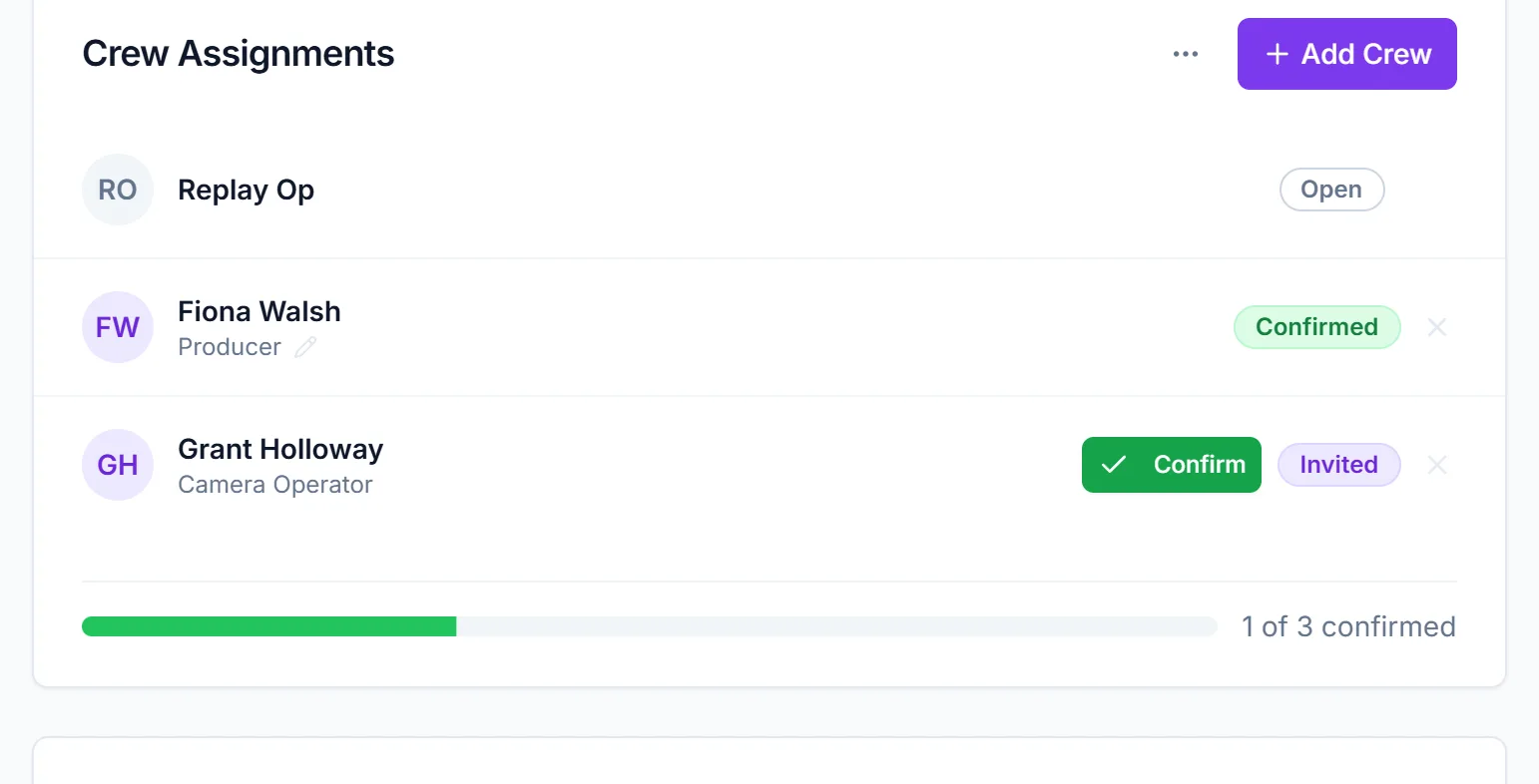
Hover the person's row on Crew Assignments. Click the pencil to change their position, which resets them to Invited and emails them. Click the X to remove them, which reopens the slot and sends no email.
Before you start
You need edit rights on the event: you own it, or you're a collaborator with Edit or Full access. The row icons only appear when your mouse is over the row. On a tablet, tap the row first.
Change someone's position
- Open the event and go to Event Details → Crew Assignments.
- Hover the position name under the person's name and click the pencil, Edit position.
- Pick from Select position.... Only your team's positions are offered.
- Click the check (Save), or the X (Cancel) to back out.
You'll see Position updated. This works for anyone, including people who have already confirmed or declined.
Changing a position resets their answer and sends an email
Saving sets the person back to Invited and clears their earlier answer, even if they had confirmed. CrewdUp emails them straight away, every time you save, even if you pick the same position.
The email they get
- Subject: "Assignment Updated: {title} - {date}".
- Heading "Assignment Updated", with "New Position:".
- Buttons Yes, I can work and I can't work, valid for 7 days.
- A note that their previous confirmation has been reset and they need to respond again.
Links in their earlier invite stop working. See what happens when you assign someone.
Remove someone
- Hover the person's row on Crew Assignments.
- Click the X, Remove assignment.
There's no confirmation dialog and no message. The person disappears and the slot goes back to Open, ready for someone else. Any budget figures on the slot stay.
Removing someone doesn't tell them
CrewdUp sends no email when you remove a person, and there's no undo. Let them know yourself. To put them back, assign them again, which sends a new invite.
Reopen a declined slot
When someone declines, their name stays in the slot and it doesn't reopen on its own. Remove them with the X and the slot shows Open again. You can then assign someone else, or crew can raise their hand for it if the event is visible to them. See open positions and crew interest.
Things to know
- The slot keeps its original name. Changing a person's position doesn't rename the slot. The Budget & Actuals tab still shows the slot's original title.
- Moving a confirmed person un-confirms them. Only change a position when you're ready for them to answer again.
- To undo an offline confirmation, remove the person or change their position. There's no "unconfirm".
- Removing someone isn't the same as deleting the slot. The X clears the person. The trash icon on an open slot deletes the position itself, also with no confirmation.
Checklist
- Changed someone's position? They've been told a new email is coming
- Removed someone? You've told them directly
- Declined people removed so their slots show Open
- Budget rows checked if a slot's role changed