

Assigning someone sends their invite automatically, but invites expire after 7 days and emails sometimes get missed. The mail icon on the person's row in Crew Assignments sends them a new invite. Resending is on Starter and Pro.
Short version
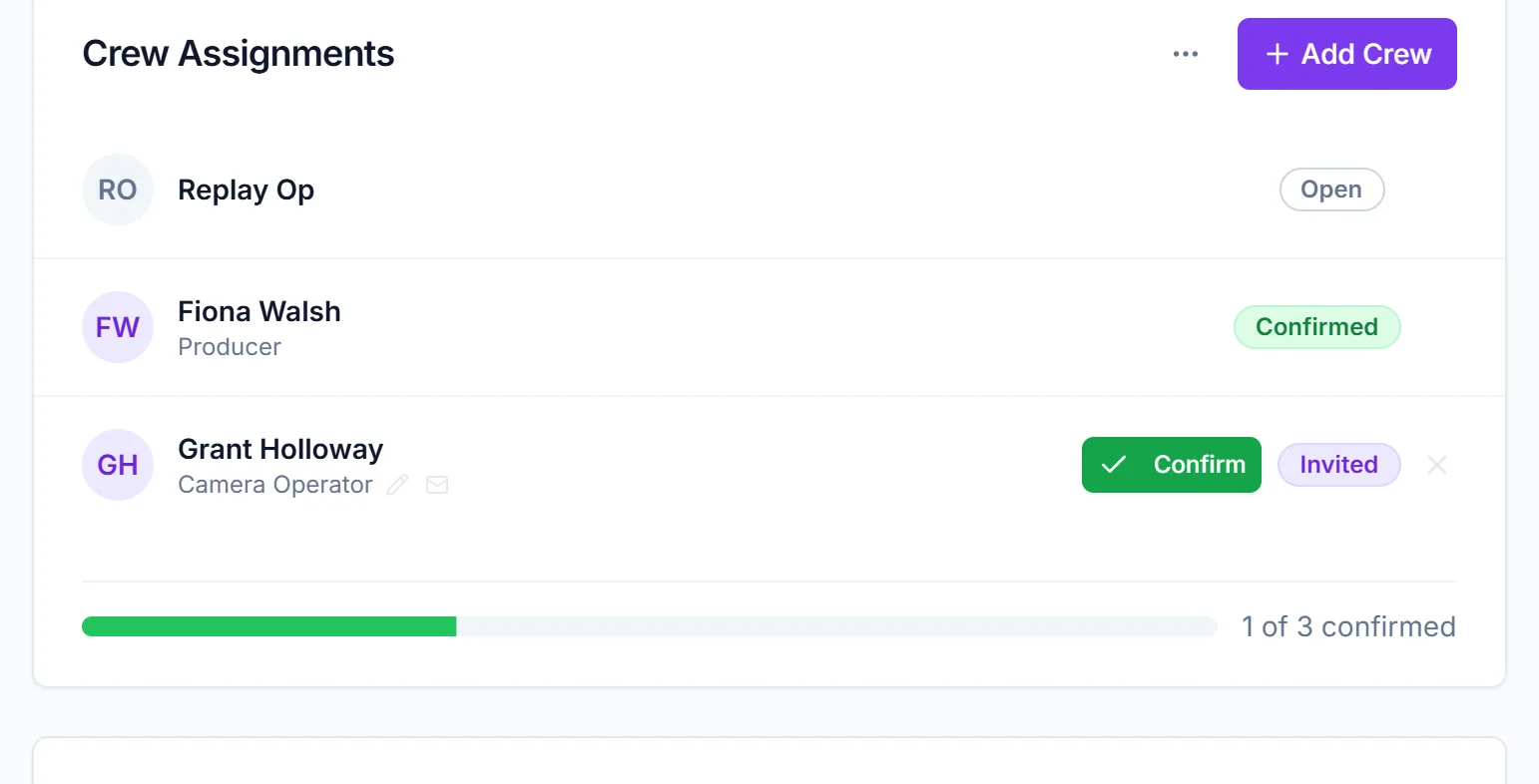
Open the event, go to Event Details and find Crew Assignments. Hover the person's row, click the mail icon next to their position, and a new invite goes out right away. The badge changes to Pending.
When to resend
- The person hasn't answered and their 7-day invite has expired.
- They say they never got the email, or deleted it.
- The first email failed to send. In that case the icon reads Send invite instead of Resend invite.
The icon only shows while the person hasn't answered. Once their badge is Confirmed or Declined, it's gone.
Resend the invite
- Open the event from Events in the sidebar.
- On the Event Details tab, scroll to Crew Assignments.
- Hover the person's row. A small mail icon appears next to their position.
- Click it. The tooltip reads Resend invite, or Send invite if the first email never went out.
- You'll see Invite resent ("A new invitation has been sent.") or Invite sent ("Assignment invitation sent successfully.").
The email goes out immediately
Clicking the icon sends the email straight away. It also cancels the links in any earlier invite you sent that person, so tell them to use the newest email.
What the crew member receives
The resent email isn't the same as the original:
- Same subject: "Event Invitation: {event title} - {date}".
- One button, ✓ Click to Respond, instead of separate yes and no buttons.
- "This invitation expires in 30 days."
The button opens a CrewdUp page, Event Assignment Invitation, with ✓ Yes, I can work and ✗ I can't work. After they answer they see "Response Submitted Successfully!" If they accept, they get the confirmation email with a calendar file, the same as with the original invite. If they've already answered, the page says Response Already Submitted.
What changes on your side
- The badge changes from Invited to Pending as soon as you resend.
- When they answer, it changes to Confirmed or Declined.
- The answer shows in your notification bell. See manager alerts.
Things to know
- You won't get an alert email. When crew answer through a resent invite, CrewdUp doesn't email the event's owner yet, even though the page tells crew "The event manager has been notified." Check the badge or the bell instead.
- On the Free plan the icon fails. Clicking it shows "Failed to resend invitation." (or "Failed to send invitation."). It doesn't say why: resending needs Starter or Pro. See plans and limits.
- Free plan options for an expired invite:
- If they said yes by text or phone, record an offline confirmation.
- Change their position. This sends a fresh 7-day invite and resets their answer.
- Remove them and assign them again, which sends a new invite.
- The icon is hover-only. On a tablet, tap the row first.
Checklist
- Person's email is correct on their crew record
- Invite resent and badge shows Pending
- Crew member told to use the newest email
- Badge checked for their answer, since no alert email comes