

On-air talent, such as play-by-play and color, is assigned separately from crew. You do it on the event's Games & Talent tab, not on Crew Assignments. On a single-day event you assign talent to the event. On a multi-day event you assign them game by game, so each broadcast gets its own booth.
Short version
Open the event, go to Games & Talent, and click Assign Talent, on the Talent Assignments card or on a game row. Pick a Talent Member and a Role/Position, then click Assign Talent. The talent member gets an email straight away.
Before you start
- Add your talent. See add talent.
- Check availability. Only talent marked as available show in the picker. If someone you expect is missing, contact us.
- Add games first on multi-day events. See add games to an event.
- You need to be a manager, team admin or super admin to see the buttons.
Assign talent
- Open the event and click the Games & Talent tab.
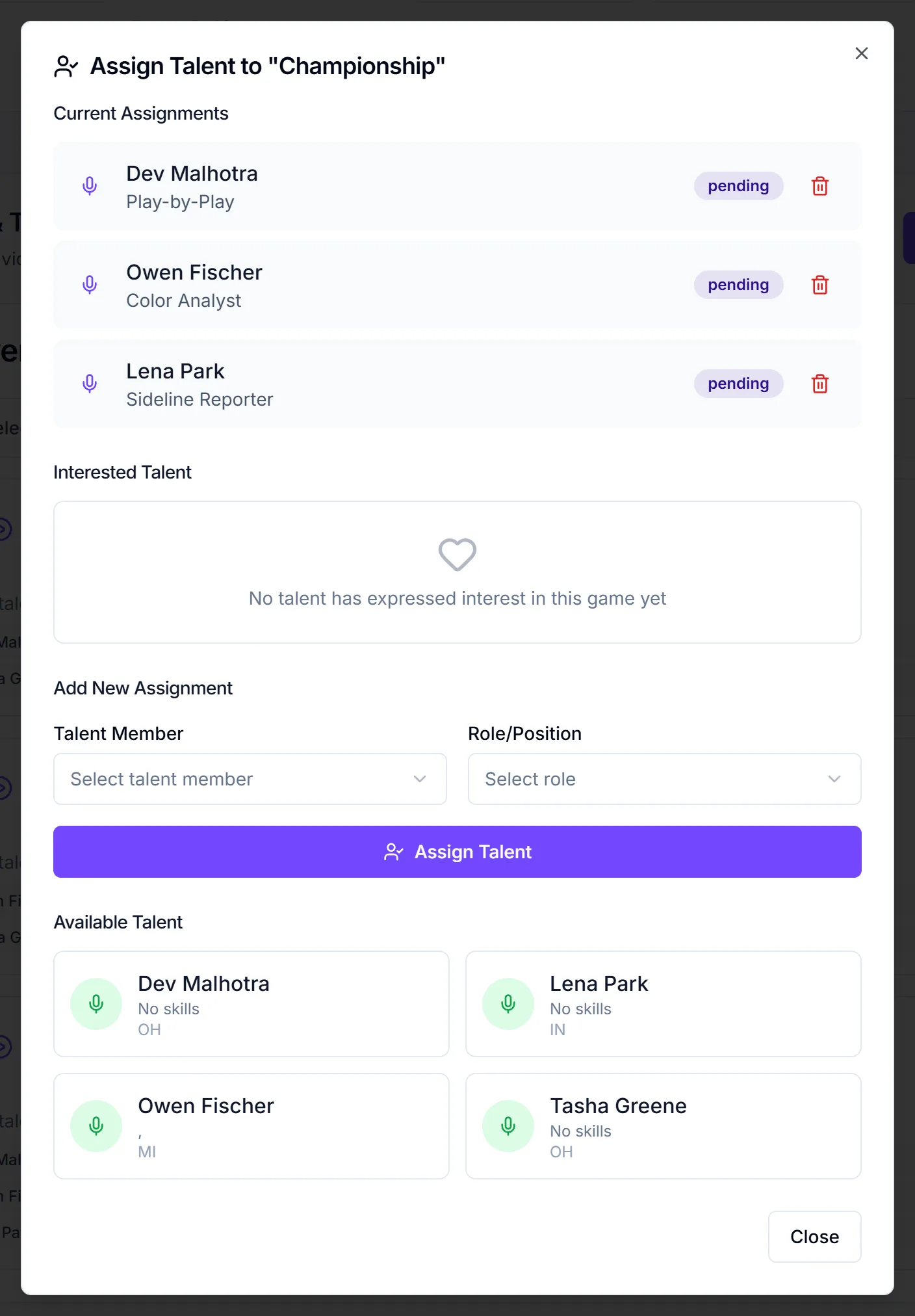
- Click Assign Talent:
- Single-day event: on the Talent Assignments card.
- Multi-day event: on the game's row.
- The dialog reads Assign Talent to Event, or Assign Talent to "{game title}".
- Choose a Talent Member.
- Choose a Role/Position: Play by Play, Color Analyst, Sideline Reporter, Field Reporter, Studio Host or Sports Anchor. This list is fixed. It isn't your team's position list.
- Click Assign Talent. You'll see Talent Assigned.
If either field is empty you'll see "Please select both talent member and position."
Assigning sends an email right away
As with crew, the invite goes out the moment you click Assign Talent.
What talent receive
The email subject is "Talent Assignment: {event or game title} - {date}". It shows the role, date, time and location, and for a game, which event it's part of. The buttons are Yes, I can work and Not available.
When they click, they see "Confirmed!" or "Declined", and the event's owner gets an alert email. Talent don't get a calendar file. The email says it expires in 7 days, but the links stay valid for 30.
On a single-day event, new talent assignments show as Pending until they answer. Talent on a single-day event also get a talent row in the event budget. Game-level talent don't.
Remove talent
Click the trash icon next to the assignment and confirm "Are you sure you want to remove {name} from this event?" (or "from this game?"). You'll see Assignment Removed. No email goes to the talent member.
Deleting a game also removes every talent assignment on it.
Talent who raise their hand
Talent can express interest in a single-day event, or in individual games on a multi-day event. You get an email: "Talent Interest: {name} wants to work on {event}" or "Game Talent Interest: {name} wants to work on {game}".
To act on it, use Talent Interest Notifications on your dashboard or Interested Talent Members on the event:
- Click Assign Role.
- In Assign Talent Role, pick from Talent Role: Play by Play Announcer, Sideline Reporter, Analyst, Studio Host, Interviewer, Voice Over or Other.
- Finish the dialog. The talent member is confirmed straight away, with no accept step, and gets an "Approved for {position} - {event}" email.
Click Decline instead to turn them down. They get an email letting them know. For games, only the event's owner can approve or decline.
Things to know
- Two role lists. Assign Talent and Assign Role use different lists of roles.
- Quick buttons leave the interest open. Inside a game's dialog, Interested Talent has Select, PxP and Color buttons. They assign the person, but the interest stays listed on the dialog and your dashboard. Use Assign Role on the dashboard if you want it cleared.
- The game dialog's interest list isn't filtered. It shows everyone who has ever expressed interest in the game, all labelled "Interested", with "No skills specified".
- Talent aren't on Crew Assignments. They only appear on Games & Talent.
- No resend for talent. If someone needs a new email, remove and reassign them.
Checklist
- Talent marked available so they show in the picker
- Games added before assigning on multi-day events
- Every game has its play-by-play and color assigned
- Pending talent followed up before the event