

If your team runs the same kind of show again and again, a crew position template saves you adding the same positions every time. A team admin saves the list once, for example "NBA Broadcast" with two camera operators, a replay operator and an A1. Managers then load it onto an event when they create it, or later from the event's crew card.
Applying a template doesn't add to an event's positions. It replaces them.
Short version
A team admin creates templates in Team Admin → Templates → New Template. Managers pick one under Crew Position Template (optional) when creating an event, or from the ⋯ menu on Crew Assignments.
Create a template
- Click Team Admin in the sidebar and open the Templates tab.
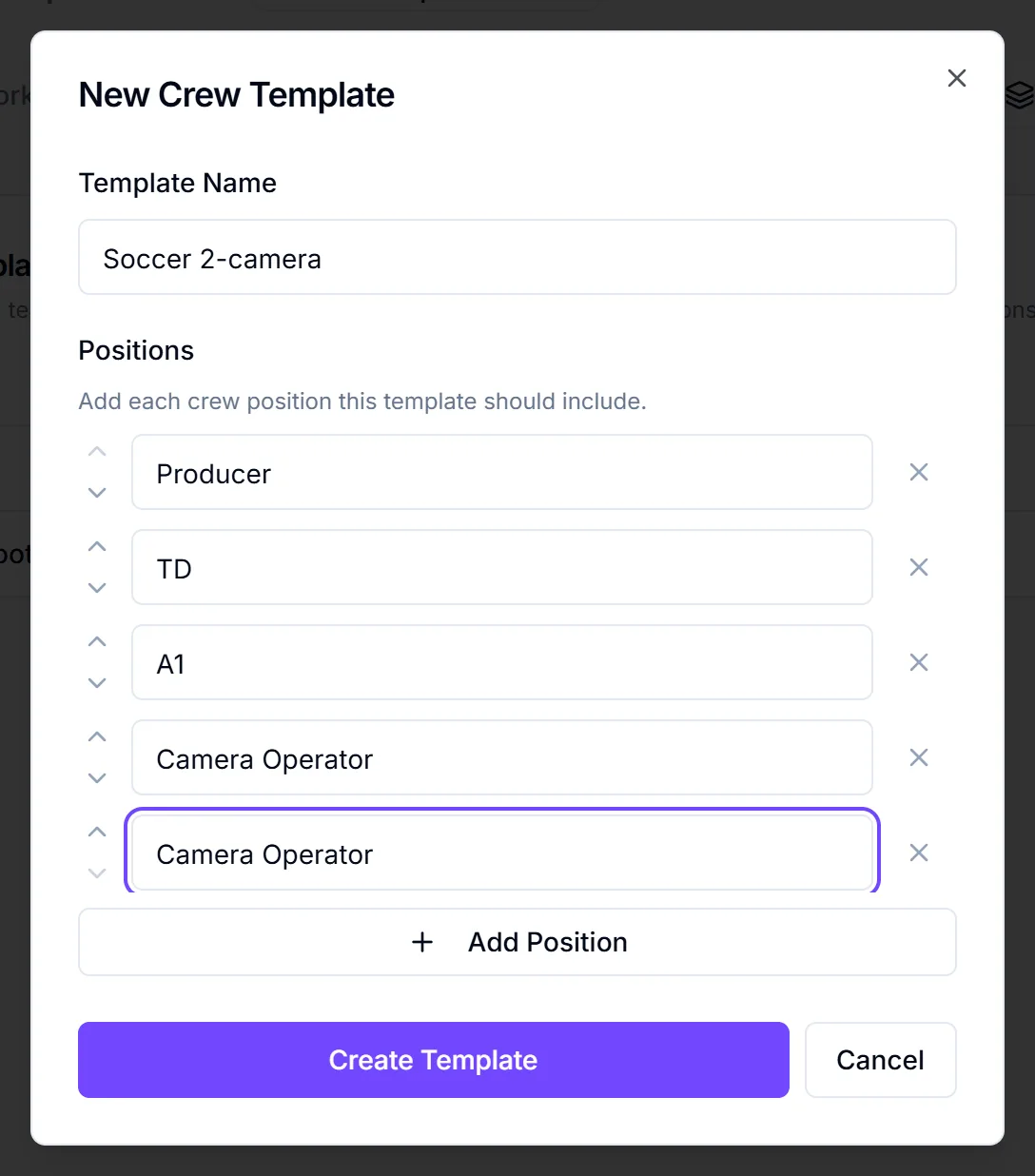
- Click New Template. The New Crew Template dialog opens.
- Enter a Template Name, for example "NBA Broadcast".
- Under Positions, type one position per box. Click Add Position for another row, use the up and down arrows to change the order, and click X to remove a row.
- Click Create Template.
You'll see "Template created". Blank rows are dropped. Add a position once for each slot: three boxes of "Camera Operator" give the event three camera slots.
Template positions are free text. They aren't picked from your team's position list, so type them the way they appear there to keep events consistent.
Edit or delete a template
- Edit: click the pencil on the template's row, change it in the Edit Template dialog and click Save Changes. Your edit replaces the template's whole position list. Events that already used it don't change.
- Delete: click the delete icon, then Delete in the Delete Template? dialog. Events that already used it aren't affected.
Only team admins can create, edit and delete templates. Managers and team admins can apply them.
Apply a template when you create an event
- Start a new event.
- In Crew Setup, choose a template from Crew Position Template (optional).
- Save the event.
The positions are added to the event's crew after it's created. The field only appears when you're creating an event, not editing one, and only if your team has templates. If the template can't be applied, you'll see "Crew template not applied" and can apply it from the crew card instead.
Apply a template to an existing event
- Open the event and find the Crew Assignments card.
- Click the ⋯ button (titled "Apply template").
- Under Apply Template, click the template.
If the event has no crew positions yet, the template applies straight away. You'll see "Template applied". You need to own the event or have Edit or Full access to see the button.
Applying replaces every crew position on the event
If the event already has crew positions, CrewdUp asks Replace Current Positions? Clicking Apply Template removes all current crew positions and their assignment records, then adds the template's positions. Confirmed crew lose their spot and aren't told. Rates and budget details on the old positions are lost. This can't be undone.
What the new positions look like
Each template position becomes an open crew position on the event, with no one assigned and no rate. Fill them as usual. See assign crew to positions.
Things to know
- Apply templates before you staff. Applying after you've assigned people wipes those assignments. If you only need a few extra positions, add them by hand instead.
- Templates hold positions only. They don't carry rates or people.
- Tell crew if you replace a staffed event. CrewdUp doesn't notify anyone whose assignment was removed. See change or remove an assignment.
Checklist
- Template saved with one row per slot
- Position names match your team's list
- Applied before anyone was assigned
- Crew told if a template replaced their assignment