

Skill tags are labels like "Camera Operator", "A1" or "Replay" that you attach to crew members. Once your crew are tagged, typing a skill into the roster search shows everyone who has it, which is the fastest way to find people when you're filling positions.
Your team's crew skill tags are managed on the Team Admin page, which only team admins can open.
Short version
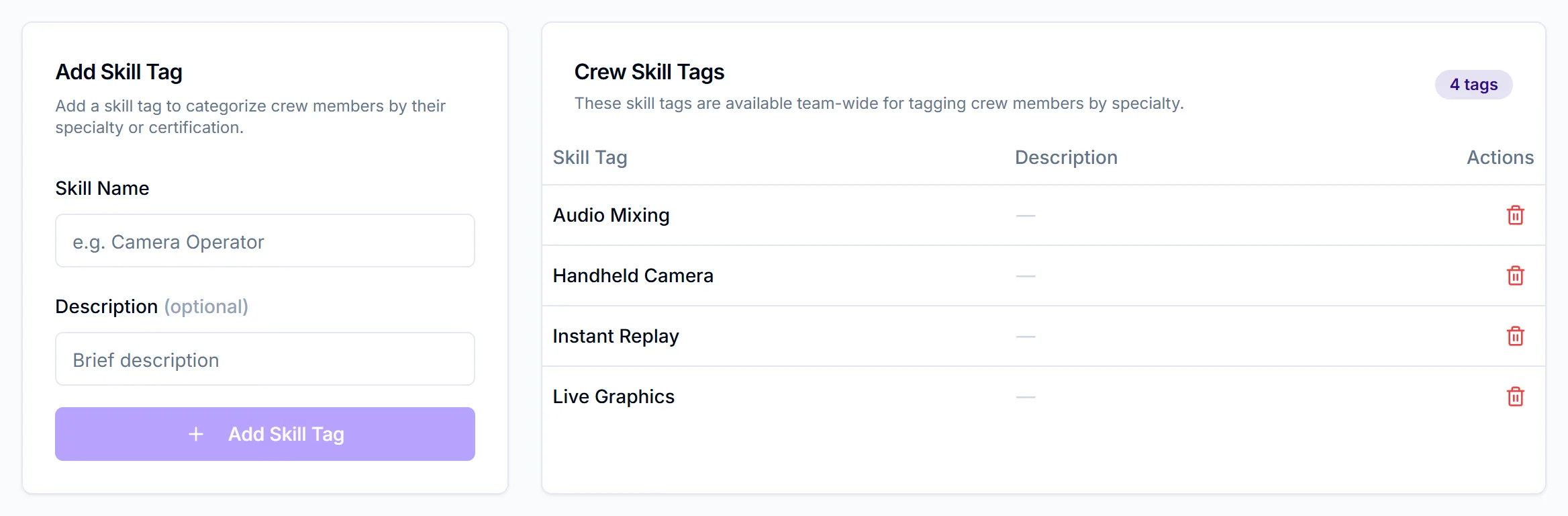
A team admin goes to Team Admin, opens the Skill Tags tab, enters a Skill Name and clicks Add Skill Tag. Then tick tags on each crew member when you add or edit them.
Add a crew skill tag
- Click Team Admin in the sidebar.
- Open the Skill Tags tab.
- In the Add Skill Tag card, enter a Skill Name, for example "Camera Operator".
- Optional: add a Description (optional), such as a certification it covers.
- Click Add Skill Tag, or press Enter in the name box.
You'll see "Skill tag added", and the tag appears in the Crew Skill Tags list with its description. Tags are available to everyone on your team.
Tag your crew
Tags show as checkboxes in two places:
- The Add Crew Member dialog, under Skills (Optional). See add a crew member.
- A crew profile, under Skills & Expertise, when you click Edit Details. See crew profiles.
You can't create a tag from either place. Add it in Team Admin first.
Bulk upload is the exception: skill names in the CSV's skills column are matched to your tags, and any name that doesn't match creates a new tag.
Find crew by skill
On the Crew Members page, type a skill name into Search crew members.... The search matches skill names as well as names, emails and phone numbers. There's no separate skill filter dropdown.
The roster's Skills column shows each person's first three tags, then "+N" for the rest.
Remove a tag
- In the Crew Skill Tags list, click the trash icon on the tag.
- Read the Remove skill tag? dialog, then click Remove.
Removing a tag takes it off everyone
Removing a tag removes it from every crew member who has it. This can't be undone. If you add the tag again, you'll need to re-tick it on each person.
Talent tags
Talent have their own, separate skill tags. When you edit a talent profile, you can tick the talent tags that already exist. Talent tags can't be created, renamed or deleted from the web app yet, and Team Admin has no talent tags tab.
Things to know
- Tags can't be renamed. To fix a spelling, add the corrected tag, re-tick it on the people who need it, then remove the old one.
- Duplicate names are allowed. CrewdUp won't stop you adding "Camera Operator" twice, so check the list first.
- Some tags can't be removed. Your list may include older built-in tags that aren't owned by your team. Trying to remove one shows "Skill tag not found or does not belong to your team".
- Managers can't manage tags. Only team admins can open Team Admin. Managers tick existing tags on crew.
- Add at least one tag early. If your team has no crew skill tags, the crew profile edit form currently opens blank.
Checklist
- Tags created for every role you staff
- Names checked for duplicates and typos
- Tags ticked on each crew member
- Roster search tested with a skill name