

If you're moving a crew list out of a spreadsheet, bulk upload adds everyone at once. You download CrewdUp's CSV template from the Crew Members page, fill in a row per person and upload it. CrewdUp creates a crew record for each good row and lists any rows it couldn't add.
Bulk upload is on Starter and Pro. Team admins and managers can use it.
Short version
Go to Crew Members, click Bulk Upload, then Download Template. Fill it in with the column names exactly as they are, click the upload area to choose your file, and click Upload Crew Members.
Get the template
- Click Crew Members in the sidebar.
- Click Bulk Upload. The Bulk Crew Member Upload dialog opens.
- In the CSV Template card, click Download Template. CrewdUp saves
crew_members_template.csvto your computer. - Optional: click Show Required Fields to see which columns are required.
Fill in the columns
The first row must be the header row, with these names exactly: firstName,lastName,email,phone,state,skills. The names are case-sensitive, so FirstName or First Name won't match and every row will fail.
| Column | Required | What to put |
|---|---|---|
firstName | Yes | First name |
lastName | Yes | Last name |
email | Yes | Their email address |
phone | No | Any format |
state | No | Stored exactly as you type it |
skills | No | Skill names, comma-separated, in one quoted cell |
For skills, put the whole list in one cell inside quotes, for example "Camera Operator,Audio Technician". Each name is matched to your team's crew skill tags, ignoring capitals.
Unknown skill names become new tags
If a skill name doesn't match an existing tag, CrewdUp creates a new crew skill tag on your team. A typo like "Camra Operator" adds a new tag you'll need to remove by hand. Check spellings against your skill tags before you upload.
Extra spaces are trimmed and empty lines are skipped. There's no region column, so you can't set regions by CSV.
Upload the file
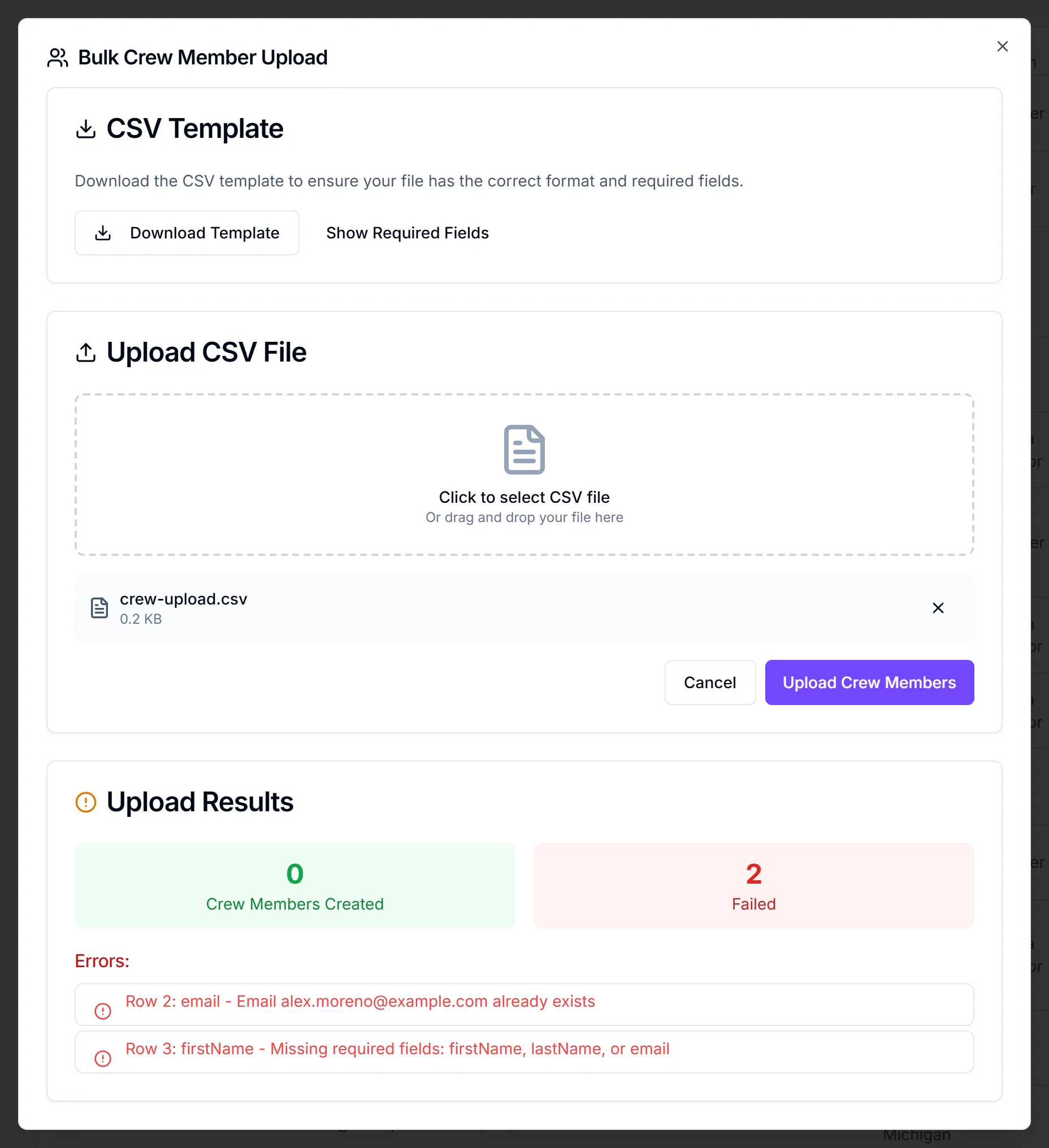
- In Upload CSV File, click the upload area (Click to select CSV file) and choose your
.csvfile. The area also mentions drag and drop, but that doesn't work yet, so click to choose the file. - Check the file name and size that appear. Click X to clear it and pick another.
- Click Upload Crew Members. It shows "Uploading..." while it runs.
The file must be a .csv and 5 MB or smaller. There's no limit on the number of rows. Picking another file type shows "Please select a CSV file".
Read the results
The Upload Results card shows how many crew were created and how many failed, a list under Successfully Created Crew Members:, and an Errors: list with one line per bad row, such as "Row 4: email - ...".
Good rows are kept even when others fail. Fix the failed rows in a new file with only those rows, and upload it again.
| Error | What to do |
|---|---|
| "Missing required fields: firstName, lastName, or email" | Fill in all three on that row |
| "Email ... already exists" | See below |
| "Invalid CSV format" | Re-save the file as CSV from your spreadsheet app |
| "This feature requires the starter plan or higher." | Bulk upload needs Starter or Pro |
If a row fails as already existing but the person isn't on your roster, add them one at a time with add a crew member.
What happens next
- Each new crew record is on your team, with you as its Crew Manager and assigned manager.
- No emails are sent. Nobody is told they've been added.
- The new crew can be assigned to events straight away.
Things to know
- Email addresses aren't checked in bulk. A typo in an email column is saved as is, and that person won't get invites. Check the column before you upload.
- State isn't checked either. Use the same spelling throughout, so the roster stays consistent.
- The button shows on Free, but the upload fails with the plan message above.
Checklist
- Template downloaded and header row left exactly as it is
- Every row has firstName, lastName and email
- Skill names match your existing tags
- File saved as .csv, under 5 MB
- Upload Results checked and failed rows re-uploaded