

Regions let you split your crew into local areas inside or across states, such as "Greater Los Angeles" and "South Bay". When you're staffing an event, you can filter the roster down to the crew who work near the venue.
Regions are set up on the Team Admin page, so only team admins can create, edit or remove them. They apply to crew only. Talent don't have regions.
Short version
A team admin goes to Team Admin → Regions, enters a Region Name and clicks Add Region. Pick a region when you add each crew member, then use All regions on the roster to filter.
Create a region
- Click Team Admin in the sidebar.
- Open the Regions tab.
- In the Add Region card, enter a Region Name, for example "Greater Los Angeles".
- Optional: choose a State (optional). The list uses two-letter codes and includes DC.
- Click Add Region.
You'll see "Region added", and the region appears in the Crew Regions list with its state.
Region names must be unique on your team. Adding a name you already have shows "A region with that name already exists".
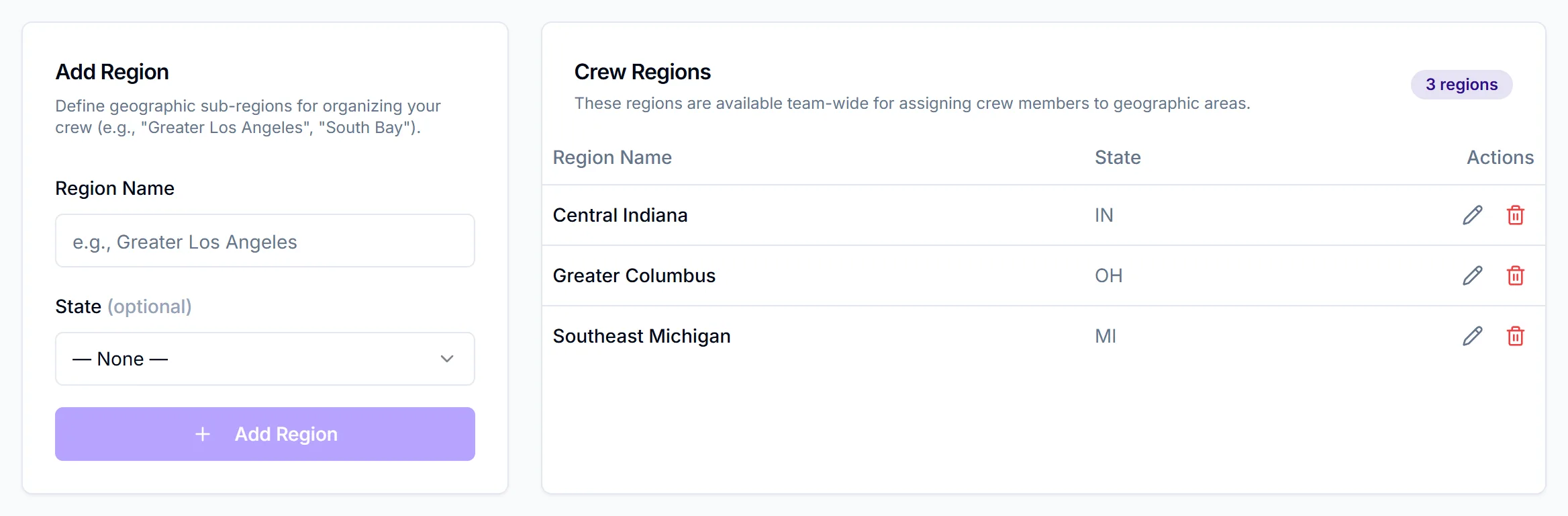
Edit a region
- In the Crew Regions list, click the pencil on the region.
- Change the name or state in the row.
- Click Save, or X to cancel.
You'll see "Region updated". Crew in that region keep it, with the new name.
Put crew in a region
You choose a region when you add a crew member:
- Go to Crew Members and click Add Crew Member.
- Pick the region from Region (Optional). Each one shows as its name and state, such as "South Bay (CA)".
- Finish adding them as usual. See add a crew member.
Region (Optional) only appears once your team has at least one region.
There's no way to change a crew member's region after you've added them, and bulk upload has no region column. Editing a crew profile currently clears its region; we're fixing this.
Filter the roster by region
On the Crew Members page, a Region column shows each person's region, and the All regions dropdown filters the list to one region. Both appear only when your team has regions. The filter is on desktop only, not on phones.
The search box also matches skill names, so you can look for a skill such as "Camera Operator" on the same page. See tag crew and talent by skill.
Remove a region
- In the Crew Regions list, click the trash icon on the region.
- Read the Remove region? dialog, then click Remove.
Removing a region unassigns it from your crew
Removing a region takes it off every crew member in it. This can't be undone, and since you can't set a region after adding someone, those crew stay without a region.
Things to know
- Plan regions before you add crew. The region is set at the moment you add someone, so create your regions first.
- One region per crew member. The dropdown takes a single choice.
- Regions are separate from State. A crew member's State (Optional) is its own field, set apart from the region you pick.
Checklist
- Regions created before adding crew
- Region chosen for each new crew member
- Roster filter checked on desktop