

Each crew member and talent in CrewdUp can have one or more assigned managers. This is what decides which events they see when they sign in: they see every event owned by one of their assigned managers, plus any event they're directly assigned to.
Team admins and managers can change assignments, from the roster, from a profile or from the Team Admin page.
Short version
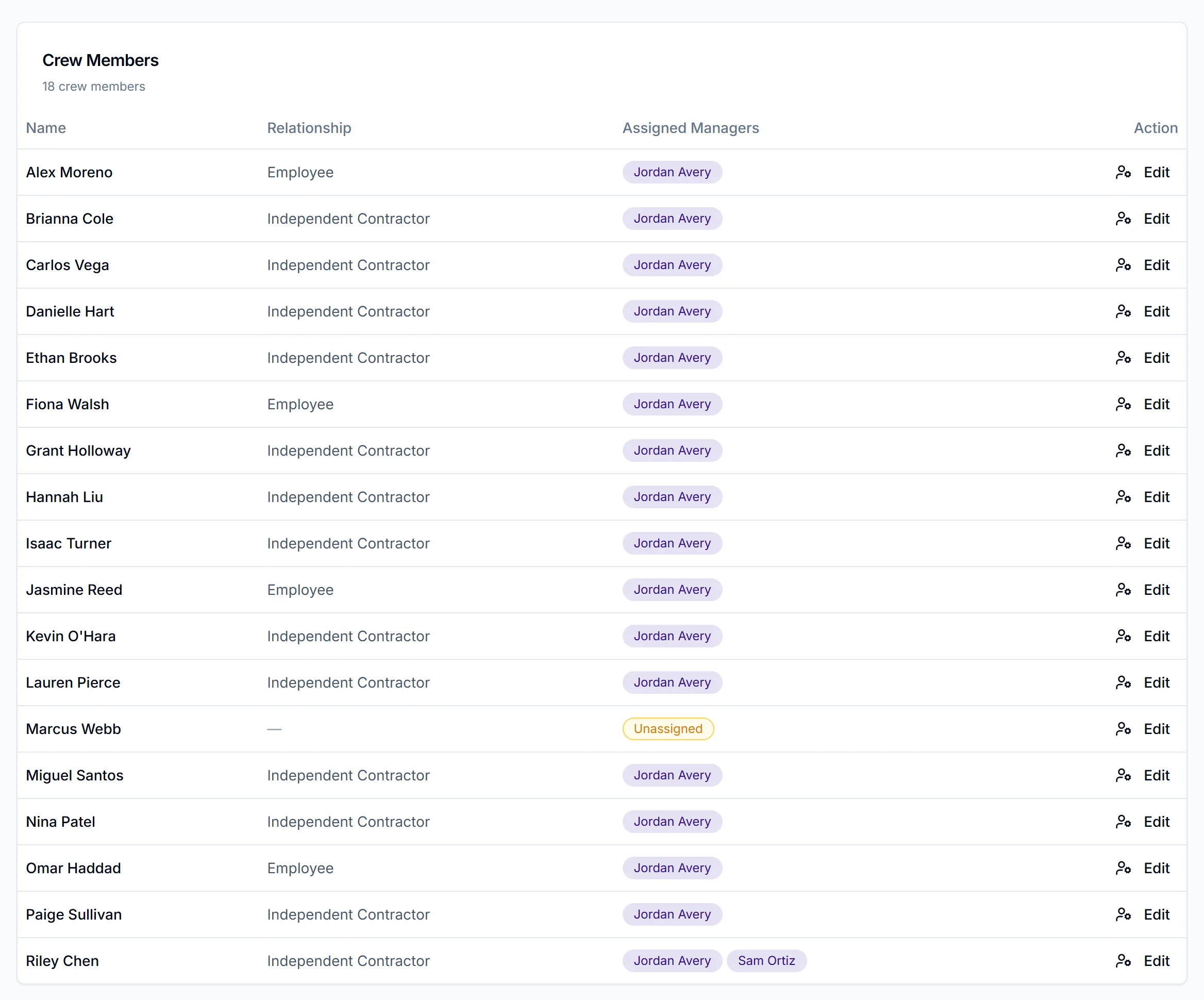
On Crew Members or Talent Members, click the person-gear icon in the Assigned Managers column. Tick the managers this person works for and click Save. Your selection replaces their current managers.
Open the Assign Managers dialog
All three of these open the same Assign Managers dialog:
- From the roster: on Crew Members or Talent Members, click the person-gear icon (titled "Edit manager assignments") in the Assigned Managers column.
- From a profile: open the crew or talent profile. In Internal Information, click Edit next to Assigned Managers.
- From Team Admin: team admins can open Team Admin → Assignments, find the person in the Crew Members or Talent Members card, and click Edit. The Filter by name... box narrows the list.
The Assignments tab is the quickest way to spot people marked Unassigned.
Choose managers
- The dialog lists everyone on your team with the Team Admin or Manager role, with their email and role.
- Tick each manager this person works for, and untick any who no longer apply. The count shows as "N managers selected".
- Click Save.
You'll see "Managers updated". The change applies straight away.
Save replaces the whole list
The managers ticked when you click Save become the person's full set of assigned managers. Unticking someone removes them, and the crew member stops seeing that manager's events, apart from events they're directly assigned to.
What assigned managers change
| For | What it controls |
|---|---|
| Crew and talent | They see events owned by their assigned managers in their event list and upcoming events |
| Crew with no assigned manager | They see only events they're directly assigned to |
| Crew roster seen by crew | Crew see the crew of their assigned managers; talent likewise see other talent |
| Managers and talent profiles | A manager can open a talent profile only if they're assigned to that talent |
What it doesn't change: managers still see every crew member and talent on the team, and can assign any of them to events. Assigned managers don't limit who a manager can staff.
Who starts with which manager
- Crew you add by hand or by bulk upload start with you as their assigned manager.
- Crew who join through a join link get the manager chosen on that link, if one was set. See create join links.
- Talent you invite start as Unassigned. Check them once they've signed up, and assign a manager if the column is still empty.
- Talent who join through a join link don't get the link's manager yet, so assign one after they sign up.
Related fields that aren't the same thing
- Crew Manager on a crew profile is a separate, single field. It's set to whoever added the record. The Assign Managers dialog doesn't change it.
- Assign Manager on the Members tab. In Team Admin → Members, signed-up crew have a person-gear icon that opens an Assign Manager dialog. It adds one manager ("They'll immediately see that manager's events.") and never removes anyone. Use the Assign Managers dialog above when you need to remove a manager.
Things to know
- Every chosen manager must be on your team. You can only pick from the list the dialog shows.
- "No managers available on this team." means nobody on the team has the Manager or Team Admin role. See roles explained.
- Removing every manager hides events. A crew member with no assigned managers sees only the events they're directly assigned to.
Checklist
- Nobody important left Unassigned
- New talent given a manager after they sign up
- Each person ticked to every manager whose events they work