

A join link is a web address you can share by text, email or a group chat. Anyone who opens it can create a CrewdUp account and join your team in the role you chose, without you adding them one by one. It's the quickest way to get a whole crew signed in.
Join links are made on the Team Admin page by team admins. Creating them is on Starter and Pro.
Short version
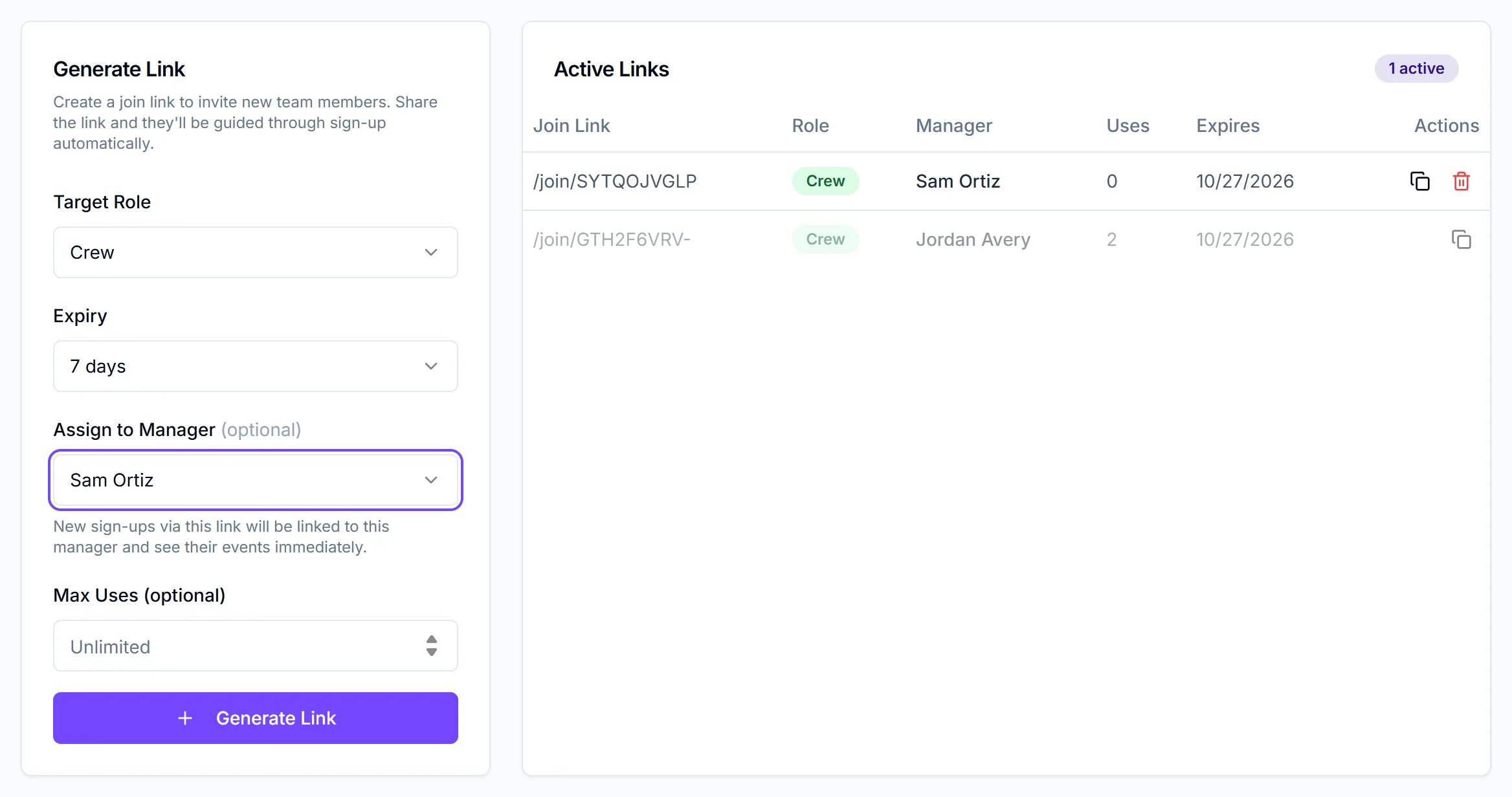
Go to Team Admin → Join Links, pick a Target Role, an Expiry and optionally a manager and Max Uses, then click Generate Link. Copy the link from Active Links and share it.
Generate a link
- Click Team Admin in the sidebar and open the Join Links tab.
- In the Generate Link card, choose a Target Role: Crew (the default), Talent or Manager.
- Choose an Expiry: No expiry (the default), 7 days or 30 days, counted from when you create the link.
- Optional, for Crew links: choose a manager under Assign to Manager (optional). People who sign up through the link are assigned to that manager and see their events.
- Optional: set Max Uses (optional). Leave it blank for unlimited.
- Click Generate Link.
You'll see "Invite code created", and the link appears in the Active Links table.
Share the link
In Active Links, click the copy icon on the row. The full link is copied, and a check mark shows for 2 seconds. Paste it wherever your crew will see it.
| Column | What it shows |
|---|---|
| Join Link | The link's code. Hover to see the full address |
| Role | The role people join with |
| Manager | The manager new crew are assigned to |
| Uses | How many people have used it, out of the max if you set one |
| Expires | The date, or "Never" |
Links that are revoked, expired or used up stay in the list, greyed out.
What people see when they open it
The page says "You're invited!" with your team name and the role. Below a short list of what they'll be able to do, there's a Create your account form for first name, last name, email and password.
When they sign up:
- They join your team with the link's role, and the link's use count goes up.
- Crew and talent get a roster profile. If their email matches a crew or talent record already on your team with no account, their new account is linked to that record instead. Crew keep the assignments already on their record.
- Crew are assigned to the link's manager, if you chose one.
A link that has expired, been revoked or reached its max uses shows "Invalid or Expired Link" and asks them to get a new one from you. For the crew side of this, see join a team.
Revoke a link
- Click the trash icon on the link's row.
- Click Revoke in the Revoke Code? dialog.
You'll see "Code revoked". The link stops working for new sign-ups. People who already joined through it stay on your team. Revoked links aren't deleted: they stay in the list, greyed out.
Things to know
- Talent links don't assign a manager yet. The manager box shows for Talent links, but talent who join through one have no assigned manager. Assign one after they sign up. See assign managers to crew and talent.
- Don't switch the manager back to "No manager assigned". If you choose a manager and then change your mind, Generate Link currently fails with "Specified manager does not belong to this team". We're fixing this.
- The Expiry box goes blank after you generate. The next link still defaults to no expiry, so choose an expiry again if you want one.
- Manager links give real access. Anyone with a Manager link can join as a manager. Set Max Uses to 1 or a short expiry, and share it only with that person.
- Team Admin isn't a link role. To make someone a team admin, change their role after they join. See invite team members by email.
Checklist
- Right role chosen
- Expiry and max uses set for anything other than an open crew link
- Manager chosen for crew links
- Link copied and shared
- Old links revoked when you're done with them