

Every person on your crew roster has a profile page. It holds their contact details and skills, a private Internal Information card that only managers and team admins see, and a list of every event they've been assigned to, with rates and paid status.
You open profiles from the Crew Members page. Team admins and managers can view and edit everything.
Short version
Go to Crew Members and click a row. Click Edit Details to change their information, then Save Changes. Rates and paid status are read-only here: they come from event budgets.
Find someone on the roster
The Crew Members list shows each person's name, email and phone. Managers and team admins also see Relationship, State Worked, Region (if your team has regions), Typical Position, Assigned Managers and the first three Skills.
- Search ("Search crew members...") matches name, email, phone and skill names. To find every camera operator, type the skill name.
- All regions filters by region. It's on desktop only, and only when your team has regions.
- "Invited • Pending" under a name means they were invited and haven't created an account yet.
The banner at the top names your active workspace, but the list always shows your whole team's crew. It isn't filtered by workspace.
Open a profile
Click a row, or open the row's ⋯ menu and choose Edit Details. Back to Crew Members returns you to the list.
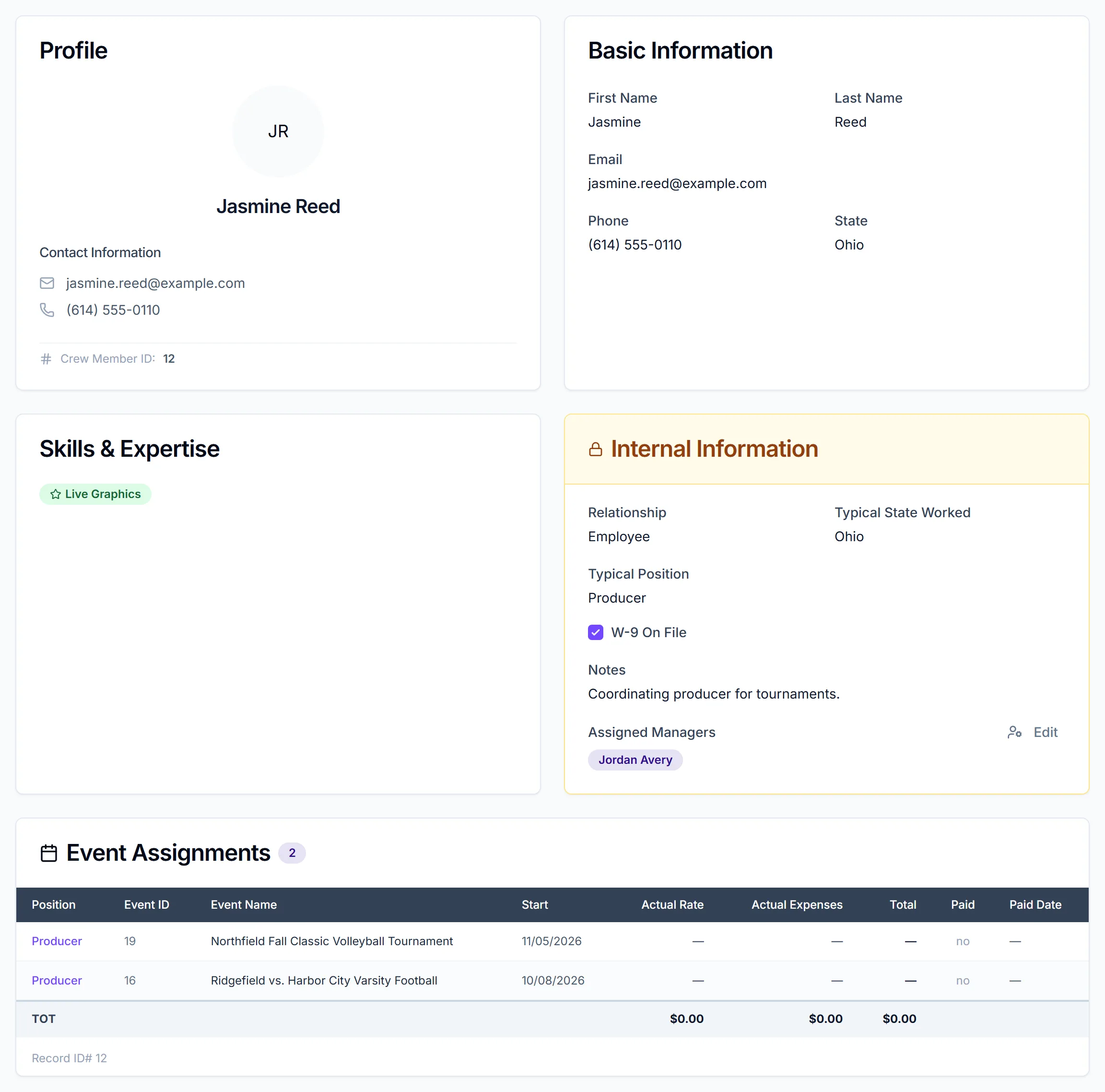
What's on the profile
| Section | What it shows |
|---|---|
| Profile | Photo, name, email, phone and Crew Member ID |
| Basic Information | First Name, Last Name, Email, Phone, State |
| Skills & Expertise | Their skill tags, or "No skills assigned yet" |
| Internal Information | Private details for managers and team admins (below) |
| Event Assignments | Every event they've been assigned to, with a count |
Internal Information
This amber card with a lock icon is hidden from crew. It holds:
- Relationship: Employee or Independent Contractor.
- Typical State Worked.
- Crew Manager: a single manager, set to whoever added the record.
- Typical Position: picked from your team's position list.
- Assigned Managers: with an Edit button. See assign managers to crew and talent.
- W-9 On File: a checkbox for your own records. CrewdUp doesn't collect or store W-9 forms.
- Notes: free text for internal notes.
Event Assignments
Managers see a table with Position, Event ID, Event Name, Start, Actual Rate, Actual Expenses, Total, Paid and Paid Date, with a TOT totals row at the bottom. Click a row to open that event.
Rates, expenses and paid status are read-only on the profile. They come from each event's budget. To change them, see mark crew paid.
The table lists event assignments only. Game-level assignments on multi-day events aren't included.
Edit a profile
- Open the profile.
- Click Edit Details.
- Change the fields you need, and tick or untick skills.
- Click Save Changes, or Cancel to throw away your changes.
You'll see "Crew member updated successfully". First and last name are required, and the email must be valid ("Valid email is required").
What crew see
Crew can open profiles too, but CrewdUp hides the Internal Information card and the rates table from them. Instead of the table, crew see their assignments as cards, with the event title, position, date and start time, location and status.
Things to know
- Editing clears the region. There's no region field on the profile. Editing a crew profile currently clears its region; we're fixing this.
- With no skill tags, the edit form opens blank. If your team has no crew skill tags yet, Edit Details shows empty fields and saving would overwrite the record. Add at least one skill tag before you edit a profile.
- Name and email edits may not show for crew who've signed up. The profile displays the name and email from their own account, so your edit is saved to the crew record but the page keeps showing their account details.
- Washington, D.C. is in the profile's state list, though not in the Add Crew Member dialog.
Checklist
- Contact details current
- Skills ticked so search finds them
- Relationship, Typical Position and W-9 On File set
- Assigned managers checked