

A tournament, a weekend series or a three-day festival is one event in CrewdUp with several games inside it. Two separate fields make that work: Event Type, which turns on the games list, and End Date, which spreads the event across the calendar. Set both.
Short version
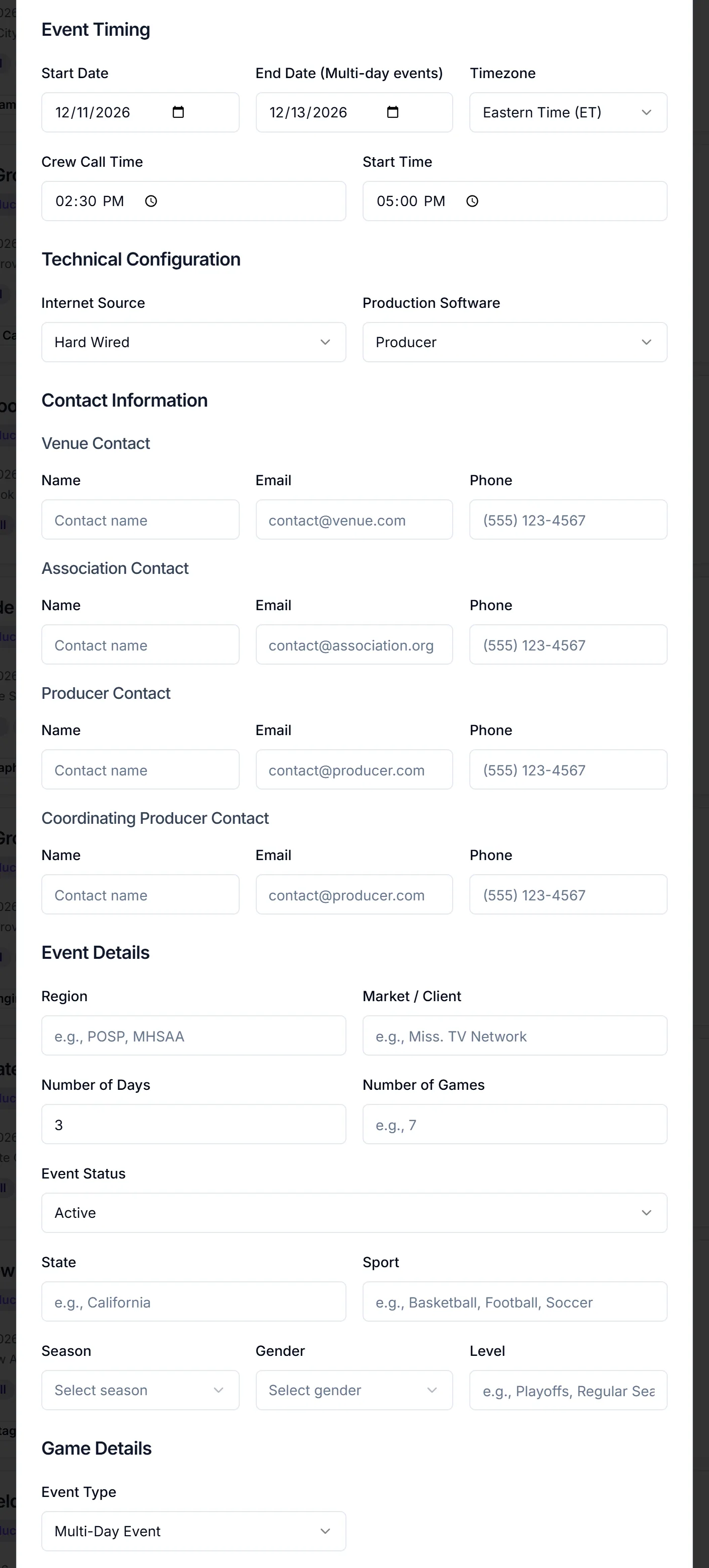
On the Create New Event form, set Event Type to "Multi-Day Event" under Game Details, and fill in End Date (Multi-day events) under Event Timing. Then add games on the Games & Talent tab.
What multi-day changes
| Setting | What it does |
|---|---|
| Event Type: "Multi-Day Event" | The Games & Talent tab shows an Event Games list with Add Game and Bulk Add Games (CSV) |
| End Date | The Events list shows "start - end", and the calendar shows the event on every day in between |
A "Single Game" event shows Talent Assignments for the whole event on that tab instead of games.
The two settings don't depend on each other. A "Single Game" event can have an End Date, and then it spans the calendar but has no games list. A "Multi-Day Event" with no End Date has games but shows on one day only.
Set it up when you create the event
- Go to Events and click Create Event.
- Fill in the basics. See create your first event.
- Under Event Timing, set Start Date and End Date (Multi-day events).
- Set Crew Call Time and Start Time for the first day.
- Under Game Details, set Event Type to "Multi-Day Event".
- Click Create Event.
Change an existing event to multi-day
- Open the event and click Edit Event.
- In the Event Timing card in the sidebar, set End Date (Multi-day) and set Event Type to "Multi-Day Event".
- Click Save Changes.
The Games & Talent tab now shows the games list.
Add the games
With Event Type set, open the Games & Talent tab and add each game, or upload the whole schedule:
Then assign talent by game.
Things to know
- One crew call for the whole event. Crew Call Time and Start Time are a single pair for the event. There are no separate call times per day. Put day-by-day call times in Production Notes, or in an attachment.
- Days aren't created for you. CrewdUp doesn't generate a day or game for each date in the range.
- Number of Days and Number of Games are labels. Typing "3" doesn't create three days. Only games you add appear on the Games & Talent tab.
- Crew are staffed for the whole event. Crew positions sit on the event, not on games. Games carry talent only. See assign crew to positions.
- Times are venue time. Event times are shown as typed, with the Timezone as a label. Game times work differently; see add games to an event.
Checklist
- Start Date and End Date set
- Event Type set to Multi-Day Event
- Day-by-day call times noted in Production Notes if they vary
- Games added on Games & Talent