

A multi-day event holds a list of games: the semifinals, the final, each session of a weekend. You add them on the event's Games & Talent tab. Each game then gets its own talent assignments.
Short version
Open a multi-day event, go to Games & Talent, click Add Game, and enter Game Title, Start Date and Start Time. Game times are shown in each viewer's own timezone, so enter them carefully.
Before you start
- The event must be a multi-day event. If you don't see Add Game, set Event Type to "Multi-Day Event". See set up a multi-day event.
- You need to be a team admin or manager.
- Got the whole schedule in a spreadsheet? Bulk add games from a CSV instead.
Add a game
- Open the event from Events in the sidebar.
- Click the Games & Talent tab.
- Click Add Game. The "Add New Game" dialog opens.
- Fill in:
- Game Title, for example "Championship Game" or "Semifinal 1"
- Start Date
- Start Time, a 24-hour time input
- Description (Optional)
- Save the game.
You'll see "Game Created" and "New game has been added to the event." If the title, date or time is missing, you'll see "Missing Information" and "Please provide game title, date, and time."
Repeat for each game. CrewdUp doesn't check that the game date falls inside the event's dates, so double-check them.
Game times use your computer's timezone
Game times work differently from event times:
- Event times are shown exactly as typed, with the event's Timezone as a label.
- Game times are saved using the timezone of the computer you add them from, and shown in each viewer's own timezone.
So a game you add as 7:00 PM from a computer set to Eastern shows as 6:00 PM to someone viewing in Central. Add games from a computer set to the venue's timezone, or work out the time in your own timezone first.
Games uploaded from a CSV use the event's Timezone instead. See bulk add games.
The games list
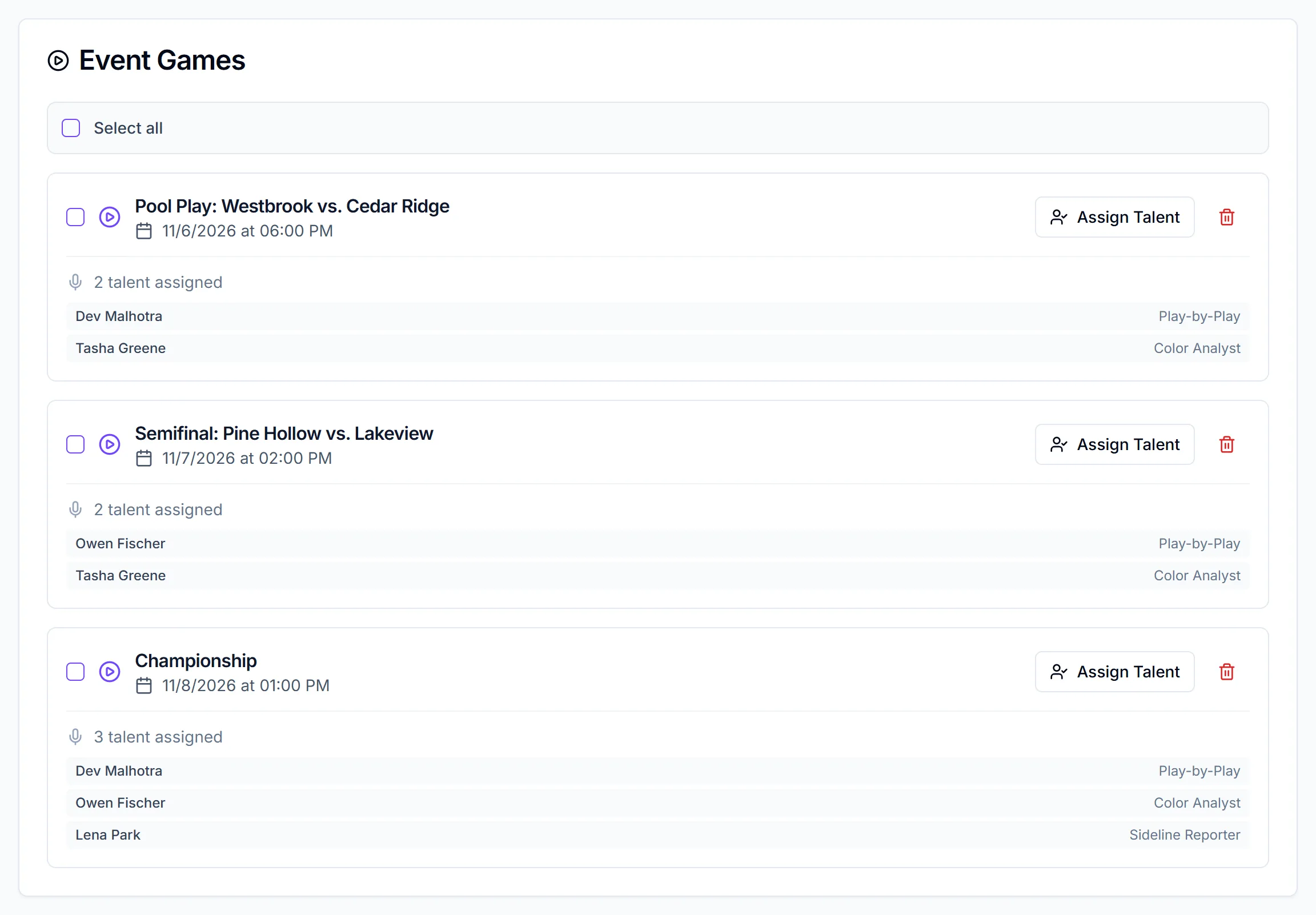
Games are listed by start time. Each one shows:
- "{date} at {time}"
- "{n} talent assigned", with the talent names and positions
- Assign Talent
- a trash icon
Click Assign Talent to add on-air talent to that game. See assign talent by game.
If the event has no games yet, you'll see "No games added yet".
Delete games
- One game: click its trash icon and confirm. The warning reads "Are you sure you want to delete this game? This will also remove all talent assignments for this game."
- Several: tick the games, or "Select all", then click Delete Selected ({n}).
Deleting a game removes its talent
Deleting a game also removes every talent assignment on it. This can't be undone.
Things to know
- Games can't be edited. To fix a title, date or time, delete the game and add it again, then reassign its talent.
- The description isn't shown. What you type in Description (Optional) is saved but doesn't appear on the game yet. Put game notes in the title or the event's Production Notes for now.
- No end time. Games have a start time only.
- Crew aren't assigned per game. Crew positions are on the event. Games carry talent only.
Checklist
- Event Type set to Multi-Day Event
- Computer set to the venue's timezone, or times adjusted
- Every game added with the right date and time
- Talent assigned to each game