

An event in CrewdUp has more fields than you need on day one. This guide walks through each group, first on the Create New Event form and then on the Event Details page, so you know what each field does, who sees it, and which ones only exist after the event is created.
Short version
Only Event Title, Location, Start Date, Timezone, Crew Call Time and Start Time are required. To change anything later, open the event, click Edit Event, change the fields in place and click Save Changes.
Required fields
| Field | Error if missing |
|---|---|
| Event Title | "Event title is required" |
| Location | "Location is required" |
| Start Date | "Event date is required" |
| Timezone | "Timezone is required" |
| Crew Call Time | "Crew call time is required" |
| Start Time | "Start time is required" |
Email fields must be valid addresses or blank. Schedule Link and Stream Link must be full URLs or blank.
Timing and timezone
Event Timing holds Start Date, End Date (Multi-day events), Timezone, Crew Call Time and Start Time.
The timezone choices are Eastern Time (ET), Central Time (CT), Mountain Time (MT), Arizona Time (MST), Pacific Time (PT), Alaska Time (AKST) and Hawaii Time (HST). Eastern is the default.
Timezone is a label, not a conversion
CrewdUp stores the times exactly as you type them and shows the timezone next to them. A crew member in another timezone still sees the time you typed. Always enter times as local venue time.
There is one crew call time and one start time per event. There's no end time field.
Location, technical and contacts
- Location Details: Location (the venue name, shown as "Venue Name" on the Event Details page) and Location Address.
- Technical Configuration: Internet Source, Production Software, and RTMP Server and Broadcast Key when RTMP is chosen. See record production and stream details, including who can see the broadcast key.
- Contact Information: four contacts, each with a name, email and phone: Venue Contact, Association Contact, Producer Contact and Coordinating Producer Contact.
Event details and game details
Event Details is for sorting and reporting:
| Field | Notes |
|---|---|
| Region | For example "POSP, MHSAA" |
| Market / Client | For example "Miss. TV Network" |
| Number of Days | Free text. It doesn't create days |
| Number of Games | Free text. It doesn't create games |
| Event Status | Budget, Active, Completed, Cancelled, Pending or Suspended. Default Active |
| State | Used for calendar colors and filters |
| Sport | |
| Season | Fall, Winter or Spring |
| Gender | Girls, Boys or Both |
| Level | For example Playoffs, Regular Season, Championship |
State, Sport, Gender, Season and Level feed the filter dropdowns on the Events page. See find and filter events.
Game Details holds Event Type ("Single Game" or "Multi-Day Event"), Schedule Link and Stream Link. Event Type decides what the Games & Talent tab shows. See set up a multi-day event.
The form ends with Crew Setup (only if your team has templates) and Production Notes.
The Event Details page
Open any event to see its page. The header shows the title, "Event ID: {id}", the event type and the Event Status. Editors also see Send Tech Book, Download Tech Book (desktop only), Mark as Complete and Edit Event.
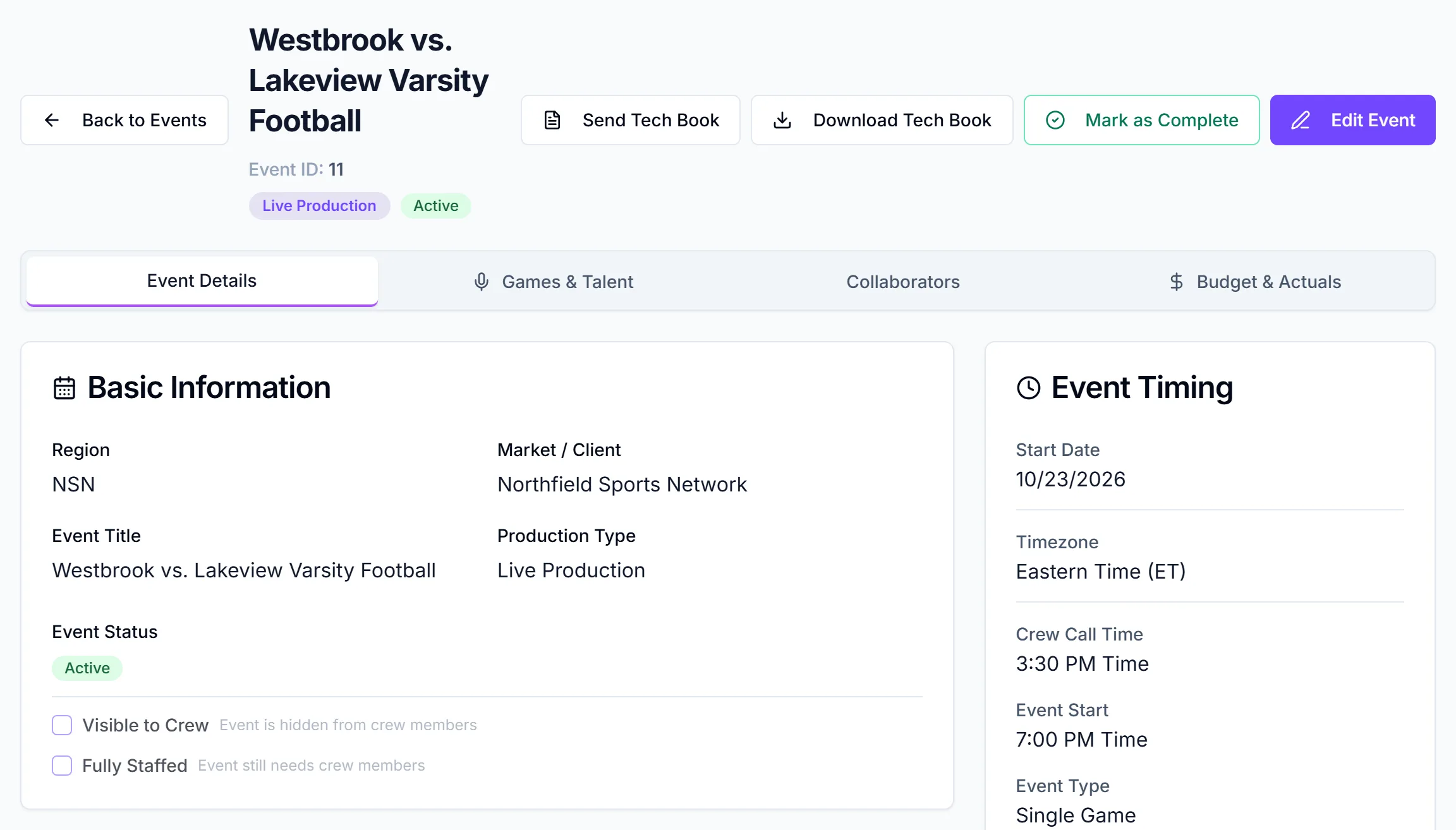
The main column has these cards: Basic Information, Event Details, Location Details, Technical Configuration, Production Notes and Sponsorship. The sidebar has Event Timing, Contact Information, Links, Attachments and Rundowns.
Managers also see Region, Market / Client, Visible to Crew and Fully Staffed in Basic Information.
Fields you can only set on the Event Details page
These aren't on the Create form:
- Commercial Download Link and Commercial Notes, in the Sponsorship card.
- Producer in Charge, a dropdown of your team admins, in Contact Information.
Editing
- Open the event and click Edit Event.
- Change fields in place. Times use an hour, minute and AM/PM picker.
- Click Save Changes, or Cancel.
You'll see "Event Updated" when it saves. Only the fields you changed are sent. Owners and collaborators with Edit or Full access can edit. See edit and delete events.
Things to know
- Number of Days and Number of Games are labels. To add real games, use the Games & Talent tab on a multi-day event. See add games to an event.
- End Date shows on the page only when it's set, or while you're editing.
- The Links card shows "View Schedule" and "Watch Stream", or "No schedule link provided" and "No stream link provided".