

When a tournament has a dozen games, typing each one is slow. Bulk Add Games (CSV) on a multi-day event takes a CSV of the schedule and creates every game in one go. The whole file has to be right: if any row has a problem, no games are added.
Short version
Open a multi-day event, go to Games & Talent, click Bulk Add Games (CSV), then Download Template. Fill in Title, Date as YYYY-MM-DD and Time as 2:00 PM, then click Upload & Create Games.
Before you start
- The event must be a multi-day event. Otherwise the upload fails with "Bulk game upload is only available for multi-day events". See set up a multi-day event.
- Check the event's Timezone. Times in the CSV are read in the event's timezone. Set it to the venue's timezone first.
- You need to be a team admin or manager.
Get the template
- Open the event and click the Games & Talent tab.
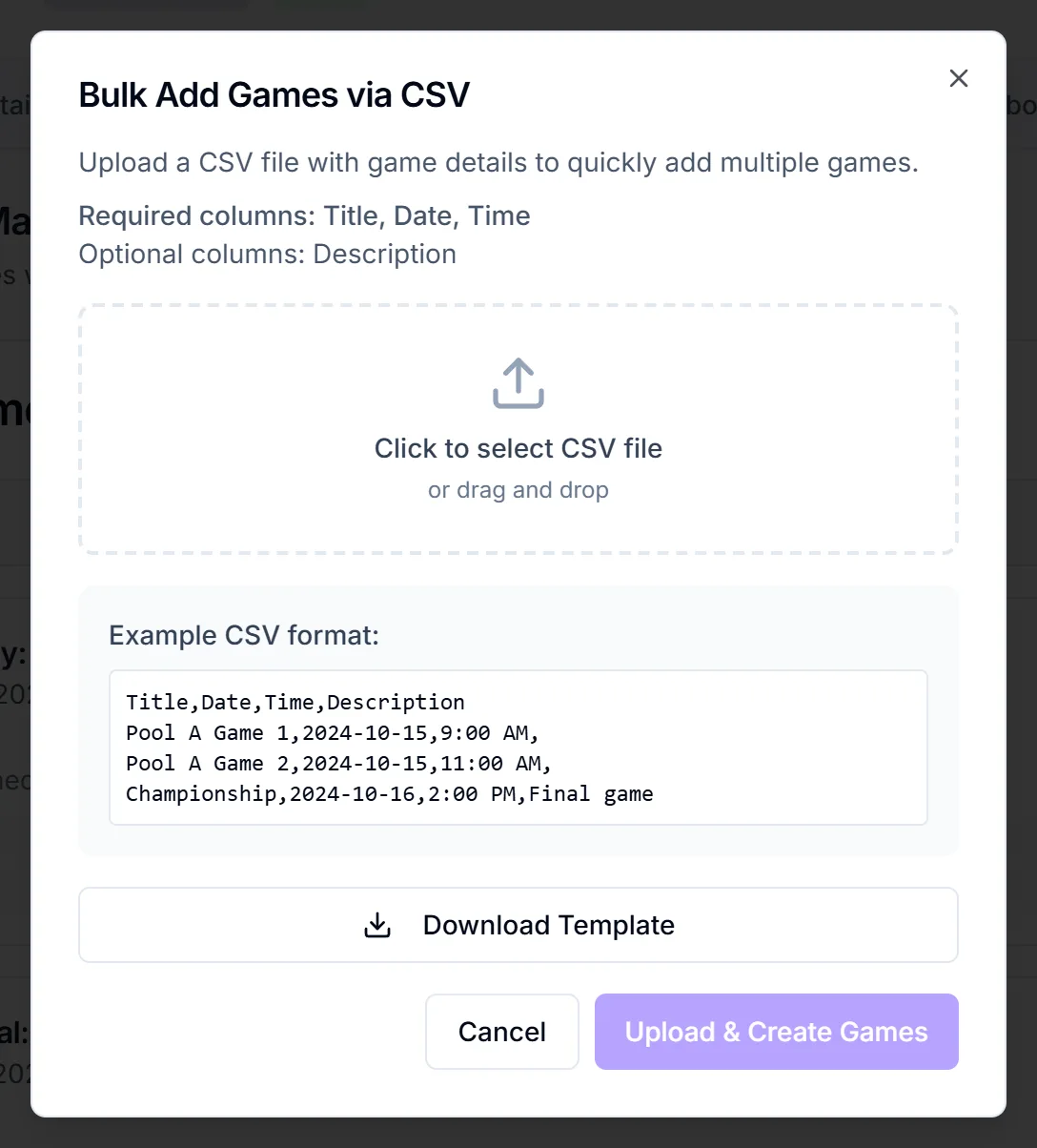
- Click Bulk Add Games (CSV). The "Bulk Add Games via CSV" dialog opens.
- Click Download Template. You get
game-schedule-template.csv.
Fill in the columns
The header must be exactly Title,Date,Time,Description. Headers are case-sensitive.
| Column | Required | Format |
|---|---|---|
| Title | Yes | Any text, for example "Quarterfinal 2" |
| Date | Yes | YYYY-MM-DD, for example 2026-11-14 |
| Time | Yes | 12-hour with AM or PM, for example 2:00 PM or 8:00 AM |
| Description | No | Any text |
24-hour times are rejected
14:00 fails with "Invalid time format: 14:00. Expected format like "7:00 PM" or "8:00 AM"". Use 2:00 PM. Note that this is the opposite of the events CSV, which accepts both.
Example rows:
` Title,Date,Time,Description Quarterfinal 1,2026-11-13,10:00 AM, Quarterfinal 2,2026-11-13,2:00 PM, Final,2026-11-15,7:00 PM, `
If you edit in Excel, check that it hasn't changed the dates to 11/13/2026 before you save as CSV.
Upload
- In the dialog, click "Click to select CSV file" and pick your file. It must be a CSV, up to 5 MB.
- Click Upload & Create Games.
If everything is valid, you'll see "Games Created" and "Successfully created {n} games". The games appear in the list in start-time order, ready for talent assignments.
When the upload fails
The upload is all or nothing. If any row is bad, no games are created.
| Message | What to check |
|---|---|
| "Validation errors found in CSV" | At least one row has a bad date, time or missing title |
| "CSV must have columns: Title, Date, Time, Description (optional)" | The header row |
| "CSV file is empty" | The file has no rows |
| "Invalid CSV format" | The file isn't a readable CSV. Re-save it |
Right now "Validation errors found in CSV" doesn't say which row failed or why. Check each row for a YYYY-MM-DD date, a time with AM or PM, and a title. If you can't find it, upload half the file to narrow it down.
Things to know
- CSV games and single games use different timezones. CSV times are read in the event's Timezone. Games added one at a time with Add Game use the timezone of your computer. Both are then shown in each viewer's own timezone. See add games to an event.
- The Description isn't shown on the game yet. It's saved but doesn't display.
- Games can't be edited. To fix a game, delete it and add it again.
Checklist
- Event is a multi-day event, with the venue's Timezone set
- Header is
Title,Date,Time,Description - Dates as
YYYY-MM-DD, times as2:00 PM - File saved as CSV
- Games checked in the list after upload