

You edit an event on its own page, and you delete events from the Events list. There's no edit form and no delete button on the event page. Deleting is permanent: there's no trash, archive or undo.
Short version
To edit, open the event, click Edit Event, make changes and click Save Changes. To delete, go to Events, click Select Events, tick the events, click Delete ({n}) and confirm.
Who can edit and delete
| Action | Who |
|---|---|
| Edit | The event's owner, and collaborators with Edit or Full access |
| Delete | The event's owner, and collaborators with Full access |
Other managers on your team can open your events, but only to view them. See share an event with collaborators.
Team admins: right now, the event page treats a teammate's event as view only for you, even though the Events list shows it as "Owner". Deleting a teammate's event fails with "Failed to delete 1 event(s)." You can edit teammates' events in Table view.
Edit an event
- Open the event from Events in the sidebar.
- Click Edit Event in the header.
- Change fields in place on the page.
- Click Save Changes, or Cancel to drop your changes.
You'll see "Event Updated" when it saves, or "Update Failed" if it doesn't. Every event field explained covers each field.
Two checkboxes save straight away
Visible to Crew and Fully Staffed save the moment you tick them, even though you can only tick them in edit mode. Cancel doesn't undo them. See hide or show an event to crew.
To change many events at once, use Table view.
Change the status
Use the Event Status dropdown in the Basic Information card while editing. The choices are Budget, Active, Completed, Cancelled, Pending and Suspended. New events start as Active.
When the event is done, click Mark as Complete in the header. It sets Event Status to Completed straight away and shows "Status Updated". The button disappears once the event is Completed.
On the Events list, Completed events are dimmed and Cancelled ones more so. Fully staffed events get a green border.
Two different status fields
Table view has its own "Event Status" column with Upcoming, In progress, Completed and Cancelled. That's a separate field from the Event Status on the event page, and the two don't update each other.
Delete one or many events
- Go to Events.
- Click Select Events.
- Tick the events you want to delete, or use "Select all events you can delete ({n})". Events you can't delete have a disabled checkbox.
- Click Delete ({n}).
- In the "Delete Multiple Events" dialog, click Delete {n} Event(s).
To delete a single event, select just that one.
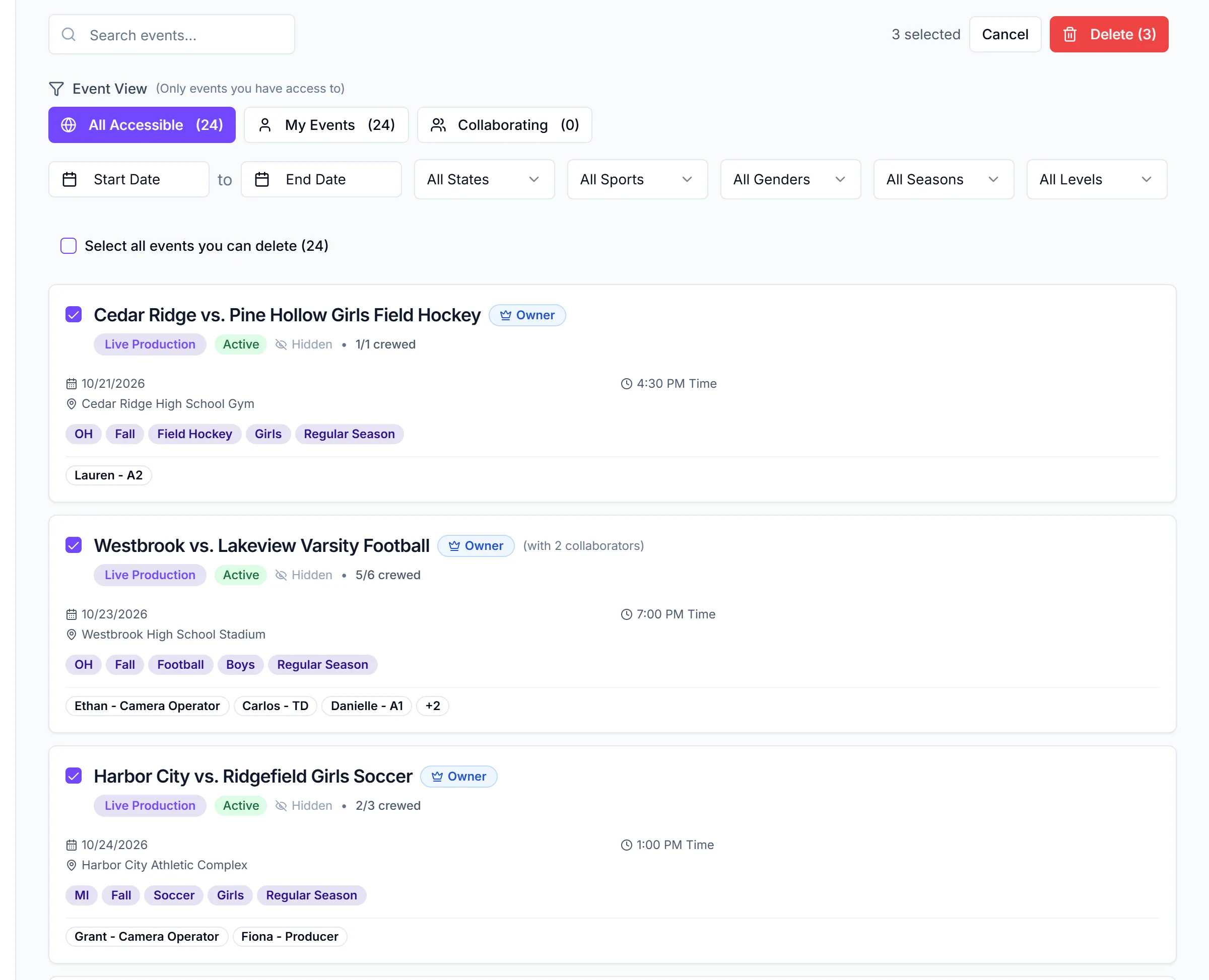
Deleting can't be undone
The dialog warns: "This action cannot be undone and will remove all associated data, assignments, and collaborations." It permanently deletes the event and its games, crew and talent assignments, crew interest, expenses and budget positions, attachments, collaborators, gear assignments, message history and scheduled messages. A linked rundown is kept but unlinked.
What happens next
- No emails go to crew. Assigned crew aren't told the event was deleted. Message them first if they need to know.
- You see "Events deleted" with how many were deleted, and how many failed if any did.
- Each event is deleted on its own, so some can succeed while others fail. If all fail, you see "Failed to delete {n} event(s)."
- Deleting events frees slots under your plan's event limit.
Things to know
- Mark complete instead of deleting if you might want the history later. Delete removes the message history too.
- There's no delete on the event page. Use Select Events on the list.
Checklist
- Crew told, if the event is cancelled
- Anything you need kept, such as attachments, saved elsewhere
- Right events ticked before you confirm