

The Technical Configuration section of an event records how the production gets online and where the stream goes. It's on the Create New Event form and on the Event Details page. These fields are text only. CrewdUp doesn't connect to your encoder or test the stream.
Short version
Open the event, click Edit Event, and fill in Internet Source and Production Software in the Technical Configuration card. Choose RTMP to show RTMP Server and Broadcast Key. Only team admins and managers see the key in the app. Crew and talent don't.
The fields
| Field | Options | Default |
|---|---|---|
| Internet Source | See below | Hardwired |
| Production Software | Producer, RTMP | Producer |
| RTMP Server | Text, for example rtmp://live.example.com/app | Blank |
| Broadcast Key | Text | Blank |
Internet Source options:
- On the Create New Event form: Hard Wired, 4G Mobile and Venue WiFi.
- On the Event Details page edit: Hardwired, 4G/5G, Venue WiFi, Starlink and LiveU.
If Internet Source is blank, the page shows "Hardwired".
RTMP Server and Broadcast Key only appear when Production Software is RTMP. Neither is required.
Add the details to an event
- Open the event from Events in the sidebar.
- Click Edit Event.
- In the Technical Configuration card, pick the Internet Source.
- Pick Production Software. Choose RTMP if you're pushing to an RTMP destination.
- Paste the RTMP Server and Broadcast Key.
- Click Save Changes.
You can also fill these in under Technical Configuration when you first create the event.
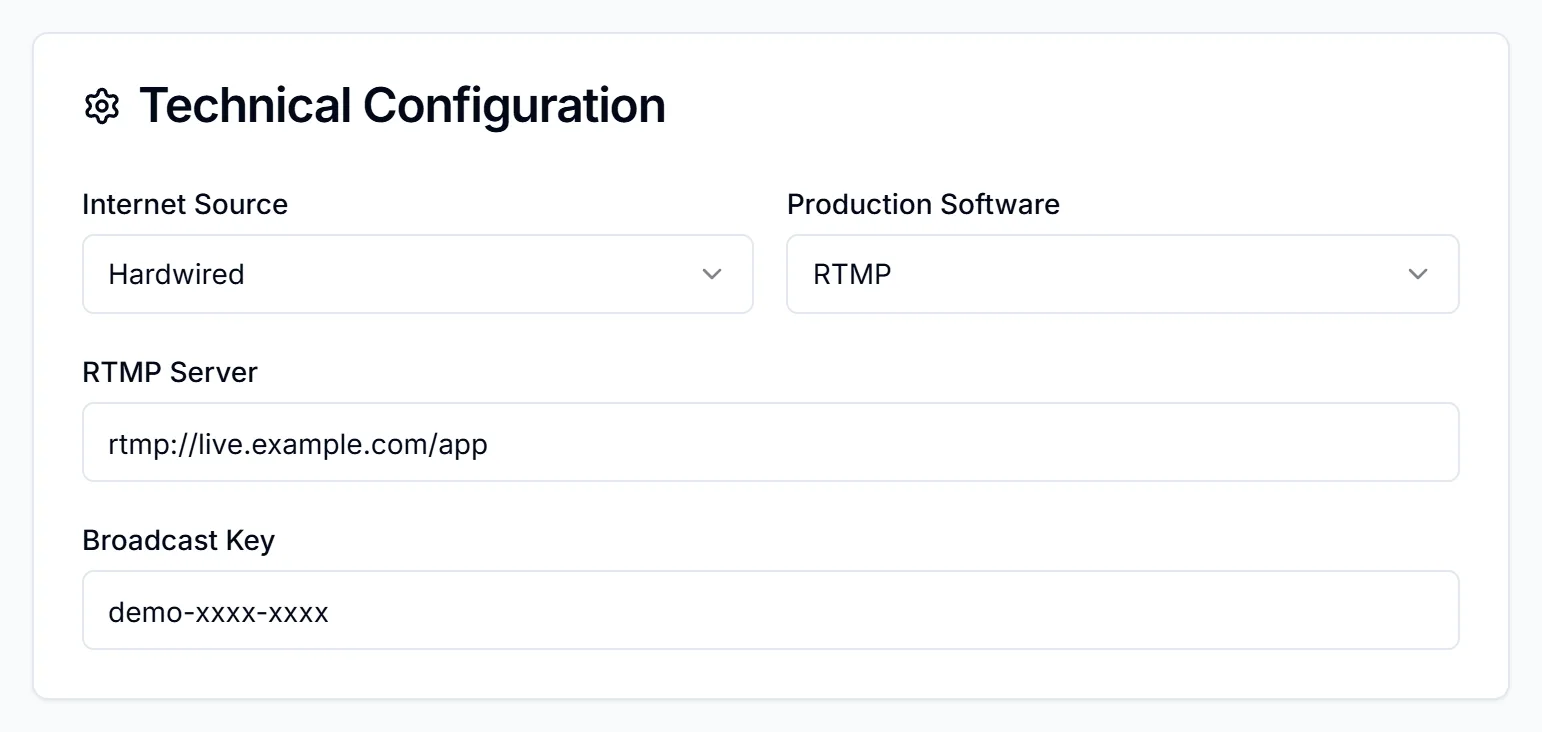
Where the broadcast key shows up
This is the part that matters. The key is not treated the same everywhere:
| Where | What's shown |
|---|---|
| Event Details page | The key in plain text, to team admins and managers who can open the event. "No broadcast key set" if empty. Crew and talent see the RTMP server but no Broadcast Key row |
| Tech book email | Masked as "[CONFIDENTIAL - SEE PRODUCTION MANAGER]". The RTMP server is shown in full |
| Tech book PDF (Download Tech Book) | Printed in full as "Broadcast Key: {key}" |
The PDF prints the key in full
In the app, only team admins and managers see the key. The downloaded PDF prints it, so be careful who you send the file to.
For what goes in each version of the tech book, see what's in a tech book and download a tech book PDF.
Switching back to Producer
If you change Production Software from RTMP back to Producer, the RTMP Server and Broadcast Key fields are hidden but not cleared. The PDF still prints them, because it prints them whenever they're set.
Bulk upload
The events CSV accepts rtmpServer and broadcastKey columns, so you can load these for many events at once. See bulk upload events.
Things to know
- Nothing is checked. CrewdUp doesn't validate the server address or key. Copy them carefully.
- The key travels with the event. Anyone you add as a collaborator can see it too.
Checklist
- Internet Source set
- Production Software set
- RTMP Server and Broadcast Key pasted, if using RTMP
- Remembered that a hidden key still prints in the PDF
- PDF shared only with people who should have the key