

Your team's name shows at the top of the Team Admin page, as "Managing team: <your team name>", with the team's slug in a badge next to it. Team admins can change both on the Settings tab. Saving changes there is on Starter and Pro.
Short version
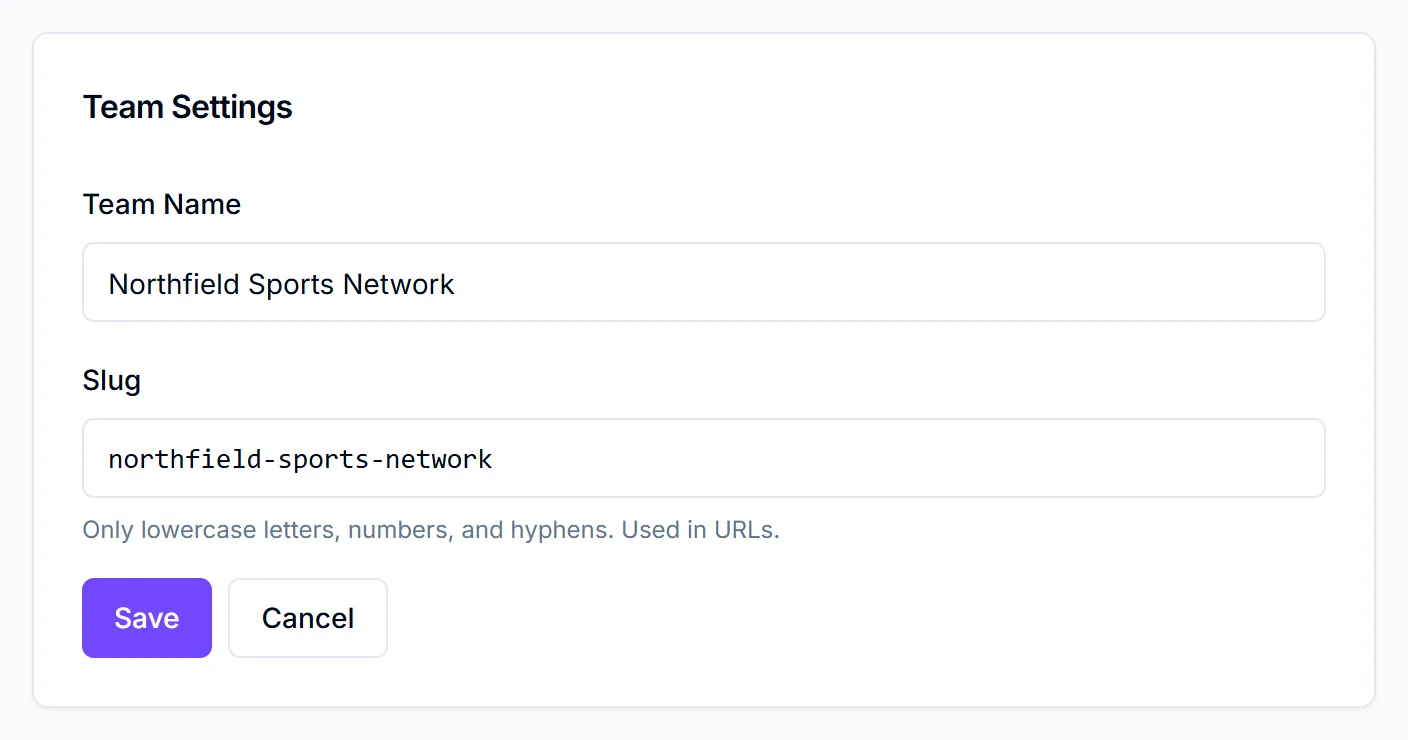
Go to Team Admin → Settings and click Edit Team Info. Change the Team Name or Slug, then click Save. To delete a team, contact CrewdUp.
Change the team name or slug
- Click Team Admin in the sidebar.
- Open the Settings tab.
- In the Team Settings card, click Edit Team Info.
- Change the Team Name.
- Change the Slug if you want to.
- Click Save, or Cancel to leave things as they were.
You'll see "Team settings saved". Save stays greyed out while either box is empty.
How the slug works
The slug is a short version of your team's name, such as riverside-athletics. As you type, CrewdUp keeps it to lowercase letters, numbers and hyphens:
- Capital letters become lowercase.
- Spaces and any other characters become hyphens.
Each slug can belong to only one team. If another team already has the one you typed, you'll see "Slug already in use". Try a variation.
Changing the slug updates the badge at the top of the Team Admin page. It doesn't change any links you've already shared, such as join links.
Who can change team settings
Only team admins can open Team Admin. Anyone else who goes to the page sees "Team Admin Access Required". If you need your team renamed and you're a manager, ask a team admin. To see who they are, see roles explained.
On Free, the Settings tab still shows, but saving needs Starter or Pro. See plans and limits.
Deleting a team
Team admins can't delete their own team. There's no delete option for team admins in the app. If you need a team deleted, contact CrewdUp.
Deleting a team removes everyone's account
When a team is deleted, CrewdUp deletes every event in the team's workspaces, the workspaces themselves, and the full user account of every member of the team. Nobody on the team can sign in afterwards. This can't be undone.
Before you ask for a deletion, save anything you want to keep, and let your crew and managers know their accounts will go.
If you only want to tidy up, you may not need to delete the team. You can archive old workspaces instead. See archive or delete a workspace.
Things to know
- There's no team logo or other settings here. The Team Settings card holds the name and slug only.
- Slugs must not be empty. Clear the box and Save is disabled until you type one.