

When a season ends or a client wraps, you can archive its workspace to get it out of the way, or delete it. Neither deletes your events. Archiving keeps the workspace and its events exactly as they are. Deleting removes the workspace itself and moves its events to no workspace. Only team admins can edit, archive or delete workspaces.
Short version
Go to Switch Workspace in the sidebar and use the icons on the workspace card: pencil to Edit, archive icon to Archive, trash to Delete. Archiving happens in one click, with no confirmation.
Edit a workspace
- Click Switch Workspace in the sidebar.
- On the workspace card, click the pencil (Edit).
- In Edit Workspace, change the Name, Description or Color.
- Click Save Changes. You'll see Workspace updated.
Archive a workspace
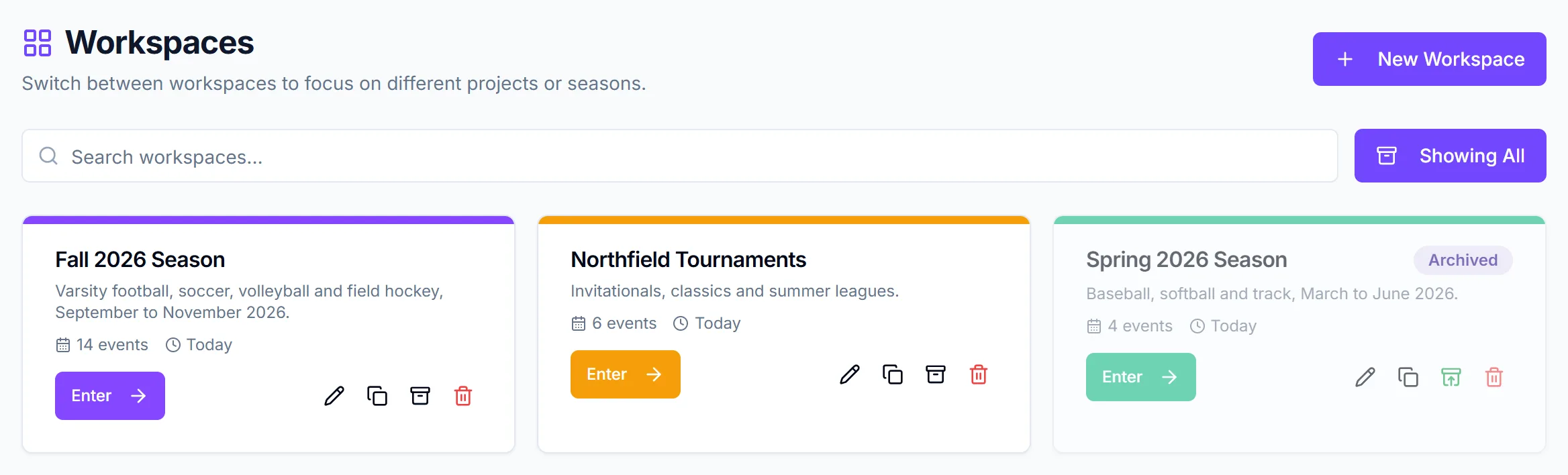
- On the Workspaces page, click the archive icon (Archive) on the card.
- That's it. There's no confirmation: the workspace is archived straight away and you'll see Workspace archived.
What archiving does
- The card is hidden. Click Show Archived to see archived workspaces. They appear faded with an Archived badge.
- Nothing is deleted. Events stay in the workspace.
- It frees a slot. Your plan's workspace limit (1 on Free, 3 on Starter, 10 on Pro) counts active workspaces only.
- You can't enter it. An archived workspace can't be your active workspace. See create and switch workspaces.
- Its events are still visible elsewhere. They show with no workspace selected, and crew still see events that are visible to crew. Archiving doesn't hide anything from crew.
- Its events still count toward your event limit.
- Shared reports saved in it stop showing for your teammates.
To bring it back, turn on Show Archived and click the green Unarchive icon. You'll see Workspace unarchived.
Delete a workspace
- On the Workspaces page, click the trash icon (Delete) on the card.
- In Delete Workspace?, click Delete. You'll see Workspace deleted.
If it was your active workspace, you're switched to no workspace.
A deleted workspace can't be restored
The workspace itself is gone for good. Your events are not deleted: CrewdUp keeps them and moves them to no workspace. To find them, click Clear on the Workspaces page so no workspace is selected, then open Events.
What deleting does to your events and reports
- Events are kept. Each one is taken out of the workspace and left with no workspace.
- They only show with no workspace selected.
- Saved reports lose their workspace. Shared reports that were saved in it stop showing for your teammates.
- You can delete your last workspace. CrewdUp lets you, and every event ends up with no workspace.
Archive or delete?
| Archive | Delete | |
|---|---|---|
| Confirmation | None | Delete Workspace? |
| Workspace | Kept, hidden | Gone for good |
| Events | Stay in the workspace | Kept, moved to no workspace |
| Frees a workspace slot | Yes | Yes |
| Can be undone | Yes, Unarchive | No |
Archive when you might want the season back. Delete only when you're sure you don't need the workspace grouping again. If you want a fresh copy for next season instead, duplicate the workspace first.
Checklist
- Teammates know shared reports in the workspace will stop showing
- Archive chosen if you may need the workspace again
- After a delete, events found under no workspace