

The Members tab in Team Admin lists everyone on your team with an account. From there a team admin can email an invite to a new person, and change the role of anyone already on the team.
The Members tab, email invites and role changes are on Starter and Pro, and only team admins can use them.
Short version
Go to Team Admin → Members and click Invite Member. Enter the email, choose Crew, Talent or Manager, and click Send Invite. To change someone's role later, use the Role dropdown on their row.
The Members tab
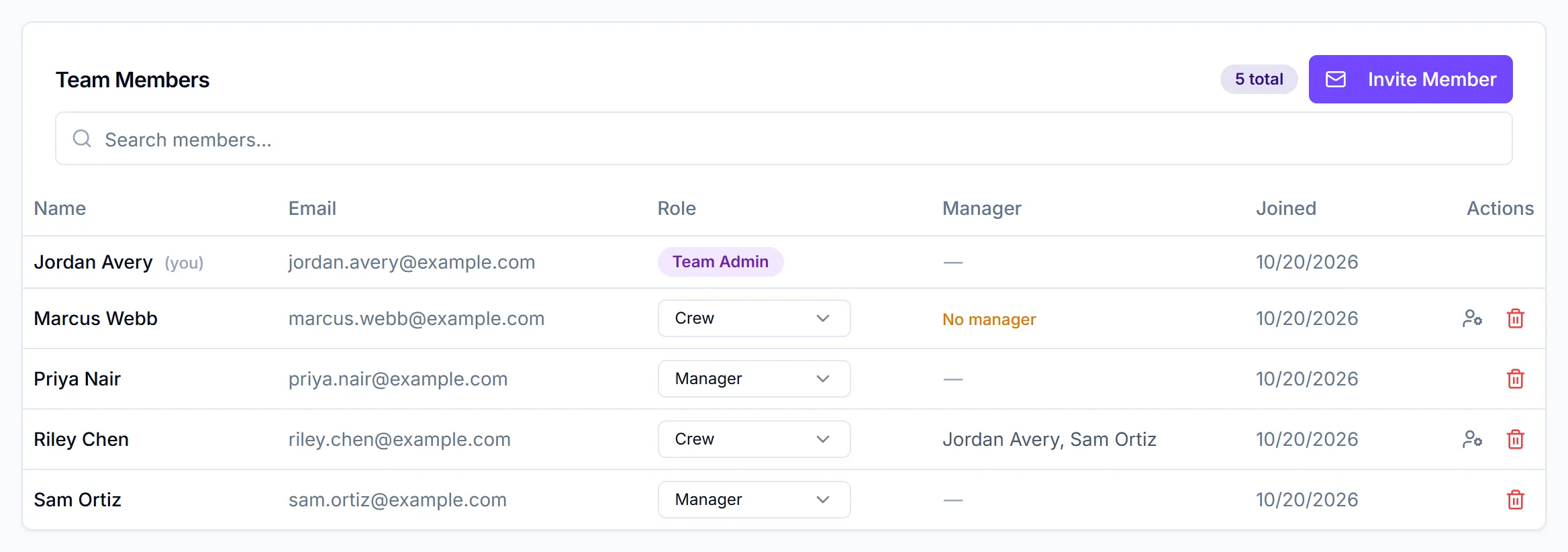
Click Team Admin in the sidebar. Members is the tab that opens first. The Team Members card shows how many people are on the team, and a table with:
| Column | What it shows |
|---|---|
| Name | "(you)" marks your own row |
| Their sign-in email | |
| Role | Team Admin, Manager, Crew or Talent |
| Manager | For crew: their managers, or "No manager" |
| Joined | When they joined |
| Actions | Assign a manager (crew), or remove |
Search members... filters by name and email.
Send an email invite
- On the Members tab, click Invite Member. The Invite Member by Email dialog opens.
- Enter the Email Address.
- Choose a Role: Crew (the default), Talent or Manager.
- Click Send Invite.
The email goes out immediately
There's no preview. Check the address and role before you click Send Invite.
You'll see "Invite sent" / "An email invite was sent to the address provided."
What the invite email says
The subject is "You've been invited to join <your team name> on CrewdUp". The email says which team and role they've been invited as, and has an Accept Invitation button. Its footer says the invite is single-use.
Each email invite creates a single-use join code with no expiry and no manager. It shows in your Join Links table, where you can revoke it like any other link. See create join links.
When the person accepts and signs up, they join your team with the role you chose. If they're crew, assign them a manager afterwards, since email invites don't carry one. See assign managers to crew and talent.
Change someone's role
- On the Members tab, find the person.
- Choose a new role from the Role dropdown on their row: Team Admin, Manager, Crew or Talent.
The change saves straight away, with no confirm, and you'll see "Role updated". You can't change your own role.
Moving someone from crew or talent up to Manager or Team Admin uses a manager seat. Free has 1, Starter 3 and Pro 10. If you're out of seats, you'll see a message like "Your starter plan allows up to 3 manager seat(s)." See plans and limits.
Make someone a team admin
The invite dialog doesn't offer Team Admin to team admins. Invite the person as Manager, wait for them to sign up, then change their role to Team Admin on the Members tab.
Things to know
- On Free, the Members tab shows "No members found". The list needs Starter or Pro, and the page doesn't show an upgrade prompt.
- Role changes don't move people between rosters. Someone moved from Crew to Manager keeps their crew profile on the roster. Someone moved from Manager to Crew doesn't get a crew profile, so they can't be assigned to event positions.
- Removing a member deletes their account. The trash icon permanently deletes the person, and for a manager, every event they own or created. Read remove a crew member or delete their account first.
Checklist
- Email address and role checked before sending
- New crew given a manager after they sign up
- Manager seats available before promoting anyone
- Team admins invited as Manager, then promoted