

When crew answer an invite or ask to work an event, CrewdUp lets you know in three places: an email, the bell in the app header, and cards on your dashboard. All of them go to the event's owner, the manager the event belongs to.
Short version
When crew click accept or decline in an invite, the event's owner gets an alert email and an entry in the bell. Crew raising a hand triggers a "Crew Interest" email and shows on the Crew Interest Notifications dashboard card. Collaborators don't get these alerts.
Alert emails
All alert emails go to the event's owner only, from CrewdUp's no-reply address.
| When | Subject |
|---|---|
| Crew accept by invite link | "{name} has confirmed their assignment", followed by the event name |
| Crew decline by invite link | "{name} has declined their assignment", followed by the event name |
| Talent accept or decline | The same email, for a talent assignment |
| Crew raise a hand | "Crew Interest: {name} wants to work on {event}" |
| Talent raise a hand for an event | "Talent Interest: {name} wants to work on {event}" |
| Talent raise a hand for a game | "Game Talent Interest: {name} wants to work on {game}" |
The accept and decline email shows the event, position and response, with a View Event button.
No email for answers to a resent invite
If crew answer through an invite you resent, no alert email goes out yet, even though their page says the manager has been notified. The answer still shows in the bell and on the event. See send or resend an invite.
The notification bell
The bell in the app header shows a red dot when you have unread items. Click it to open Notifications.
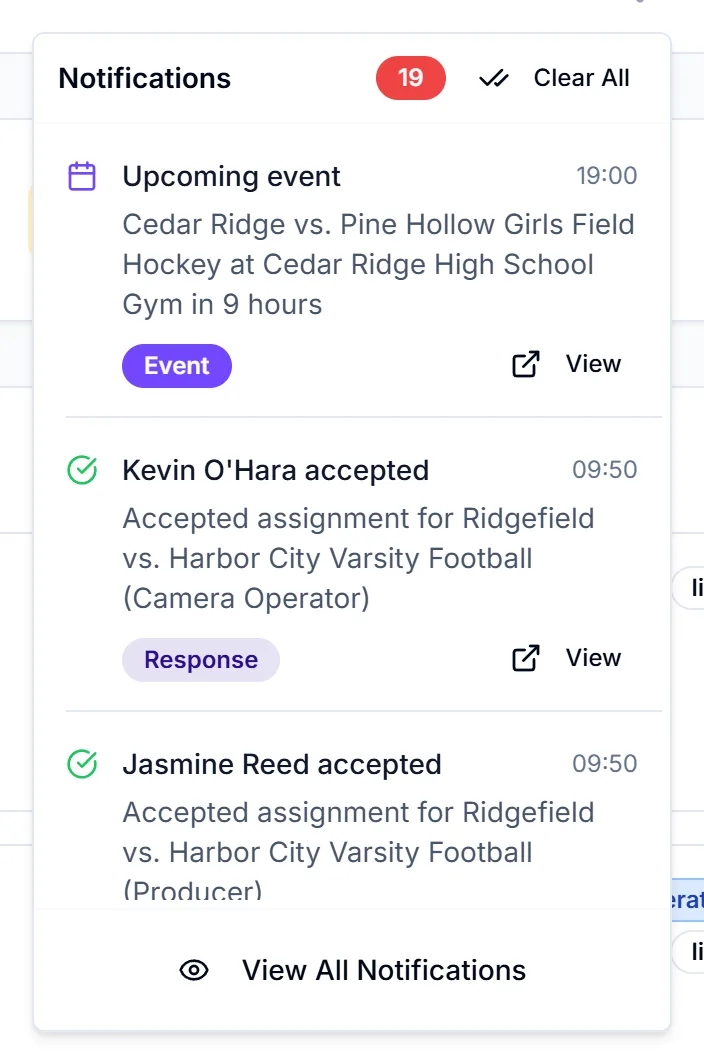
It lists up to 20 entries, of three kinds:
| Entry | Badge | Shows |
|---|---|---|
| "{name} accepted" or "{name} declined" | Response | Crew answers on your events in the last 7 days |
| "Upcoming event" | Event | Your events coming up by the end of tomorrow |
| "Scheduled notification" | Reminder | Scheduled sends on your events due within the hour |
Click View on an entry to open the event. View All Notifications opens the Notifications page.
Response entries include answers by email link, your own Mark Confirmed, and crew you approved after they raised a hand.
Clear the bell
Click Clear All. This hides everything up to now; nothing is deleted. New answers after that show up again.
Dashboard cards
Crew and talent who raise a hand don't appear in the bell. They show on your dashboard in Crew Interest Notifications and Talent Interest Notifications, where you can review, approve or decline them. See open positions and crew interest.
Who gets alerts
- The event's owner only. If a collaborator or team admin made the assignment, the alert still goes to the owner.
- Collaborators don't get bell entries or emails for events they don't own. They need to check the event's Crew Assignments card.
- There's no setting to turn alerts off or choose which ones you get.
Things to know
- Talent answers aren't in the bell. You get the email, but the bell only reads crew assignments.
- The red dot can show with nothing to see. You may see the dot and "No new notifications" when you open it. That's a known issue; nothing is waiting for you.
- Not real time. The bell updates when the app refreshes its data. Reload to be sure.
- No push or text alerts. Alerts are email and the in-app bell only.
- Declines don't reopen the slot. After a decline alert, remove the person and assign someone else. See what happens when you assign someone.