

You can remove someone from the Crew Members or Talent Members roster, or a team admin can remove them from the Members tab in Team Admin. Either way, it's a permanent delete. CrewdUp has no option to take someone off your team and keep their account.
Read this guide before you remove anyone, and especially before you remove a manager.
Removing a manager deletes their events
When you remove a team member from Team Admin → Members, CrewdUp also deletes every event they own or created, with everything on those events: assignments, games, budgets and rundown rows. The confirm dialog doesn't mention this. Before you remove a manager, move or reassign every event they own or created to someone who's staying. This can't be undone.
Short version
Open the row's ⋯ menu on the roster and choose Delete, or use the trash icon on Team Admin → Members. Both permanently delete the person's account and assignments. Removing a manager also deletes their events.
Remove someone from the roster
Team admins and managers can do this on any plan.
- Click Crew Members (or Talent Members) in the sidebar.
- Open the ⋯ menu on the person's row.
- Click Delete.
- Read the Permanently Delete Account dialog, then click Delete Account.
You'll see "Crew member deleted successfully" (or "Talent member deleted successfully").
Remove someone from Team Admin
Team admins can do this on Starter and Pro.
- Click Team Admin in the sidebar. The Members tab opens.
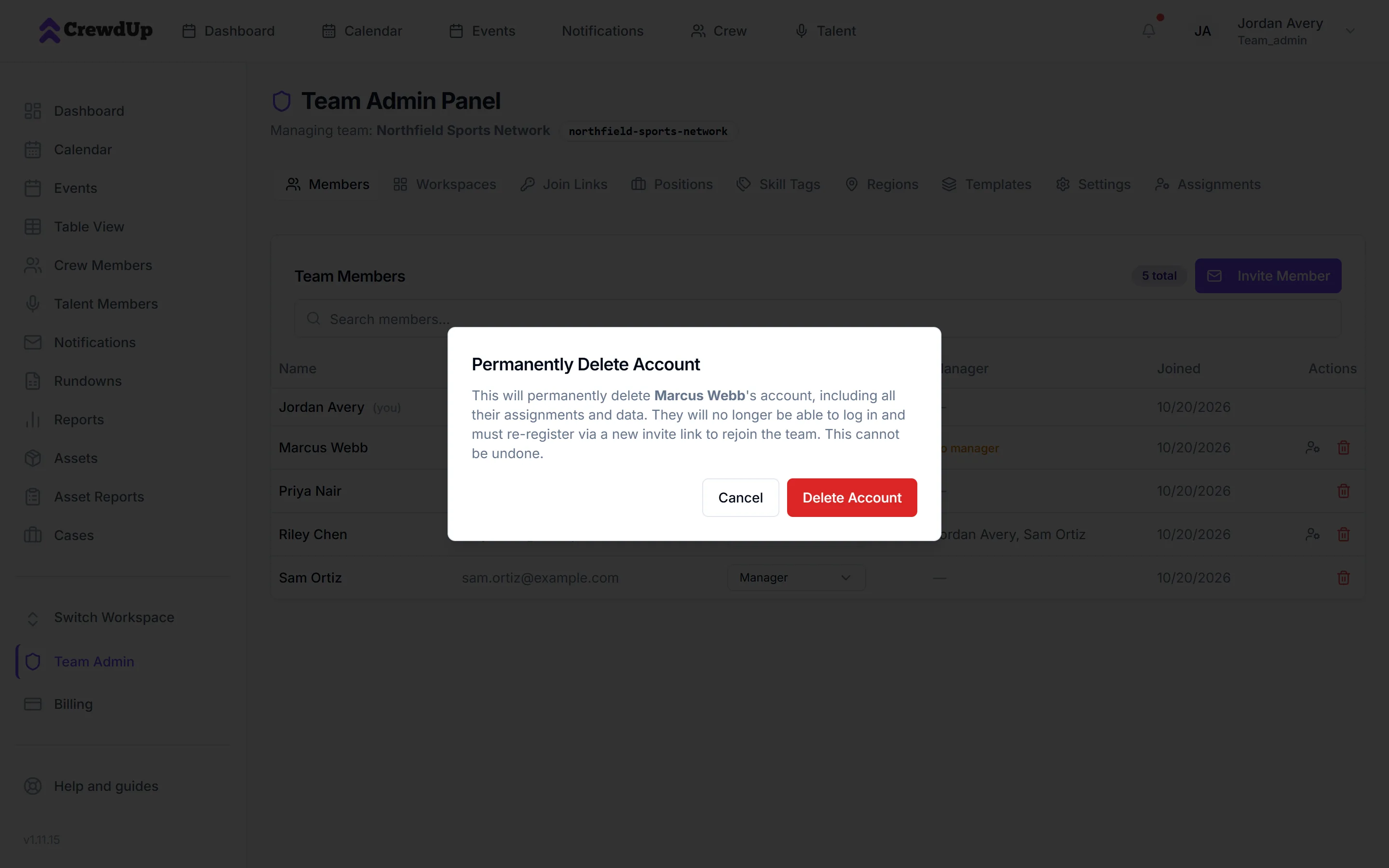
- Click the red trash icon on the person's row.
- Read the Permanently Delete Account dialog, then click Delete Account.
The toast says "Member removed", but the account has been deleted, not just removed from the team.
What gets deleted
Both paths show the same dialog. It says the person's account will be permanently deleted, including all their assignments and data, and that they'd need a new invite link to rejoin.
| What | Roster Delete | Members tab |
|---|---|---|
| Their crew or talent profile and skills | Deleted | Deleted |
| Their event assignments (and game talent assignments) | Deleted | Deleted |
| Their manager assignments | Deleted | Deleted |
| Their login, if they have one | Deleted | Deleted |
| Attachments they uploaded | If they have a login | Deleted |
| Events they own or created | If their login is a manager | Deleted |
Budget positions they held stay on each event, but become open positions with nobody in them. Their event interest and notifications go too.
Before you remove a manager
- Get their events transferred first. Any event they own or created is deleted with them, even if other people worked on it. Only CrewdUp can move an event to a new owner, so contact us with the events you want to keep.
- Check the roster as well as the Members tab. If a manager also has a crew profile, for example after a role change from crew, deleting that profile from the roster deletes their account and their events too.
- If you can't move the events, don't remove the manager yet.
People who can't be removed
- Yourself. You'll see "You cannot remove yourself from the team".
- The last team admin. You'll see "Cannot remove the last team admin". Make someone else a team admin first. See invite team members by email and change roles.
What happens next
- The person can no longer sign in. To come back, they'd sign up again through a new invite or join link, as a new account with no history.
- They disappear from every event they were assigned to. Nobody is emailed. Positions they filled show as open, so check upcoming events and fill them again. See change or remove an assignment.
- There's no undo.
Things to know
- Crew you added who never signed up have no account. For them, the dialog's wording about logging in doesn't apply. Deleting removes their roster record and assignments.
- Taking someone off one event isn't a delete. To remove a person from a single event, remove their assignment instead of deleting them.
- Changing who someone works for isn't a delete either. Use assign managers to crew and talent.
Checklist
- This is the right person, and you mean to delete their account
- For a manager: CrewdUp has transferred every event you want to keep
- Checked for a crew profile linked to a manager's login
- Upcoming events re-staffed where they held a position