

The Calendar shows your events laid out by month or by week, so you can spot busy weekends and gaps at a glance. Everyone on the team can use it: team admins, managers, crew and talent. It's a view only. You create and edit events elsewhere.
Short version
Click Calendar in the sidebar. Switch between Month and Week, move with the arrows or Today, and click any event to open it. Colors show the event's state.
Open the calendar
- Click Calendar in the sidebar.
- The Calendar View page opens on the current month.
The calendar follows your active workspace, just like the Events page. If an event is missing, check which workspace is selected. See create and switch workspaces.
Move around
- Use the dropdown to switch between Month and Week.
- Click ‹ and › to go back or forward one month or week.
- Click Today to jump back to now.
The label shows the period, such as "November 2026" in month view or "Nov 8 - Nov 14, 2026" in week view.
Month view
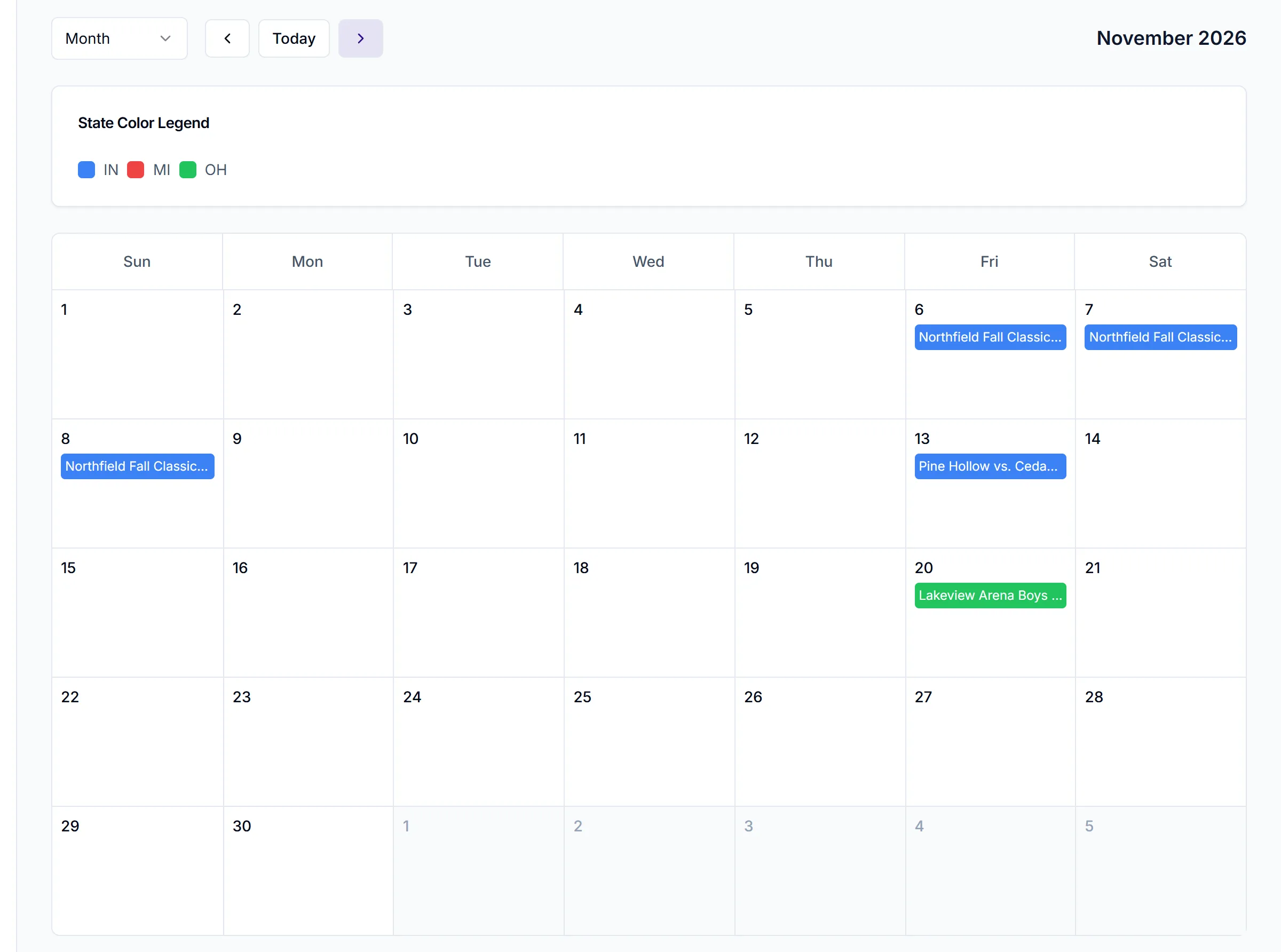
Month view is a Sunday to Saturday grid. Each day shows up to three event titles, then "+{n} more" if there are others.
A multi-day event appears on every day from its Start Date to its End Date. If a tournament only shows on one day, it has no End Date. See set up a multi-day event.
Week view
Week view has 24 hourly rows. Each event sits in the row for its start hour, with its title and location.
Right now week view can put an event in the wrong hour row in US timezones, for example a 7:00 PM event in the 2 PM row. Check the event page for the real time.
Colors and the summary
Events are colored by State, the State field on the event. The State Color Legend card under the calendar shows which color is which. Events with no state are gray. Colors don't show Event Status.
Below that, a summary card lists every event in the period, titled "Events in {Month}" or "Events this week", with a count. Each entry shows the title, dates, location and state. If there are none, it says "No events scheduled for this period." The summary dates can show a day early in US timezones. The month grid has the right days.
Click any event, in the grid or the summary, to open its page.
Things to know
- No filters or search. The calendar shows every event you can see in the workspace. To narrow down, use the Events page filters.
- No day view, no drag and drop. You can't move events by dragging or create events from the calendar.
- No export or sync. The calendar doesn't sync with Google, Apple or Outlook calendars.
- Hidden events stay off crew calendars. Crew only see a hidden event on their Calendar if they're already on it: assigned, invited or with a raised hand. See hide or show an event to crew.
- Times aren't converted. The calendar uses the time typed on the event. The Timezone field is a label only.