

A workspace is a folder for events. Use one per season, client or project, and when you select it, CrewdUp shows only that workspace's events in the events list, the calendar, table view, dashboard stats and reports. Your crew, talent, assets and cases aren't split up: they're shared across the whole team, whichever workspace you're in.
Every team starts with one workspace, "Default Workspace". Free teams can have 1 active workspace, Starter 3 and Pro 10. See pricing.
Short version
Click Switch Workspace in the sidebar. Team admins can click New Workspace to create one. To switch, click Enter on a workspace card.
Create a workspace
Only team admins can create workspaces. Managers can see the list and switch.
- Click Switch Workspace in the sidebar. The Workspaces page opens.
- Click New Workspace. The Create Workspace dialog opens.
- Enter a Name, for example "Spring Season 2025". The button stays disabled until you do.
- Add a Description (optional).
- Pick a Color to tell workspaces apart.
- Click Create Workspace. You'll see Workspace created.
If you're at your plan's limit, you'll see a message that your plan allows up to that many workspaces. Archive one you no longer use, or upgrade. Archived workspaces don't count. See archive or delete a workspace.
Switch workspaces
- Click Switch Workspace in the sidebar.
- Find the workspace. Each card shows its name, description, number of events and last activity. Use Search workspaces... if you have a lot.
- Click Enter. CrewdUp makes it your active workspace and opens Events. On the workspace that's already active, the button reads View Events.
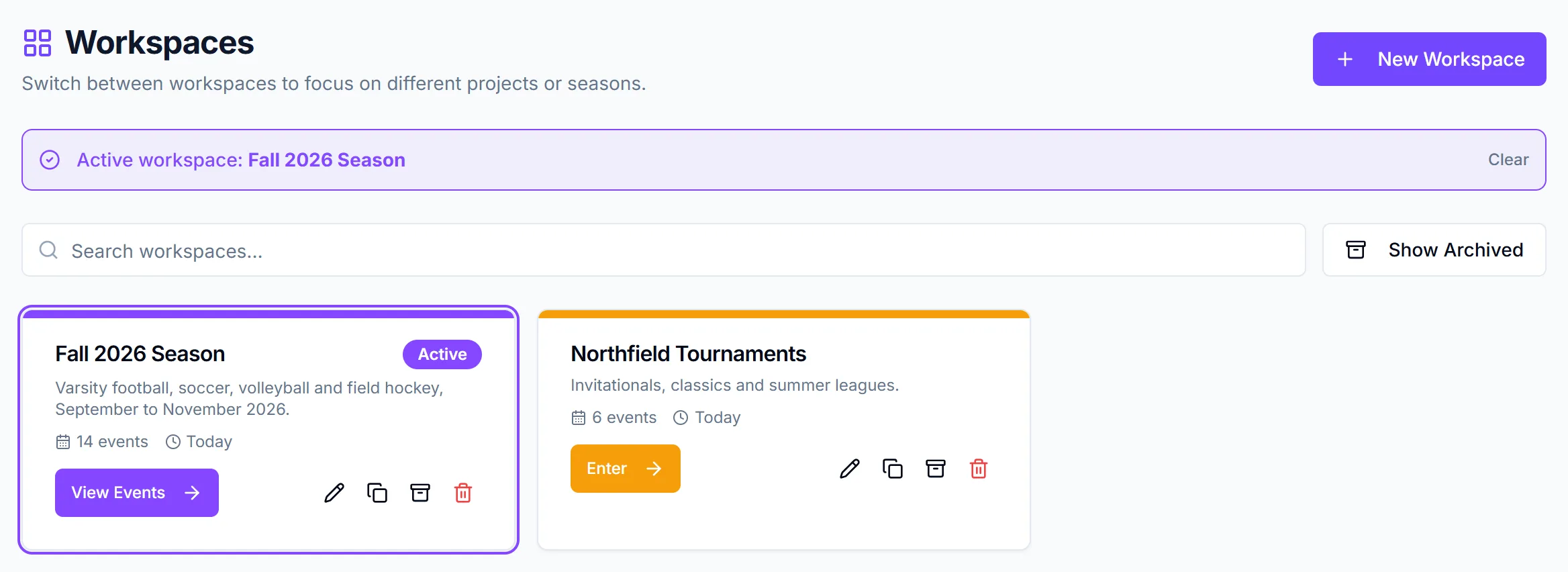
The active workspace's name shows next to Switch Workspace in the sidebar and in the page header. On the Workspaces page, a banner reads "Active workspace:" with its name.
To see everything again, click Clear on that banner. With no workspace selected, the events list shows "No workspace selected — showing all events across workspaces."
CrewdUp doesn't pick a workspace for you. Your choice is remembered in this browser, so on another computer you'll start with none selected.
What a workspace filters
| Filtered by the active workspace | Shared across the whole team |
|---|---|
| Events list | Crew members |
| Calendar | Talent |
| Table view | Assets and cases |
| Manager dashboard stats | Asset reports |
| Reports | Rundowns |
| Notifications | |
| Positions and templates |
New events go into the active workspace when you create them. If no workspace is selected, the event isn't in any workspace.
What crew and talent see of your events isn't filtered by workspace.
Things to know
- Events with no workspace only show with none selected. That includes events created while no workspace was active. Click Clear to find them.
- Select a workspace before running reports. Reports cover the active workspace's events. See build a table report.
- The Crew Members and Talent pages show a workspace banner, but list everyone. Crew and talent are team-wide.
- Event limits count every workspace. Your plan's event limit includes events in all workspaces, archived ones too.
Checklist
- Workspaces named by season, client or project
- A color picked for each
- The right workspace entered before you create events
- Workspace selected before you run reports