

Table View shows your events as rows in a grid, with crew status alongside. It's the fastest way to fix a season's worth of dates, tag sports and levels, or turn crew visibility on for a batch of events. Table view is on Starter and Pro, for team admins and managers.
Short version
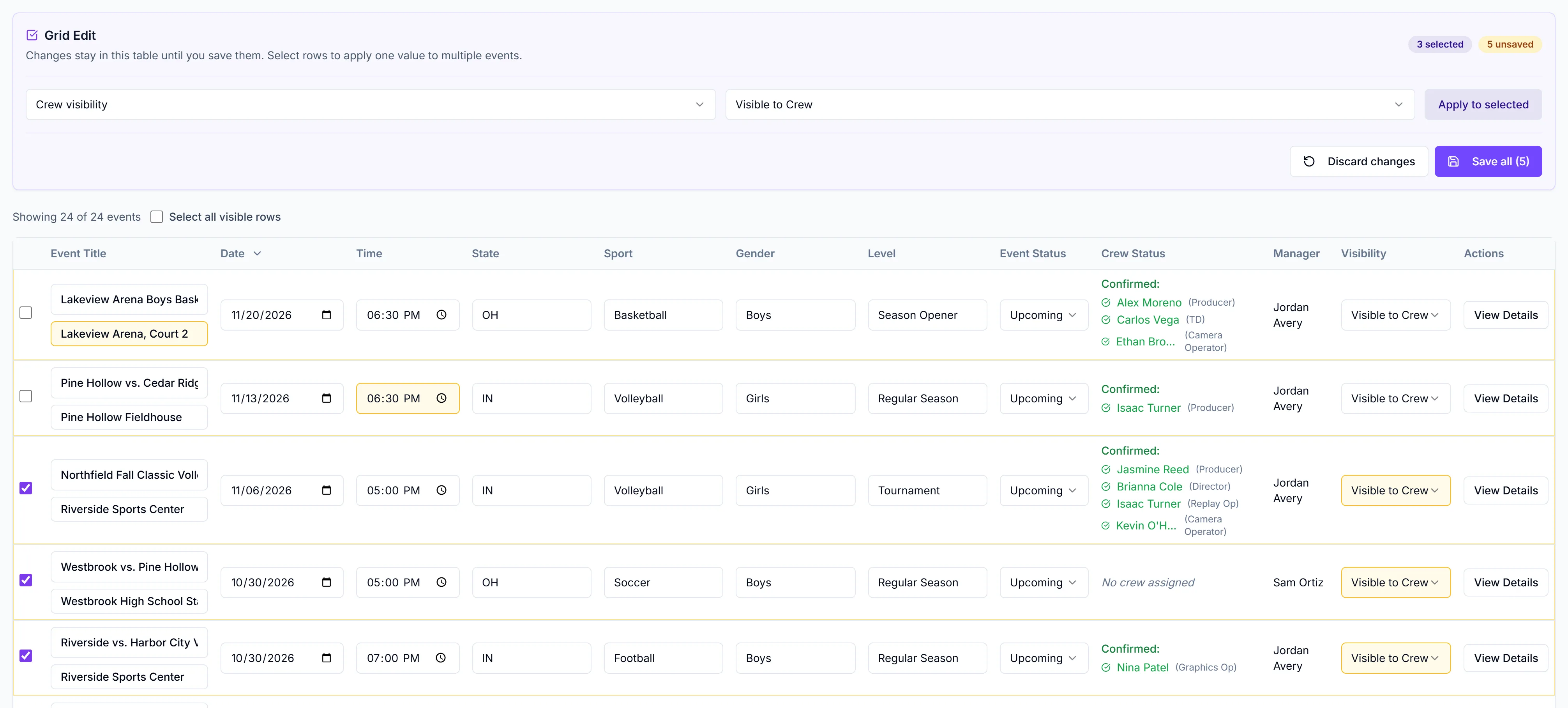
Click Table View in the sidebar, then Edit Grid. Change cells directly, or tick rows and use Apply to selected. Click Save all ({n}) to save every change in one go.
Read the table
Click Table View in the sidebar. The Events Table View page lists one event per row:
| Column | Shows |
|---|---|
| Event Title | Title, with the location underneath |
| Date, Time | Date, and start time with the timezone |
| State, Sport, Gender, Level | The event fields |
| Event Status | Upcoming, In progress, Completed or Cancelled |
| Crew Status | Confirmed, pending and declined names with positions, or "No crew assigned" |
| Manager | The event's manager |
| Visibility | Visible or Hidden, and Fully Staffed |
| Actions | View Details opens the event |
Click Event Title, Date, State, Sport or Gender to sort. Narrow the rows with "Search events..." (title, location, sport and manager), All States, All Sports and All Statuses. The line above the table reads "Showing {n} of {total} events".
Event Status here is a different field
The "Event Status" column in Table view is not the Event Status on the event page (Budget, Active, Completed and so on). They're separate fields and don't update each other. Marking an event Completed here doesn't change the badge on the event page.
Edit cells
- Click Edit Grid. It's greyed out if there are no rows you can edit.
- Click into a cell and change it. You can edit Title, Location, Date, Time, State, Sport, Gender, Level, Event Status and Visibility ("Visible to Crew" or "Hidden from Crew").
- Changed cells turn amber, so you can see what's pending.
- Click Save all ({n}).
Time uses a 24-hour input, so type 19:00 for 7:00 PM. Dates must be valid, and every event needs a title. Times are saved as typed. The Timezone label on each event stays as it is.
Change many rows at once
- In Edit Grid, tick the rows, or tick "Select all visible rows" to take every row that passes your filters.
- Pick a field: "Crew visibility", "Event status", "State", "Sport", "Gender" or "Level".
- Pick the value.
- Click Apply to selected. The cells change to amber.
- Click Save all ({n}).
If you click Apply with no rows ticked, you'll see "Select events first".
Changing visibility here doesn't touch Fully Staffed. For what visibility does and doesn't hide, see hide or show an event to crew.
Saving, and what can go wrong
- All or nothing. Every change in a save goes through together, or none do. You can save up to 100 events at a time.
- Success shows "Events updated" and "{n} event(s) saved successfully."
- Someone else changed a row? Nothing is saved, and you see "Could not save grid changes" and "One or more events changed elsewhere. Refresh the table and review your edits." Refresh, then redo your changes.
- Discard changes throws away everything not yet saved. Exit Grid Edit leaves edit mode.
- If you try to leave the page with unsaved changes, the browser asks you to confirm.
Which rows you can edit
- Managers: your own events, and events where you're a collaborator with Edit or Full access. Teammates' events show read-only.
- Team admins: every event on the team.
Export to CSV
Click Export CSV. You get events-table-YYYY-MM-DD.csv with Title, Date, Time (24-hour), State, Sport, Gender, Level, Status, Crew Members, Manager and Location.
Only the rows that pass your current filters are exported. Clear the filters first to export everything. The export doesn't include every event field: contacts, technical details and notes aren't in it.
Things to know
- Table view doesn't edit everything. End dates, crew call time, contacts and technical fields are edited on the event page. See edit and delete events.
- Avoid double quotes in titles and locations if you export. A
"in a title, location or crew name breaks that row of the CSV right now.
Checklist
- Filters set to the events you want
- Changes made, amber cells checked
- Saved with Save all, in batches of 100 or fewer
- Filters cleared before a full export