

A table report is a saved list of your events with the columns you choose: dates, venues, sports, budget totals, or one row per crew member with their rates and paid status. You add filters, sorting, grouping and row colors, preview it as you go, and save it to run any time from Reports. Reports are on the Pro plan. Team admins and managers can build them.
Short version
Select your workspace first so the report covers that workspace's events. Then go to Reports, click New Report, choose Table, tick your columns, add filters and click Save Report.
Select your workspace first
Select your workspace first so the report covers that workspace's events. Use Switch Workspace in the sidebar and click Enter on the workspace. See create and switch workspaces.
A saved report always runs on the workspace you have selected when you open it, not the one you built it in. Check the workspace before you run a report, too.
Start a table report
- Click Reports in the sidebar.
- Click New Report. In Choose report type, pick Table.
- Name the report in the top bar, where it says Untitled Report.
- Under Basics, add a Description if it helps. The Share with team switch is covered in calculated columns and sharing.
Choose columns
- Open Columns. It shows how many of the 43 columns you've picked.
- Tick fields under Add / remove columns. New reports start with Event Title, Event Date, State, Sport, Gender, Level and Event Status.
- Drag the selected columns to put them in order.
- Tick Show record count (#) to add a # column with row counts in the totals.
| Group | Columns |
|---|---|
| Event | Event ID, Event Title, Event Date, End Date, Event Month, State, Sport, Gender, Season, Level, Region, Market/Client, Event Status, Production Type, Venue, Timezone, Number of Games, Number of Days, Multi-Day Event, Visible to Crew, Fully Staffed, Producer in Charge |
| Financial | Total Budgeted, Total Actual, Budget Variance, Crew Budgeted Expenses, Crew Actual Expenses, Production Expenses (Budgeted), Production Expenses (Actual) |
| Crew | Crew Member Name, Crew Position, Rate Type, Budgeted Rate, Actual Rate, Crew Paid, Paid Date |
| Talent | Talent Member Name, Talent Position, Talent Rate Type, Talent Budgeted Rate, Talent Actual Rate, Talent Paid, Talent Paid Date |
Budget Variance is budgeted minus actual. Rates are added up as entered: hourly and day rates aren't multiplied out.
Filter and sort
Filters: click Add Filter and choose a field, an operator and a value. A row has to match every filter to appear.
| Field type | Operators |
|---|---|
| Text | equals, does not equal, contains, starts with, is empty, is not empty |
| List (like Sport) | is, is not, is one of, is empty, is not empty |
| Date | is on or after, is on or before, is between, is in the last N days, is in the next N days, is this month, is this quarter, is this year, is empty, is not empty |
| Yes/No | is Yes, is No, is empty, is not empty |
Sort: up to 3 levels, each ascending or descending, reordered with the arrows. The default is Event Date ascending.
Group and color rows
Group By: pick a field such as Sport, Region or Crew Member Name, or leave it on No grouping. To group by month, pick Event Month, or group by another field and tick Also sub-group by month. Months sort in date order.
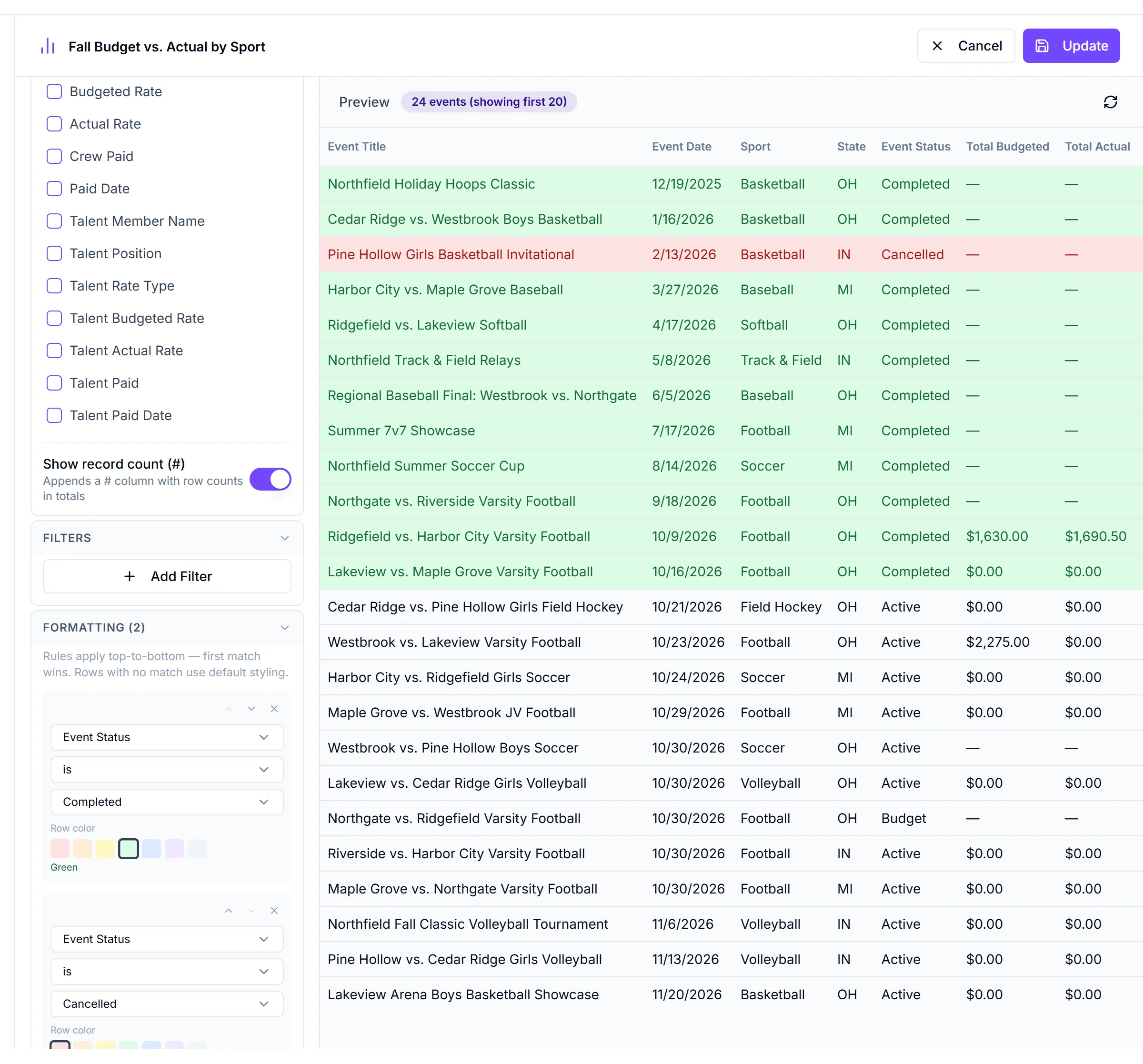
Formatting: click Add Rule, pick a column, an operator and a value, and choose a Row color: Red, Orange, Yellow, Green, Blue, Purple or Grey. Rules apply top to bottom and the first match wins. Rows with no match keep the default styling.
Preview and save
The Preview on the right refreshes shortly after each change and shows the first 20 events. Click Refresh preview to force it.
Click Save Report. You'll see Report saved, and the report opens. It's listed under My Reports on the Reports page.
In the saved report you can:
- Search results... and use Filters for quick filters on the current page.
- Expand all or Collapse all groups. Groups show TOT subtotal rows for number columns, plus a grand total.
- Click a row to open the event.
- Page through 100 rows at a time.
- Click Edit to change it (only the person who created it can).
Deleting a report can't be undone
From the report's card menu, Delete permanently deletes the report. Only its creator can delete it.
Things to know
- Crew and talent columns change the rows. Any crew or talent field gives one row per budget position. Without Crew Member Name or Talent Member Name in the report, rows go back to one per event and the crew values are blank.
- Totals repeat on position rows. In a one-row-per-position report, event totals such as Total Budgeted repeat on every row, so TOT subtotals for those columns overcount.
- Number columns use text operators. Financial columns and Number of Games have no "greater than" filter.
- Quick filters cover the current page only. The count reads "x of y on this page".
- No pre-built reports. Every report starts from scratch.
- Pay crew in bulk. Add Crew Member Name to an ungrouped report and you can select rows and click Mark as Paid. See mark crew paid.
Checklist
- Workspace selected
- Columns chosen and ordered
- Filters and sort set
- Grouping and row colors added if needed
- Report saved and checked in the viewer