

A crosstab is a pivot table. Pick one field for the rows and one for the columns, and each cell shows the count of events, or the sum or average of a number, where they meet: sports down the side, seasons across the top, for example. Totals are added for every row and column. Crosstabs are built from Reports in the sidebar and are on the Pro plan.
Short version
Select your workspace first so the report covers that workspace's events. Then go to Reports, click New Report, choose Crosstab, set the Row Field, Column Field and Cell Value, and click Save.
Select your workspace first
Select your workspace first so the report covers that workspace's events. Use Switch Workspace in the sidebar and click Enter on the workspace. See create and switch workspaces.
A saved crosstab runs on whichever workspace you have selected when you open it.
Start a crosstab
- Click Reports in the sidebar, then New Report.
- In Choose report type, pick Crosstab.
- Name it in the top bar, where it says Untitled Crosstab.
- Under Basics, add a Description and set Share with team if you want. See calculated columns and sharing.
Set rows, columns and cells
- Row Field: its values become the row headers. It starts on Sport.
- Column Field: its values become the column headers. It starts on Season.
- Cell Value: what goes in each cell.
- Count of events (the default).
- Sum of field, then choose Field to sum.
- Average of field, then choose Field to avg.
- Add Filters if you want to limit the events, for example to one region.
- Click Save. You'll see Crosstab saved.
The fields you can sum or average are Number of Games, the seven financial totals, and the crew and talent budgeted and actual rates.
If you pick the same field for rows and columns, you'll see "Row and column fields are the same — results may not be useful." Pick a different column field.
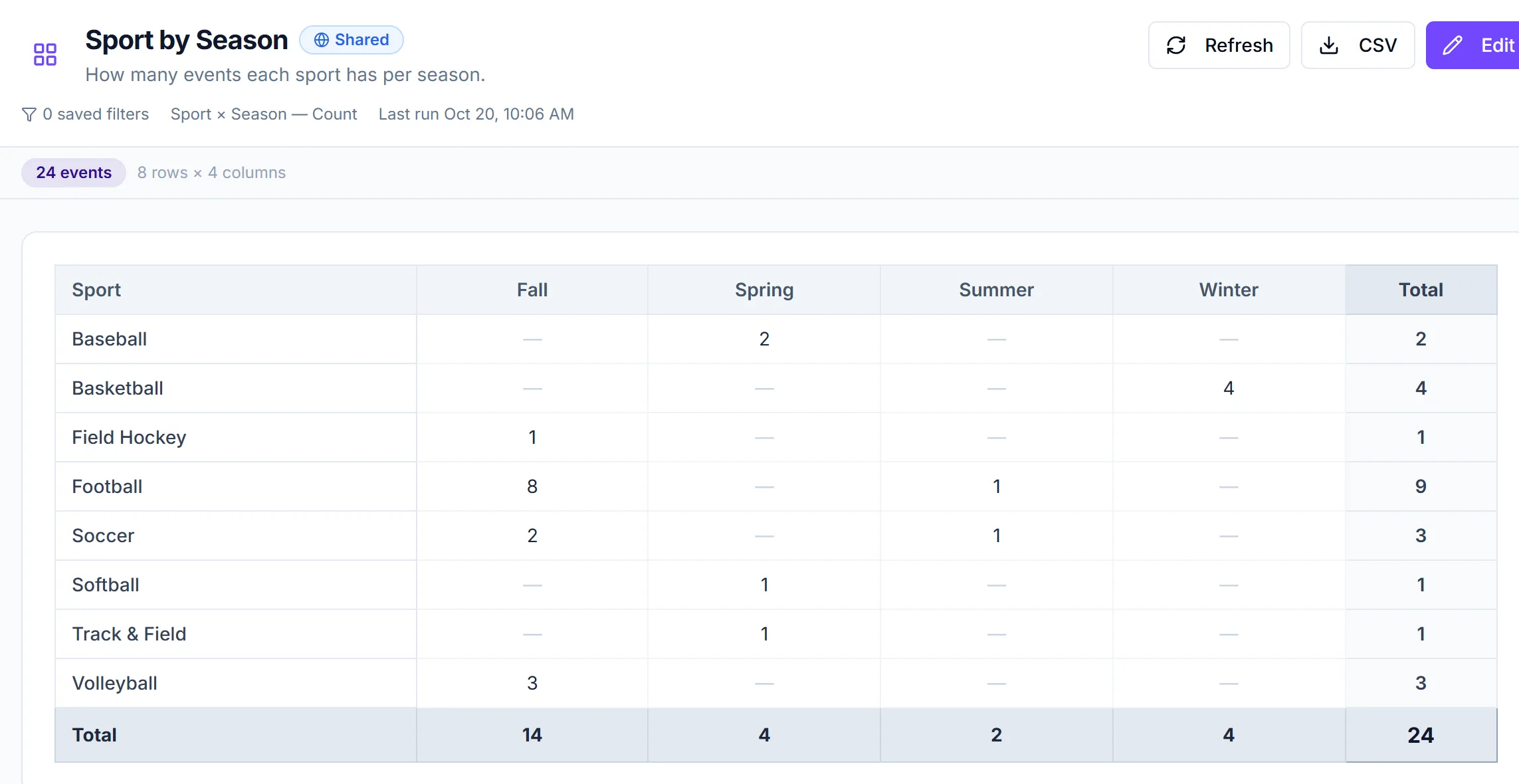
Example layouts
| Question | Row Field | Column Field | Cell Value |
|---|---|---|---|
| How many events per sport each season? | Sport | Season | Count of events |
| What did each region spend by level? | Region | Level | Sum of field: Total Actual |
| Average crew rate by position and sport | Crew Position | Sport | Average of field: Budgeted Rate |
Read the result
- The saved crosstab shows its size, such as "6 rows × 4 columns".
- Each row has a total, each column has a total, and there's an overall total in the corner.
- Averages are weighted by event, so a row average reflects all the events in that row, not an average of the cell averages.
- Click CSV to download the pivot, including the Total row and column.
Things to know
- Rows and columns sort alphabetically. That includes months: if you use Event Month, the months come out in alphabetical order, not date order. Use a chart report or a table report grouped by month if you need date order.
- Sum and average need a field. Without one, you get no results and see "A value field is required for sum/avg aggregation".
- One field each way. A crosstab has one row field and one column field. There are no nested rows or percent-of-total cells.
- Only the creator can edit. Teammates can run a shared crosstab but not change it.
Checklist
- Workspace selected
- Row and column fields chosen, and different
- Cell value set, with a field for sum or average
- Filters added
- Crosstab saved and totals checked