

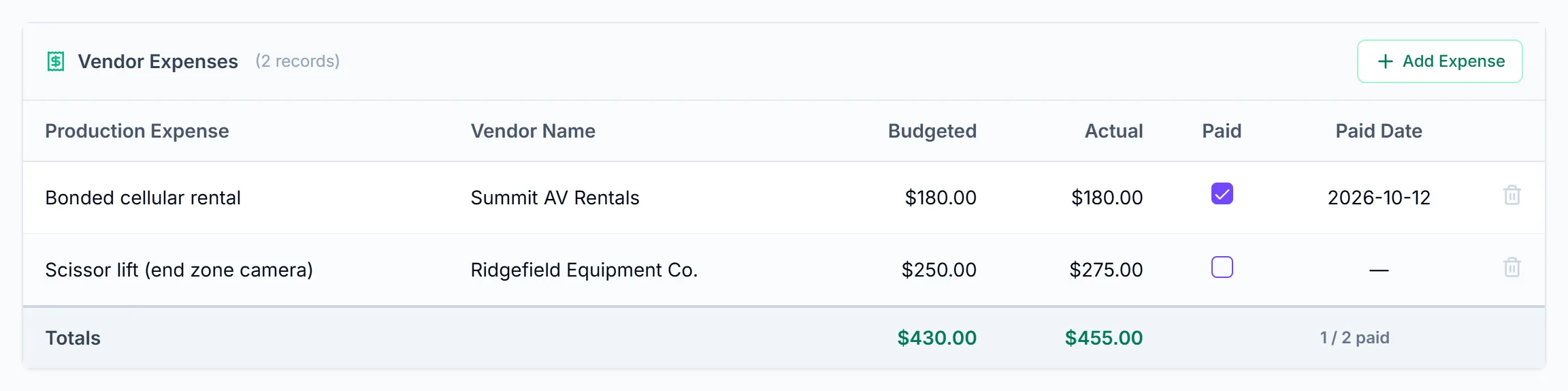
Once the event is done, or as invoices come in, record what you actually spent. The Budget & Actuals tab has actual columns next to each budgeted amount, plus a Vendor Expenses card for production costs that aren't tied to a person, such as a truck rental or venue fee. The cards at the top compare the two.
Short version
On Budget & Actuals, click Actual Rate and Actual Exp. on each crew and talent row and type the amounts. Add other costs with Add Expense. The Budget Summary and Variance cards show where you stand.
Record actual crew and talent costs
- Open the event and click the Budget & Actuals tab.
- In Crew & Talent Budget, click a row's Actual Rate cell and type what you paid or owe.
- Click Actual Exp. and enter that person's actual expenses.
- Press Enter or click away to save.
Total Actual for the row is Actual Rate plus Actual Exp. If it's more than the row's total budget, the cell turns red with an Over badge.
If you haven't budgeted yet, see set an event budget.
Add vendor expenses
- In the Vendor Expenses card, click Add Expense. A blank row appears with the cursor in Production Expense.
- Type what the expense is, then fill in Vendor Name.
- Enter the Budgeted and Actual amounts.
- Tick Paid and set a Paid Date when it's settled. The two are separate: ticking Paid doesn't fill the date.
Empty cells show "Click to add". To remove an expense, click the trash icon, then Yes. Deletes are permanent.
Read the summary cards
| Card | What it shows |
|---|---|
| Budget Summary | Rows for Budget, Actuals and Actual − Budget, across Crew, Talent, Expenses and Total |
| Variance | Total budget minus total actuals. Green "under budget" or red "over budget" |
| Unpaid | How many crew and talent rows aren't marked paid, "of N rows" |
In Budget Summary:
- Crew and Talent budget is the sum of budgeted rates and budgeted expenses; actuals are the sum of actual rates and actual expenses.
- Expenses is the sum of vendor Budgeted and Actual amounts.
- Actual − Budget is green when you're at or under budget, and red with a "+" when you're over.
Each table also has a Totals footer and a count such as "3 / 8 paid".
Things to know
- Unbudgeted rows push you over. A row with no budget counts as $0, so any actual on it adds to the over-budget amount in the summary cards. The row itself doesn't get an Over badge, because the badge only appears when the row has a budget above $0. Enter a budget for every row if you want a clean variance.
- Unpaid counts people, not vendors. The Unpaid card counts crew and talent rows, including rows with no one assigned. Vendor expenses marked paid or unpaid don't change it.
- A failed save still shows your number. If you see "Failed to save" or "Failed to save expense", the amount on screen wasn't saved. Reload to check.
- No receipts or categories. Expenses are a name, vendor, two amounts and paid status. You can't attach a receipt.
- Exporting budget data is done through Reports, which is on Pro. See build a table report.
When people have been paid, mark crew paid so the Unpaid card stays accurate.
Checklist
- Actual rate and expenses entered for every row
- Vendor expenses added with budgeted and actual amounts
- Rows marked Over checked
- Variance reviewed
- Paid status updated