

A chart report answers questions like "how many events did we do per month?" or "what did we spend by region?" at a glance. You pick a chart type, the field to group by, and whether to count events or add up a number. Chart reports live alongside your table reports under Reports in the sidebar. Reports are on the Pro plan.
Short version
Select your workspace first so the report covers that workspace's events. Then go to Reports, click New Report, choose Chart, set the Chart Type and group-by field, and click Save Chart.
Select your workspace first
Select your workspace first so the report covers that workspace's events. Use Switch Workspace in the sidebar and click Enter on the workspace. See create and switch workspaces.
A saved chart runs on whichever workspace you have selected when you open it.
Start a chart
- Click Reports in the sidebar, then New Report.
- In Choose report type, pick Chart.
- Name it in the top bar, where it says Untitled Chart.
- Under Basics, add a Description and set Share with team if you want. See calculated columns and sharing.
Set up the chart
Under Chart Settings:
- Chart Type: Bar (the default), Line, Pie or Area.
- X-Axis — Group by: the field that makes the bars or points, such as Sport, Event Month, Region or Market/Client. For a pie chart this is called Segment — Group by. It starts on Sport.
- Y-Axis — Aggregation: what each bar measures. For a pie it's Slice Size — Aggregation.
- Count of events (the default) counts events in each group.
- Sum of field adds up a number. Choose it in Field to sum.
- Field to sum offers Number of Games, the seven financial totals (such as Total Budgeted and Total Actual), and the crew and talent budgeted and actual rates. Money fields are shown in US dollars.
| To answer | Group by | Aggregation |
|---|---|---|
| Events per month | Event Month | Count of events |
| Spend by region | Region | Sum of field: Total Actual |
| Games by sport | Sport | Sum of field: Number of Games |
Filter and preview
- Under Filters, click Add Filter to limit the events, for example to one season. The fields and operators are the same as in table reports.
- The Preview shows the chart and how many groups it has. If nothing matches, it shows "No data to display".
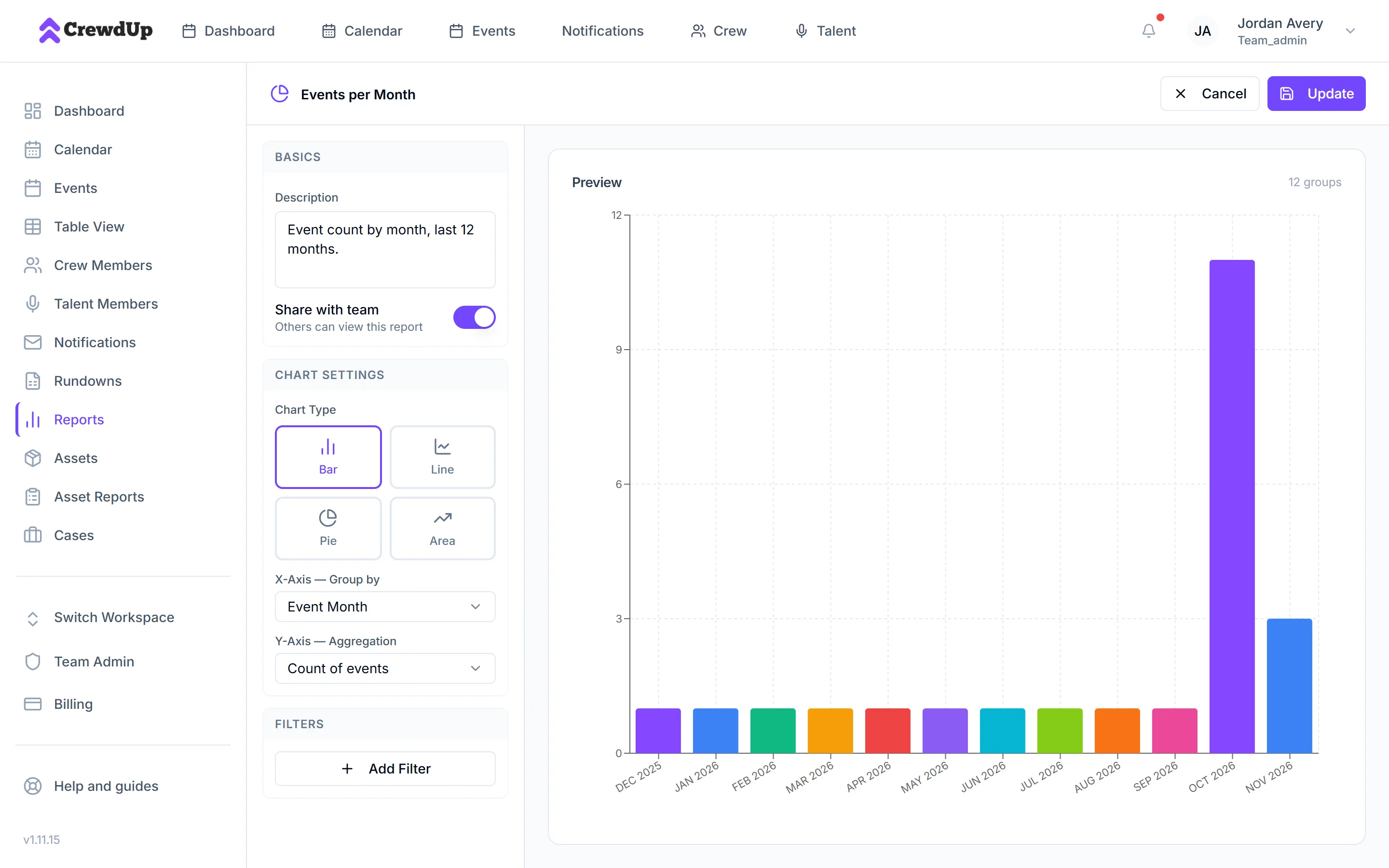
Save and view
Click Save Chart. You'll see Chart saved. To change it later, open it and click Edit, then Update.
The saved chart shows the number of events and groups. Pie slices are labeled with the name and percentage.
Click CSV to download the numbers behind the chart. The file has two columns: the group label, and either Count or the field you summed.
How groups are built
- Groups are listed alphabetically. Event Month is the exception: months run in date order.
- Events with no value for the group field are grouped as "(blank)".
- Up to 2,000 rows are loaded for a chart.
Things to know
- Crew and talent fields count positions, not events. If you group by Crew Position or Crew Member Name, each bar counts budget positions, even though the chart's badge still says events.
- Pick a field when you sum. Sum of field with no Field to sum gives zeros.
- One series per chart. There are no stacked or multi-series charts.
- No image or PDF export. Use the CSV and chart it elsewhere if you need a file.
- Only the creator can edit. Teammates can open a shared chart but not change it.
Checklist
- Workspace selected
- Chart type and group-by field chosen
- Field to sum picked, if summing
- Filters set
- Chart saved