

When you have a season's schedule in a spreadsheet, you don't need to type each event. The Bulk Upload button on the Events page takes a CSV and creates one event per row. Bulk upload is on Starter and Pro.
Short version
Go to Events, click Bulk Upload, then Download Template. Fill in one row per event with dates as YYYY-MM-DD, save as CSV, pick the file and click Upload Events. Good rows are created even if others fail.
Download the template
- Go to Events in the sidebar.
- If you use workspaces, select the right one first. Uploaded events go into the active workspace.
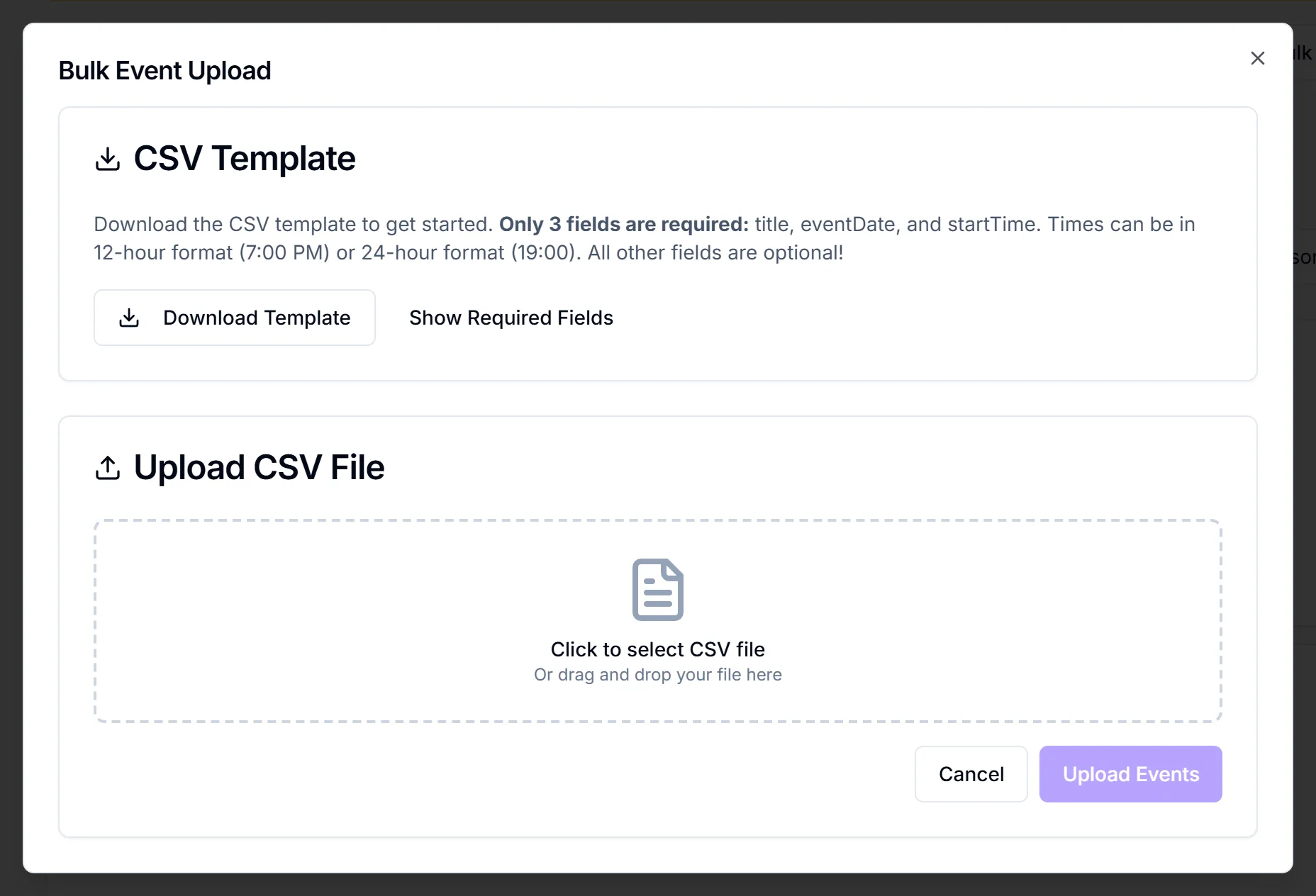
- Click Bulk Upload. The "Bulk Event Upload" dialog opens.
- Click Download Template. You get
events_template.csvwith every column and one sample row.
Fill in the columns
The template's first row is the header. Keep it exactly as it is: headers are case-sensitive and must match the template.
Every row needs a title and a valid eventDate. Everything else is optional. The dialog says startTime is required too, but if you leave it blank the event is created with a start time of 12:00 AM. Fill it in.
| Column | Format and notes |
|---|---|
title | Required |
eventDate, endDate | YYYY-MM-DD, for example 2026-11-14 |
startTime, crewCallTime | 7:00 PM or 19:00. Blank crew call uses the start time |
location, locationAddress | Venue name and address |
isMultiDay | true or 1 for a multi-day event. Anything else means single game |
state, sport, season, gender, level | Same as the event fields |
eventStatus | Budget, Active, Completed, Cancelled, Pending or Suspended. Blank shows as Active |
status | The separate Table view status. Leave it blank unless you use it |
rtmpServer, broadcastKey | Stream details |
The template also has columns for the four contacts, links, production notes, commercial details, region, market or client, and number of games and days. The full header is:
` title,eventDate,startTime,endDate,location,crewCallTime,endTime,internetSource,productionSoftware,locationAddress,rtmpServer,broadcastKey,venueContactName,venueContactEmail,venueContactPhone,associationContactName,associationContactEmail,associationContactPhone,producerContactName,producerContactEmail,producerContactPhone,coordinatingProducerContactName,coordinatingProducerContactEmail,coordinatingProducerContactPhone,isMultiDay,scheduleLink,streamLink,productionNotes,commercialDownloadLink,commercialNotes,state,sport,season,gender,level,type,description,status,region,marketClient,numberOfGames,numberOfDays,eventStatus `
There's no timezone column. Every uploaded event is set to Eastern. Type times as venue time, and change the Timezone label on events at other venues afterwards. The label doesn't convert anything.
Watch out for Excel
Excel often turns 2026-11-14 into 11/14/2026, and those rows fail. It also turns true into TRUE, which makes the event single game. Format the date column as text before you type, and check the file in a text editor before uploading.
Upload the file
- Back in the dialog, click "Click to select CSV file" and pick your file. It must be a CSV, up to 5 MB.
- Click Upload Events.
Read the results
Each row is created on its own. Good rows are kept even when others fail.
- All good: "Bulk Upload Successful" and "Successfully uploaded {n} events".
- Some failed: "Upload Issues" and "{n} events uploaded, {m} failed".
The results card shows Events Created and Failed counts, a list of the created events, and an Errors list such as "Row 4: eventDate - Invalid eventDate format". Row numbers count the header as row 1, so row 4 is the third event in your sheet.
Common errors:
- "Invalid eventDate format" or "Invalid endDate format": the date isn't
YYYY-MM-DD. - "Invalid time format. Use HH:MM or HH:MM AM/PM": fix the time.
- "Invalid CSV format": the file couldn't be read at all. Re-save it as CSV.
To retry, put just the failed rows, fixed, in a new file with the same header and upload that. The rows that worked are already created.
What happens next
- Every uploaded event is hidden from crew. There's no visibility column. Turn on Visible to Crew per event, or in bulk in Table view. See hide or show an event to crew.
- You're the owner of every uploaded event.
- No emails go out, and no crew are assigned.
Things to know
- The created list can show dates a day early in US timezones. Open the event to check the real date.
- Some values aren't checked, including internetSource, productionSoftware, season and gender. A typo is saved as typed.
Checklist
- Workspace selected
- Header row untouched
- Dates as
YYYY-MM-DD, times filled in - File saved as CSV, under 5 MB
- Errors fixed and only failed rows re-uploaded
- Visible to Crew turned on where needed