

Instead of assigning every slot yourself, you can let crew put their hand up. Crew linked to you see your visible events on their dashboard and can ask for an open position. You get an email and a card on your dashboard, then approve them into a slot or decline.
Short version
Keep the event Visible to Crew with Open slots. When someone raises a hand, you get a "Crew Interest" email. Approve them from Crew Interest Notifications on your dashboard or Interested Crew Members on the event. Approving confirms them straight away.
What crew see
Crew see events that are Visible to Crew and owned by a manager they're linked to. On each event card:
- If the event has open crew slots, there's one button per open slot, labelled with the position. After they click, it reads "{position}: Pending".
- If there are no open slots, there's an Express Interest button, which then reads Interest Pending.
- If they're already assigned to the event, the buttons don't show.
Events with Visible to Crew off, or marked Fully Staffed, don't appear for crew. See hide an event from crew.
The email you get
When someone raises a hand, the event's owner gets an email: "Crew Interest: {name} wants to work on {event}", with their skills and a View Event Details button.
Where to review interest
| Place | Who sees it | What it lists |
|---|---|---|
| Dashboard → Crew Interest Notifications | Managers and team admins | Pending interest on events you own only |
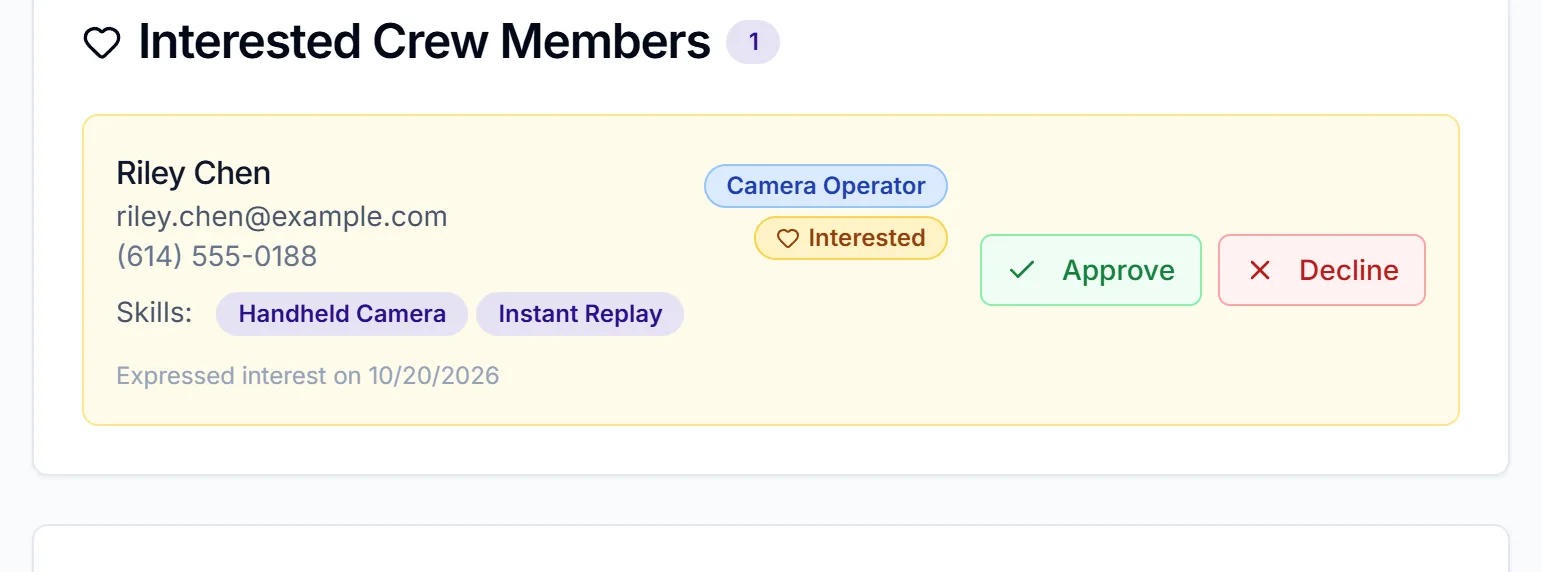
| Event → Event Details → Interested Crew Members | Anyone with edit rights on the event | Interest on this event; only shown when there is some |
On the dashboard card, click Review to see the event date, start time, location and crew details. On the event card, each row shows the person's contact details, the position they asked for, their skills and when they expressed interest.
Approve someone
- Dashboard: click Review, then choose Position/Role (required to approve). Event page: click Approve, then choose Position/Role in Approve Crew Member.
- If they asked for a specific slot, that position is already locked in ("Requested for this role").
- Otherwise pick from the list: open slots on this event are marked "open assignment", and other team positions are marked "create new assignment", which adds a new slot.
- Click Approve & Assign. The button stays greyed out until a position is chosen.
You'll see "Crew member approved and assigned". The person goes straight to Confirmed on Crew Assignments.
Approving confirms them without asking
There's no accept or decline step. The crew member gets an email, "Approved for {position} - {event}", and is confirmed immediately. No calendar file is attached.
Decline someone
Click Decline on the event card, or Review then Decline on the dashboard. There's no confirmation. You'll see Interest Declined, and the crew member gets an email, "Interest Update: {event}", saying you won't be able to include them. They can raise their hand again with Express Interest Again.
Things to know
- A declined slot doesn't reopen until you remove the person. If someone you assigned declines, they stay in the slot and crew can't raise a hand for it. Remove them to make it Open again. See move or remove an assignment.
- Only the owner can decline. Collaborators with Edit or Full access can approve from the event page, but Decline currently fails for them with "Event not found or not owned by you".
- Collaborators use the event page. The dashboard card only lists events you own.
- Someone just took the slot? If the slot was filled or changed while you were reviewing, you'll see a message such as "That crew position was just filled by someone else." Refresh and try again.
- Start times on the dashboard card show as a raw timestamp for now. Check the event itself for the time.
- Crew can't withdraw their own interest. Decline it if they ask.
Checklist
- Event is Visible to Crew and not Fully Staffed
- Open slots exist for the roles you need
- Interest reviewed on the dashboard or the event page
- Approved crew told to expect an "Approved" email
- Fully Staffed ticked once every slot is covered