

A join link is a web address your manager or team admin shares with you, ending in /join/ and a 10-character code. Opening it lets you create a CrewdUp account that's already on their team, with the right role.
You don't need an account to accept or decline event invites. You need one to see the team's events, raise your hand for open work and keep your profile up to date.
Short version
Open the join link, enter your first and last name, email and a password of at least 8 characters, and click Join team. You're signed in and taken to your dashboard.
Create your account
- Open the join link. You'll see "Verifying your invite link…" for a moment.
- The page says "You're invited!" and names the team and the role you're joining as, for example Crew Member or Talent.
- In Create your account, fill in:
- First name and Last name
- Password, at least 8 characters
- Confirm password
- Click Join team. The button reads "Creating account…" while it works.
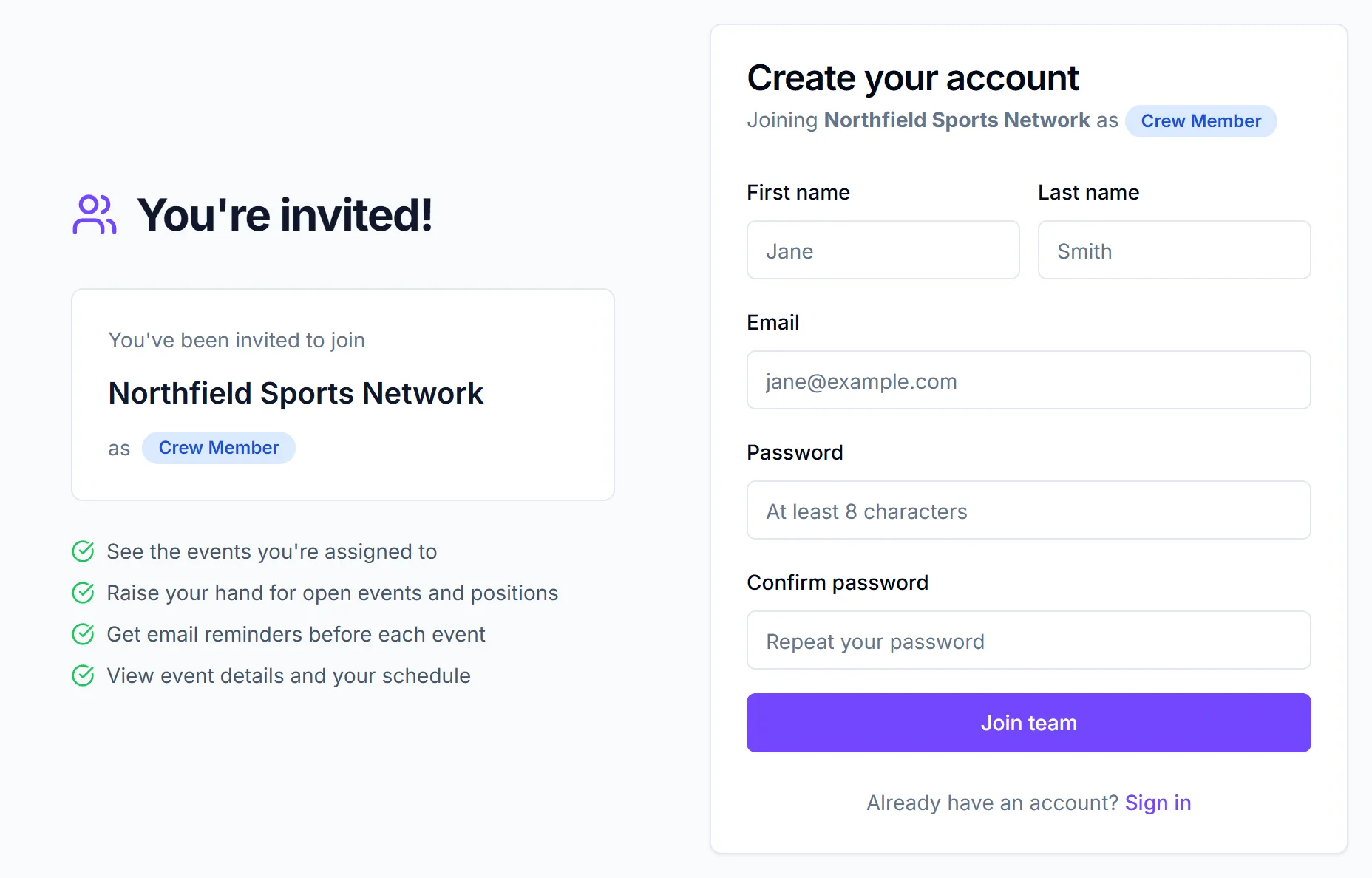
You'll see "Welcome to CrewdUp!" and land on your dashboard.
What happens next
- You're on the team with the role the link was made for.
- If your manager already added you to their crew list with the same email, your account is linked to that record, so your history stays with you.
- Crew: if the link was made for a particular manager, you're linked to them, and you'll see their events once they're visible to crew. Talent aren't linked to a manager by the link.
- You don't get a welcome email.
If the link doesn't work
- "Invalid or Expired Link" means the link was turned off, has passed its expiry date or has been used as many times as allowed. Ask your manager or team admin for a new one.
- "You're already signed in" means someone is signed in on this browser. Click Sign out and join as new account to continue with the link.
- "Email already exists" means that email already has a CrewdUp account. One email address can only have one account, so it can't join a second team. If you're already on this team, sign in instead. Otherwise, use a different email.
If you got an email invite instead
Some teams invite people by email. That email is titled "You've been invited to join {team} on CrewdUp" and has an Accept Invitation button.
- Click Accept Invitation. The sign-up page opens with "You're joining" and the team name.
- Enter your First Name, Last Name, Email and a Password of at least 6 characters.
- Click Accept Invite & Create Account.
Each email invite works once. If the page says "Invite link is invalid or expired", ask your team admin for a new one.
Don't use Google on an invite page
Clicking Sign in with Google from an invite creates a new team of your own instead of joining. Use the email and password form.
Things to know
- No events on your dashboard? If you see "No available events", your manager may not have linked you to them yet, or hasn't made any events visible to crew. Ask them. See your crew dashboard.
- Passwords differ. Join links need at least 8 characters. Email invites and the main sign-up page need 6.
- "Already have an account? Sign in" takes you to the normal sign-in page. It doesn't add your existing account to this team.
- Forgot the password later? See reset your password.
Checklist
- Join link opened in a browser where nobody else is signed in
- Account created with the email your manager has for you
- Dashboard checked for events
- info@crewdup.com added to your contacts