

Asset reports are custom views of your gear inventory: every camera due for warranty renewal, everything in Maintenance, all wireless kit by location. They have their own page, Asset Reports in the sidebar, separate from event reports. Asset reports are on the Pro plan.
An asset report covers all of your team's assets, whichever workspace you have selected, because assets belong to the whole team.
Short version
Select your workspace before you save, so sharing works. Go to Asset Reports, click New Report, pick your columns and filters, and click Save Report.
Select your workspace before you save
Select your workspace first, using Switch Workspace in the sidebar. The workspace doesn't change which assets are in the report, but a shared report is shared within the workspace it's saved in. See create and switch workspaces.
Build an asset report
- Click Asset Reports in the sidebar. With none saved yet, you'll see "No asset reports yet".
- Click New Report.
- Name it where it says Untitled Asset Report.
- Under Basics, add a Description and turn on Share with team ("Others can view this report") if teammates should see it.
- Pick columns from Available fields, then drag them into order.
- Click Add Filter to narrow the list.
- Under Sort, click Add Sort and choose A → Z or Z → A. You can add up to 3. The default is Asset Name, A to Z.
- Under Group By, pick a field or leave No grouping.
- Check the preview, which shows the first 20 rows.
- Click Save Report. You'll see Report saved.
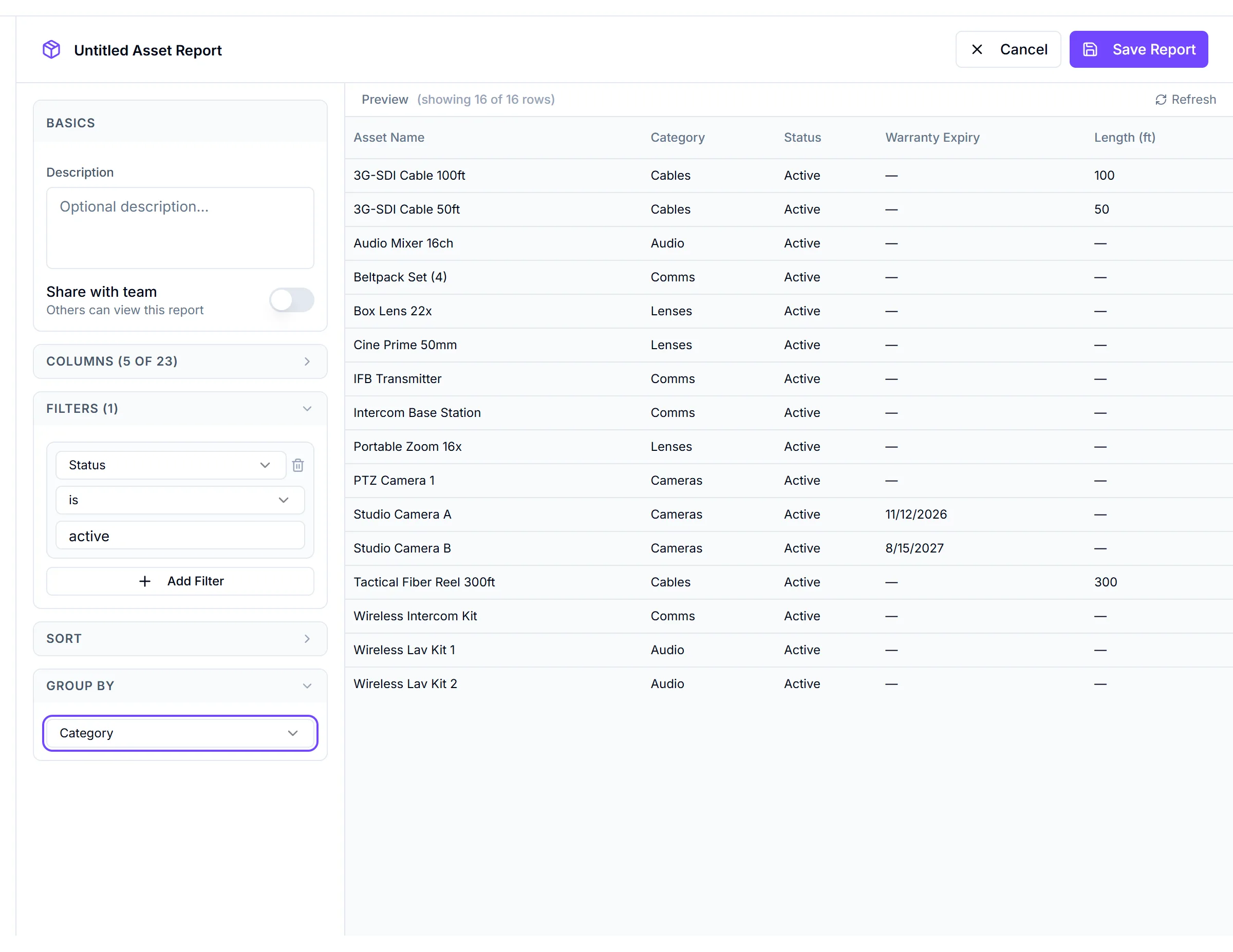
Fields and filters
Standard fields: Asset ID, Asset Name, Asset Tag, Category, Status, Manufacturer, Model, Serial Number, Location, Purchase Date, Purchase Price, Description, Warranty Expiry, Insurance Expiry, Vendor and Assigned To. Every custom field from every category is available too. New reports start with Asset Name, Asset Tag, Category, Status, Manufacturer, Model and Location.
Group by: Category, Status, Manufacturer, Location, Vendor, or a custom Dropdown or Checkbox field.
| Field type | Filter operators |
|---|---|
| Text | equals, does not equal, contains, starts with, is empty, is not empty |
| Status | is, is not, is one of, is empty, is not empty |
| Dates | is on or after, is on or before, is between, is empty, is not empty |
| Numbers | equals, does not equal, is at least, is at most, is between, is empty, is not empty |
| Custom checkbox | is Yes, is No |
Useful reports
| Report | Set up |
|---|---|
| Warranty renewals | Warranty Expiry is between today and three months out, sorted by Warranty Expiry |
| Gear in maintenance | Status is Maintenance, grouped by Category |
| Inventory value | Purchase Price column, grouped by Category |
Run and export a saved report
Open the report from the Asset Reports page. The viewer has:
- Search results... to find rows.
- Column headers you click to sort. Click again to flip the order.
- A total for Purchase Price.
- 100 rows per page, or up to 5,000 rows when the report is grouped.
- Refresh, Export CSV, Close, and Edit for the person who created it.
Things to know
- Export CSV only includes loaded rows. In an ungrouped report that's the current page of up to 100 rows. Check the row count in the file before you rely on it.
- "Assigned To" isn't the checkout holder. It's a separate field that nothing in CrewdUp currently fills in. To see who has gear, check the Current Holder column on the Assets page. See check out and check in gear.
- A purchase price of 0 shows as "—".
- Inventory fields only. Checkout history, shipments, event usage and packing cases aren't in asset reports.
- Tables only. There are no charts or crosstabs for assets.
Checklist
- Workspace selected before saving a shared report
- Columns chosen, including custom fields
- Filters and sort set
- Report saved
- Exported rows checked against the total