

Categories sort your inventory into groups such as Cameras, Lenses or Comms. Each category gets its own tab on the Assets page, and each one can carry custom fields: a lens mount for lenses, a firmware version for cameras, a frequency band for wireless mics. You manage both from the Categories button on the Assets page.
Short version
On Assets, click Categories, type a name and click Add. Then click the sliders icon next to a category to add its custom fields.
Create a category
- Go to Assets in the sidebar and click Categories. The Manage Categories dialog opens.
- Type a name in New category name.
- Click Add, or press Enter.
The category appears as a new tab on the Assets page, and in the Category list when you add or edit an asset.
To rename a category, click its pencil, change the name and click Save (or Cancel).
CrewdUp doesn't create any categories for you. Set up the ones you need before you add or import gear, because an import can only use categories that already exist.
Add custom fields
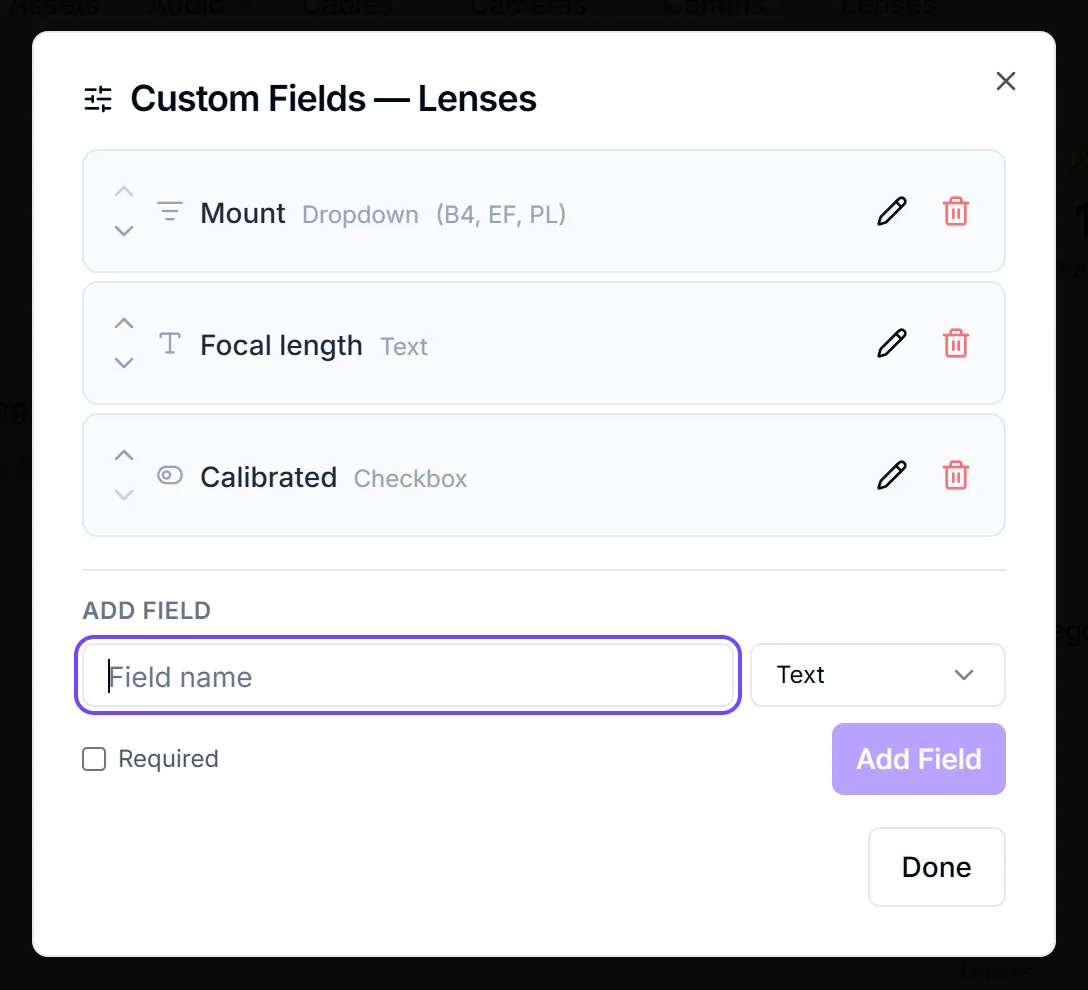
- In Manage Categories, click the sliders icon (Manage custom fields) next to the category. A dialog titled Custom Fields with the category name opens.
- Under Add Field, enter a Field name and choose a type.
- Tick Required if every asset in this category must have a value.
- Click Add Field. You'll see Field added.
- Use the up and down arrows to put the fields in order.
- Click Done.
Field types
| Type | What it holds |
|---|---|
| Text | Any text |
| Number | Numbers only |
| Date | A date |
| Dropdown | One choice from a list you set in Options (comma-separated) |
| Checkbox | Yes or no |
To change a field's name, type, options or Required setting, click its pencil.
Where custom fields show up
- New Asset and Edit Asset dialogs: a Custom Fields section appears when the asset is in that category.
- The asset's page: a Custom Fields card with the category name.
- The category tab: each field becomes a column you can show or hide with Columns.
- Asset reports: every custom field is available as a column and filter. See asset reports.
CrewdUp checks values when you save. A required field must be filled in, a Number field must be a number, and a Dropdown value must be one of its options. If not, you'll see a message such as Field "Mount" is required.
Delete fields and categories
Deleting a field deletes its data
Delete Field? permanently deletes the field and every value stored in it, across all assets in that category. This can't be undone.
Deleting a category deletes its custom fields too
The Delete Category? dialog says the assets in it will become uncategorized, and they do. It also deletes the category's custom field definitions and every value stored in them. The assets themselves stay in your inventory. This can't be undone.
Things to know
- Changing an asset's category drops its old custom values. Fields belong to one category. Move a lens into another category and its values for the old category's fields are removed when you save.
- A required checkbox needs a click. If a Checkbox field is required, tick it (or tick and untick it) before saving, or the dialog says the field is missing.
- Categories have no colors you can set. Only the name is editable.
- The CSV import can't fill custom fields. Add those values by editing each asset after import. See import assets from a CSV.
Checklist
- Categories created before you add or import gear
- Custom fields added to each category that needs them
- Required set only on fields everyone can fill in
- Fields in a sensible order