

The Assets page is your team's equipment list. Each asset is one record: a camera body, a lens, a comms kit, a router. Once gear is in the list you can check it out to crew, put it in packing cases, assign it to events and log shipments against it. Asset tracking is on the Pro plan.
Assets belong to the whole team, not to a workspace. Everyone with manager access sees the same inventory, whichever workspace they have selected.
Short version
Go to Assets in the sidebar and click New Asset. Enter a Name, pick a Status, fill in whatever else you know, and click Create Asset.
Before you start
- You need a manager role. Team admins and managers can add and edit assets. Crew and talent can't open the Assets page.
- Create your categories first. CrewdUp doesn't come with any categories, and an asset can only go into one that already exists. Categories also carry custom fields, so set those up before you add gear. See asset categories and custom fields.
- Have a lot of gear? Use import assets from a CSV instead of adding them one by one.
Add an asset
- Click Assets in the sidebar. The page is titled Assets, with the subtitle "Manage your team's equipment and inventory".
- Click New Asset. The New Asset dialog opens.
- Enter a Name. It's required.
- Choose a Category, or leave it on No category.
- Set the Status: Active, In Field, Maintenance or Retired. New assets start as Active.
- Fill in the other fields you need (see the table below).
- If the category has custom fields, a Custom Fields section appears at the bottom. Fill in any required ones, or the dialog won't save.
- Click Create Asset. You'll see Asset created when it's saved.
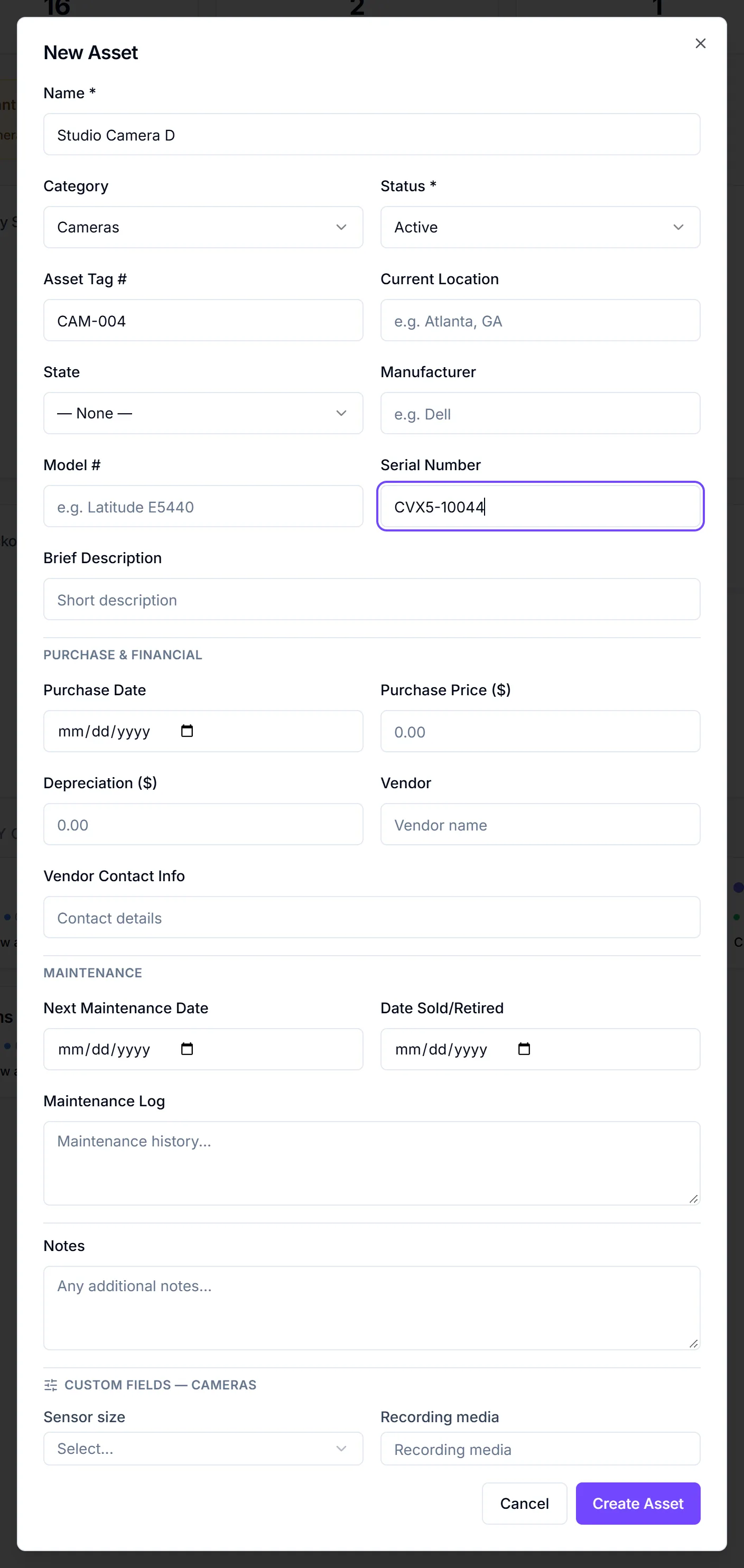
What you can record
| Section | Fields |
|---|---|
| Basics | Name (required), Category, Status (required), Asset Tag #, Current Location, State, Manufacturer, Model #, Serial Number, Brief Description |
| Purchase & Financial | Purchase Date, Purchase Price ($), Depreciation ($), Vendor, Vendor Contact Info |
| Maintenance | Next Maintenance Date, Date Sold/Retired, Maintenance Log |
| Other | Notes, plus the category's custom fields |
Everything except Name and Status is optional. You can come back and add more later.
Warranty and insurance details aren't in this dialog. Add them from the asset's own page in Edit mode. See asset records.
Edit or delete an asset
- Edit: click the pencil on the asset's row. The same dialog opens as Edit Asset. Click Save Changes.
- Open the full record: click the row to open the asset's page, with its history, checkouts and shipments.
- Delete: click the trash icon on the row.
Deleting an asset can't be undone
The Delete Asset? dialog permanently deletes the asset and removes it from any event assignments. There's no way to get it back.
Find gear in the list
- Tabs: Overview, All Assets, and one tab per category with its asset count.
- Filters: Search... matches the name, asset tag, manufacturer and location. Narrow further with All Categories and All Statuses.
- Count: the footer shows something like "12 of 40 assets".
- Columns: on a category tab, use Columns to show, hide and reorder columns, then click Done.
- Export: Export Full Inventory CSV downloads every asset. Export Filtered CSV downloads only what your filters show. The export includes warranty and insurance fields.
Things to know
- Column choices stay in your browser. The Columns setup is saved on this computer only. Teammates, and you on another device, see the default columns.
- The W/I column is a warning light. A red shield means the warranty or insurance has expired. Yellow means it expires within 30 days. No icon means neither applies.
- Nothing gets emailed. Adding or editing assets doesn't notify anyone.
- No barcode scanning. Asset tags are typed in by hand.
Checklist
- Categories and custom fields set up
- Each asset has a name, status and asset tag
- Serial numbers and locations filled in
- Warranty and insurance added on the asset page where they apply