

Talent, such as play-by-play announcers, analysts and hosts, have their own roster on the Talent Members page. You add talent by sending them an invite email. CrewdUp creates their talent record straight away, and they use the email to set up their account.
Talent invites are on Starter and Pro, and only a team admin can send them.
Short version
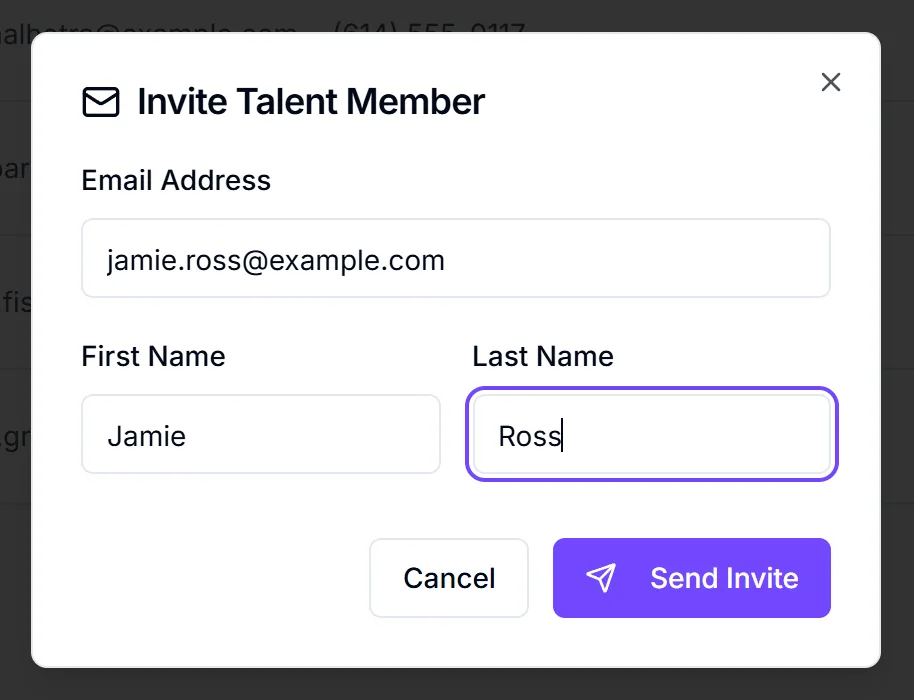
A team admin goes to Talent Members, clicks Add Talent Member, enters an email, first name and last name, and clicks Send Invite. The invite email goes out immediately.
Who can send a talent invite
Only team admins can send talent invites. Managers also see the Add Talent Member button, but sending fails with "Failed to send invite" and a "Team admin access required" message. If you're a manager, ask a team admin to send it.
To check who your team admins are, see roles explained.
Send the invite
- Click Talent Members in the sidebar.
- Click Add Talent Member. If your talent roster is empty, click Invite Your First Talent Member instead.
- In the Invite Talent Member dialog, enter Email Address, First Name and Last Name. All three are required.
- Click Send Invite. The button shows "Sending..." while it works.
The email goes out as soon as you click
There's no preview or draft step. Check the email address before you click Send Invite.
You'll see "Invite sent successfully", and the person appears on your talent roster with Invited • Pending under their name.
What the talent receives
The email's subject is "Welcome to CrewdUp - Complete Your Talent Account Setup". It greets them by first name and has a Create Your Account button, plus a link they can copy and paste.
The email doesn't name your team or you. Let the person know it's coming, so they don't mistake it for spam.
When they click Create Your Account, they set up their CrewdUp login. Their account is linked to the talent record you created, and Invited • Pending goes away.
After they sign up
- Check their assigned manager. Invited talent show as Unassigned until they sign up. Once they've joined, check the Assigned Managers column and assign a manager if it's still empty. Talent see the events of their assigned managers. See assign managers to crew and talent.
- Fill in their profile. The invite only takes a name and email. Add phone, state, skills and internal details from their talent profile.
- Assign them to games. See assign talent by game.
Other ways to bring talent in
A team admin can also create a join link with the Talent role and share it. Anyone who signs up through it joins your team as talent. There's no way to add a talent record without one of these invites.
Things to know
- There's no duplicate check. Search the talent roster before you send, or the same person can end up on it twice.
- If the email fails to send, you won't see an error. The record is still created. If someone says they never got it, check the address on their record and ask them to look in their spam folder.
- Managers can only open talent assigned to them. The talent roster shows all of your team's talent, but a manager who opens a profile not assigned to them gets "Access denied".
- Talent count toward your plan's limit of crew and talent combined: 10 on Free, 50 on Starter and 200 on Pro.
Checklist
- Sent by a team admin
- Email address checked
- Talent told the invite is coming
- Manager assigned after they sign up
- Profile filled in