

Plans are managed on the Billing page. Only team admins can open Billing, subscribe, or open the billing portal. Managers, crew and talent can't. Payments go through Stripe, CrewdUp's payment provider.
Short version
Go to Billing, choose Monthly or Annual –20%, and click Upgrade to Starter or Upgrade to Pro. Stripe asks for your card. To downgrade or cancel, click Manage Subscription.
The Billing page
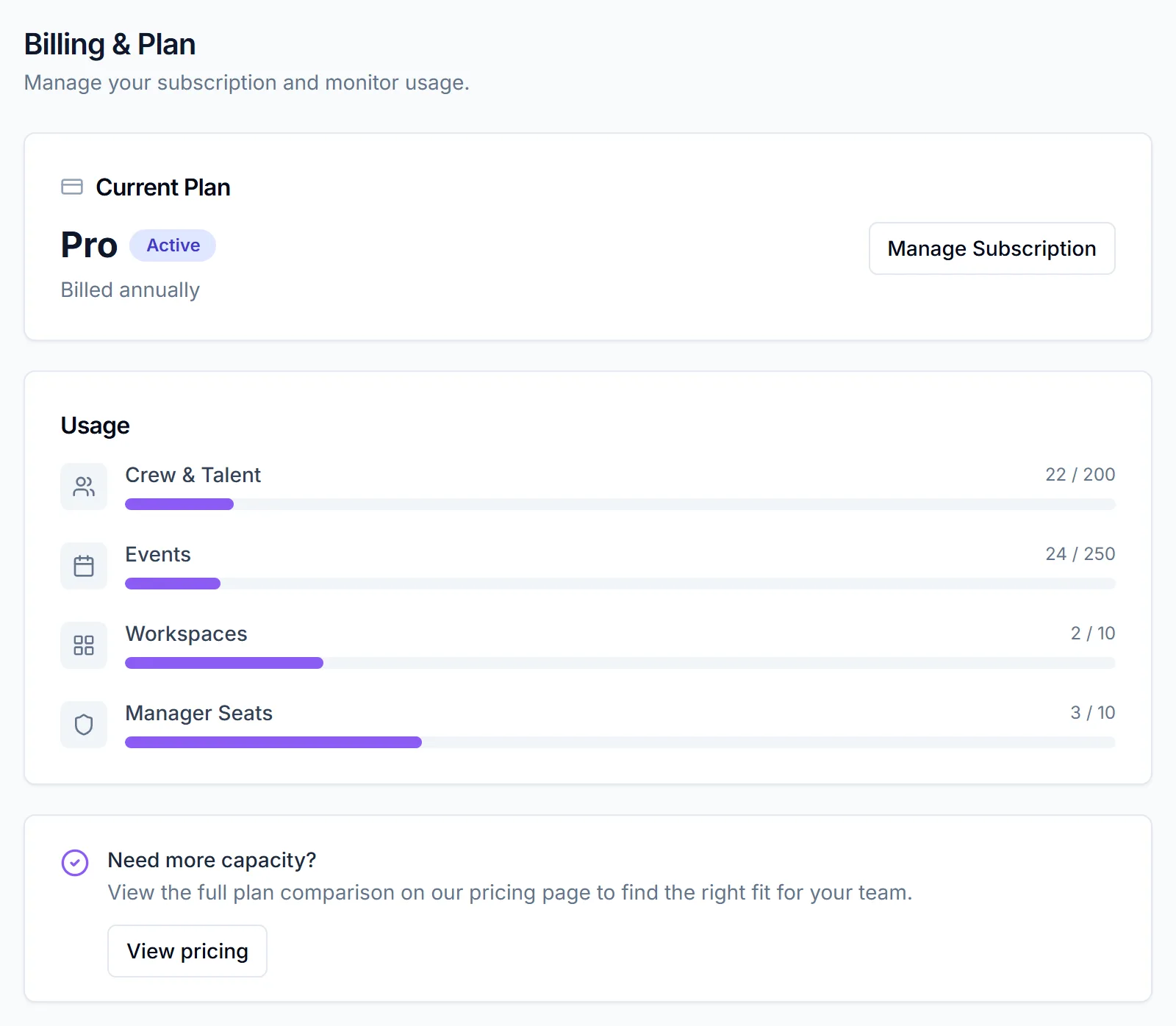
Click Billing in the sidebar. The page is titled Billing & Plan.
- Current Plan shows your plan and a badge: Trial, Active or Free. During a trial it shows how many days are left. On a paid plan it says "Billed monthly" or "Billed annually".
- Usage shows bars for Crew & Talent, Events, Workspaces and Manager Seats.
- Need more capacity? has a View pricing button.
How trials work
When a card is needed depends on how the trial starts:
| How the trial starts | Card needed? |
|---|---|
| You chose Starter or Pro when you signed up | No. You get 31 days with no card. |
| You signed up on Free or with Google, then started a trial from Billing or the pricing page | Yes. Stripe asks for a card, and the trial lasts 31 days. |
| Your team has already had a trial | No new trial. Your card is charged at checkout. |
The no-card trial is only offered at sign-up. See create your account.
If you subscribe during your no-card trial, your card is charged at checkout and the trial days you had left don't carry over. Subscribe near the end of the trial if you want to use all 31 days.
While a trial runs, team admins see a banner at the top of the app with how many days are left. Its Subscribe button starts a monthly subscription. To pay annually, use the Billing page instead.
Subscribe to Starter or Pro
- Go to Billing.
- Choose Monthly or Annual –20%.
- Starter is $49 a month, or $39 a month billed annually.
- Pro is $149 a month, or $119 a month billed annually.
- Click the button on the plan you want. It reads Upgrade to {Plan}, Subscribe to {Plan} if you're trialing that plan, or Re-subscribe to {Plan} after a cancellation.
- Stripe Checkout opens. Enter your card and complete the payment. Promotion codes are accepted.
- You land on a page that says "You're all set!"
If you cancel out of Stripe Checkout, you're back on Billing and nothing changes.
Upgrade from Starter to Pro
On an active Starter plan, click Upgrade to Pro on Billing. The change happens straight away, with no Stripe page. You'll see "Plan upgraded". Stripe adjusts your bill for the rest of the period.
Downgrade or cancel
- Go to Billing.
- Click Manage Subscription. This opens Stripe's customer portal.
- Change or cancel your plan there.
When you're back on Billing, it updates to match. After you cancel, it says your plan "is scheduled to cancel" on a date, and you keep access until then.
Manage Subscription only shows while your plan is active. To cancel during a trial, contact CrewdUp.
The Downgrade buttons on the pricing page take you to Billing. They don't change your plan on their own.
What happens next
The team admin who set up the team gets an email for each change:
- "You're subscribed to CrewdUp {plan}" when a subscription starts.
- "You've upgraded to CrewdUp {plan}" after an upgrade.
- "Your CrewdUp {plan} subscription has been cancelled" when you cancel.
- "Your CrewdUp {plan} access has ended" when the plan ends and the team moves to Free.
Moving to Free deletes nothing, but the Free limits apply. See plans and limits.
Things to know
- A failed payment drops you to Free limits right away. Contact CrewdUp to sort it out.
- Enterprise isn't self-serve. Contact CrewdUp to set it up.
- The upgrade dialog that opens when you hit a limit also checks out monthly.
Checklist
- A team admin is making the change
- Monthly or annual chosen
- Trial timing checked before subscribing mid-trial
- Confirmation email received