

The tech book is one email with everything about the event: times, location, technical setup, the crew and talent lists, contacts, notes, links, every attachment and the linked rundown. You send it from the event page with Send Tech Book. Tech book distribution is on Starter and Pro.
Short version
Open the event and click Send Tech Book. Check the recipients, type in any talent emails and press Enter after each, add a message if you like, and click Send Tech Book. It goes out immediately.
Before you send
- Fill in the event. The email shows what's on the event, so check the production and stream details, contacts and notes first. See production and stream details.
- Add attachments and the rundown. See event attachments and link a rundown to an event.
- Check your access. The button shows if you own the event or are a collaborator with Edit or Full access.
Choose the recipients
- Open the event from Events in the sidebar.
- Click Send Tech Book in the header. The Send Tech Book dialog opens.
- Check the prefilled Recipients. CrewdUp adds:
- every crew member on the event who hasn't declined, including people who haven't answered yet;
- the venue contact email;
- the association contact email.
- Add talent yourself. Talent isn't prefilled. Type each email in Enter email address and press Enter. There's no add button.
- Remove anyone with the x on their chip.
The help text says "Confirmed crew" are added, but in fact everyone except declined crew is added. Add Confirmed Crew works the same way: it re-adds all crew who haven't declined.
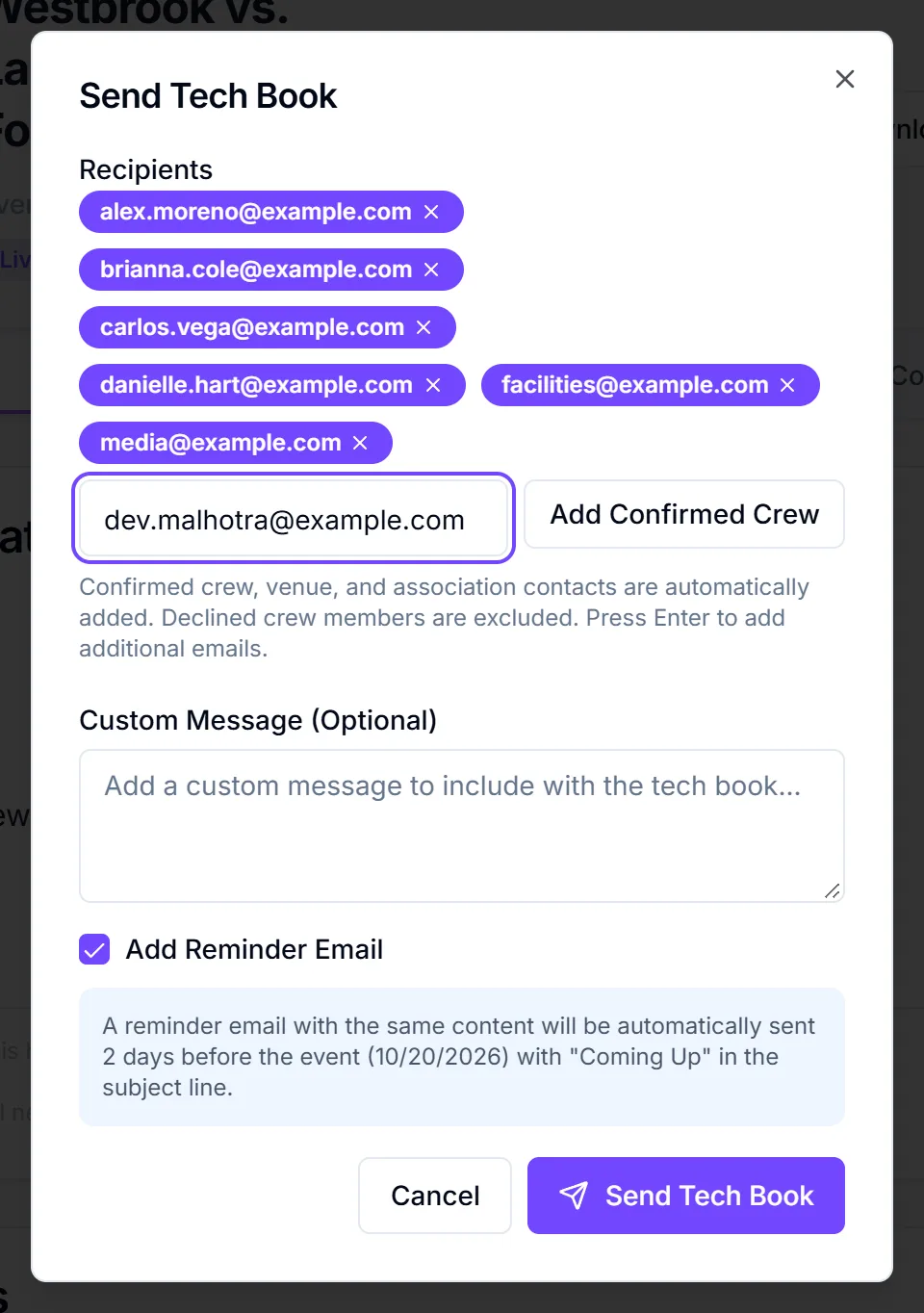
Add a message and a reminder
- Type a note in Custom Message (Optional). It appears near the top of the email under "Message from Production Manager:". Line breaks aren't kept, so write it as one paragraph.
- Tick Add Reminder Email to send the same tech book again two days before the event.
- Click Send Tech Book.
It sends right away
Each recipient gets their email as soon as you click. There's no send-later option and no way to recall it. Every recipient, including venue and association contacts, sees the full crew list, talent phone numbers, every attachment and the rundown.
When the reminder goes out
The reminder goes at 9:00 UTC, two days before the event date. That's 5:00 AM Eastern in summer (4:00 AM in winter) and 2:00 AM Pacific in summer. It isn't in the event's time zone, and you can't pick the time. CrewdUp checks for due reminders hourly, so it goes at the first check after 9:00 UTC.
- The checkbox is greyed out when the event is less than 2 days away: "Reminder emails are only available for events that are more than 2 days away."
- The reminder goes to the same recipients you sent to.
- Its subject starts "Coming Up: Tech Book".
- It's rebuilt on the day, so it carries the event, crew, talent, attachments and rundown as they are then.
See automatic reminders for the other reminders CrewdUp sends.
What happens next
- Each recipient gets an email with the subject
Tech Book: <event title> - <Weekday, Month D, YYYY>, from CrewdUp. - Replies go to the event's owner, not necessarily the person who sent it.
- You'll see "Tech book sent to N recipients", plus "and reminder scheduled for <date>" if a reminder was set.
- CrewdUp logs a "Tech Book Distributed" entry with the recipient count.
For what's in the email, see what's in a tech book.
Things to know
- On Free, clicking send opens the upgrade dialog with "This feature requires the starter plan or higher."
- A failed address stops the send partway. Emails go one at a time. If one address fails, you'll see "Failed to send tech book", but earlier recipients already have it, and no reminder is scheduled. Fix the address and check who still needs it before you resend.
- A missing attachment stops the whole send. If any attachment can't be loaded, nothing goes out.
- Large attachments add up. Each file can be up to 10MB and every file goes to every recipient, so a big set can be too large for some inboxes.
- The email check is basic. It only checks for "@", so typos get through.
Checklist
- Event details, contacts and notes up to date
- Attachments added and rundown linked
- Recipients checked, talent emails added
- Reminder ticked if the event is more than 2 days out
- Sent, and success toast seen