

A rundown on its own lives on your Rundowns page. Link it to an event and it travels with the event: when you send the tech book, CrewdUp attaches the rundown as a PDF. You link rundowns from the event, not from the rundown editor.
Each event takes one rundown, and each rundown can be linked to one event.
Short version
Open the event, go to Event Details, and find the Rundowns card. Pick your rundown in Assign Rundown to Event. To swap it, choose Remove assignment first, then pick the new one.
Link the rundown
- Open the event from Events in the sidebar.
- On the Event Details tab, find the Rundowns card.
- Open the Assign Rundown to Event dropdown ("Select a rundown to assign").
- Pick a rundown. You'll see "Rundown assigned to event successfully".
The card now shows the rundown title and a line like "12 rows • Created by Sam Ortiz". The eye icon opens the rundown in the editor in a new tab.
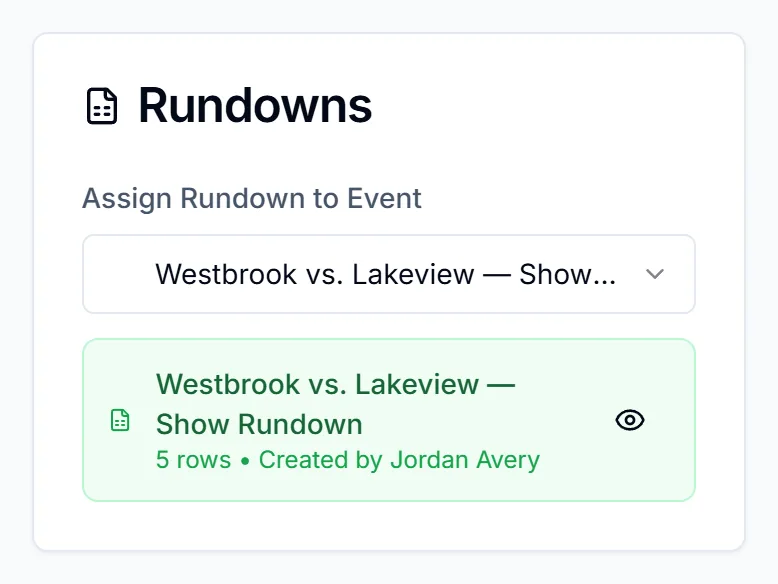
The dropdown lists your own rundowns that aren't linked to another event, plus the one linked here. If a rundown is missing, it's either linked to a different event or it belongs to another manager.
If you don't see the dropdown, the event is in edit mode. Finish editing first.
Swap or unlink a rundown
- Open Assign Rundown to Event and choose Remove assignment. You'll see "Rundown unassigned from event successfully".
- Then pick the new rundown.
Unlink the old rundown first
Picking a second rundown doesn't unlink the first one. Both stay linked, the card shows one of them, and the tech book email may attach the other. Always choose Remove assignment before you pick a different rundown.
How the rundown reaches your crew
When you send the tech book, CrewdUp builds a PDF of the linked rundown and attaches it to every email. It's named after the rundown title, and the email lists it under "Attached Documents" as "<title>.pdf (Event Rundown)".
- It's built at send time. Edits you make after sending don't reach anyone until you send again. A scheduled "Coming Up" reminder rebuilds it, so the reminder carries the rundown as it is that day.
- It uses the default columns. The emailed PDF always has the 8 default columns and labels (Segment, Title, Length, Game Clock, Video, Audio, Graphics, Notes). Renamed, added or removed columns and custom widths don't carry over. Row colors and row bold or italic do.
- If the PDF can't be built, the email still goes out, without the rundown.
Things to know
- The downloaded tech book PDF doesn't include the rundown. Only the email attaches it. See what's in a tech book.
- Another manager's rundown can be linked without you seeing it. Rundowns are personal, so a colleague's rundown linked to the same event won't show on your card, but it's still attached to the tech book. Check with other managers on the event before sending.
- Duplicates start unlinked. When you duplicate a rundown, link the copy to the new event yourself.
- Deleting the event removes the link. The rundown stays on your Rundowns page.
- Search: on the Rundowns page, searching an event title finds the rundown linked to it.
Checklist
- Rundown finished and title saved
- Old rundown unlinked with Remove assignment, if swapping
- New rundown picked in Assign Rundown to Event
- Card shows the right title and row count
- Tech book sent after the last rundown edit