

Most of your CrewdUp work happens in email: invites arrive in your inbox and you answer with a button. Your dashboard is for everything else. It shows the events your managers have opened up, lets you raise your hand for them, and tracks what you've asked for.
To get there, sign in at crewdup.com/auth. If you don't have an account yet, see join a team.
Short version
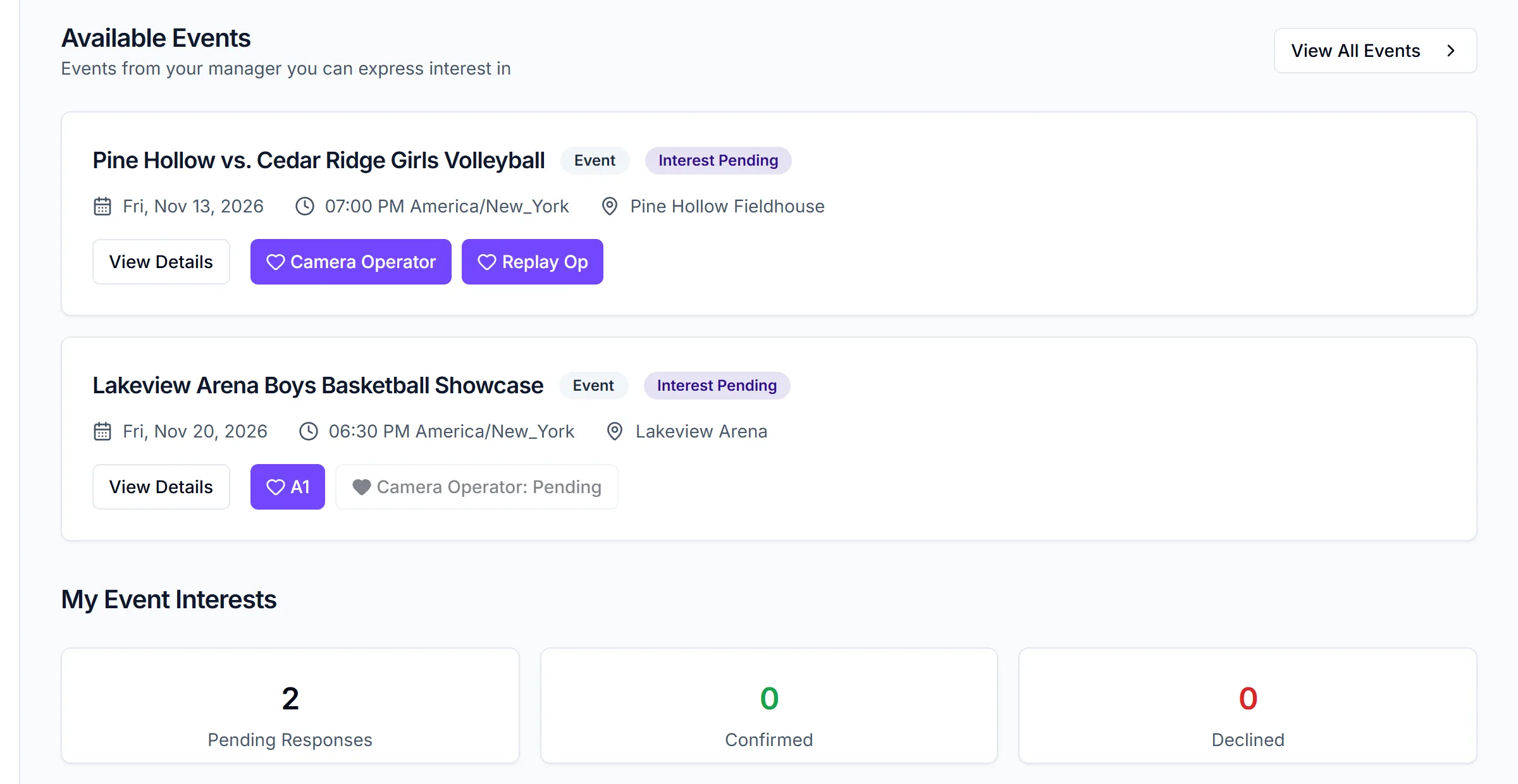
Your dashboard shows upcoming events that your managers have marked Visible to Crew. Click View Details to read about an event, or use the buttons on its card to raise your hand.
Why you might not see an event
This is the most common question, so it comes first. An event shows on your dashboard only when all of these are true:
- It's visible to crew. New events start hidden. The manager has to tick Visible to Crew before anyone sees them.
- It belongs to a manager you're linked to. You see events from your own managers, not from everyone on the team.
- It's upcoming. Past and cancelled events drop off.
If you see "No available events" and "Your manager hasn't posted any events yet.", either nothing is visible yet or you aren't linked to a manager. Check Assigned Manager(s) on your profile. If it's empty, ask your manager to link you.
Being assigned to an event doesn't put it on your dashboard on its own. If it's still hidden, it won't show here. Your invite email has the details.
What's on the page
The page is called Crew Dashboard, or Talent Dashboard if you're talent.
- Available Events (Available Games & Events for talent) lists the events you can see, with a View All Events button.
- Each event card shows the title, a type badge such as "Tournament" or "Regular Season", the date, start time with timezone, and location. A status shows if you're Assigned or your interest is pending.
- View Details opens the full event page. You can read it, but you can't change anything.
Raise your hand
The buttons on each card let you tell the manager you want the work. Depending on the event, you'll see one button per open position or a single Express Interest button. Talent can also open View Games on multi-day events. See raise your hand.
Your interests
- Crew see My Event Interests once you've raised your hand at least once, with counts for Pending Responses, Confirmed and Declined.
- Talent see My Game Interests, with a card for each event or game you've asked for and its status. Until then it says "No interests yet".
Quick actions
- View All Events opens your full list of available events.
- Crew Directory (or Talent Directory) lets you browse your team-mates' profiles and skills.
- My Profile opens your profile to update your photo and contact details.
Things to know
- You can't accept or decline here. There are no accept or decline buttons on the dashboard. Use the buttons in your invite email. See respond to an invite.
- No availability calendar. You can't mark the dates you're free.
- Your sidebar has Dashboard, Calendar, Events, Crew Members (or Talent Members) and Help and guides.