

Rundowns live under Rundowns in the sidebar. Each rundown is a grid with one row per segment and eight columns: Segment, Title, Length, Game Clock, Video, Audio, Graphics and Notes. You can link it to an event later so it goes out with the tech book. Rundowns are on Starter and Pro.
Your rundowns are yours. Other managers on your team can't see them, and neither can team admins.
Short version
Go to Rundowns, click Create Rundown, enter a title and click Create. Then click Edit on the new card, click Add First Row, and double-click a cell to type. Each cell saves as soon as you press Enter.
Create the rundown
- Click Rundowns in the sidebar.
- Click Create Rundown (top right).
- In the Create New Rundown dialog, type a title in Rundown title. A title is required.
- Click Create, or press Enter. You'll see "Rundown created successfully".
- The rundown appears in the grid, but it doesn't open by itself. Click Edit on its card to open the editor.
Add rows
A new rundown shows "No rows in this rundown yet." Click Add First Row to start.
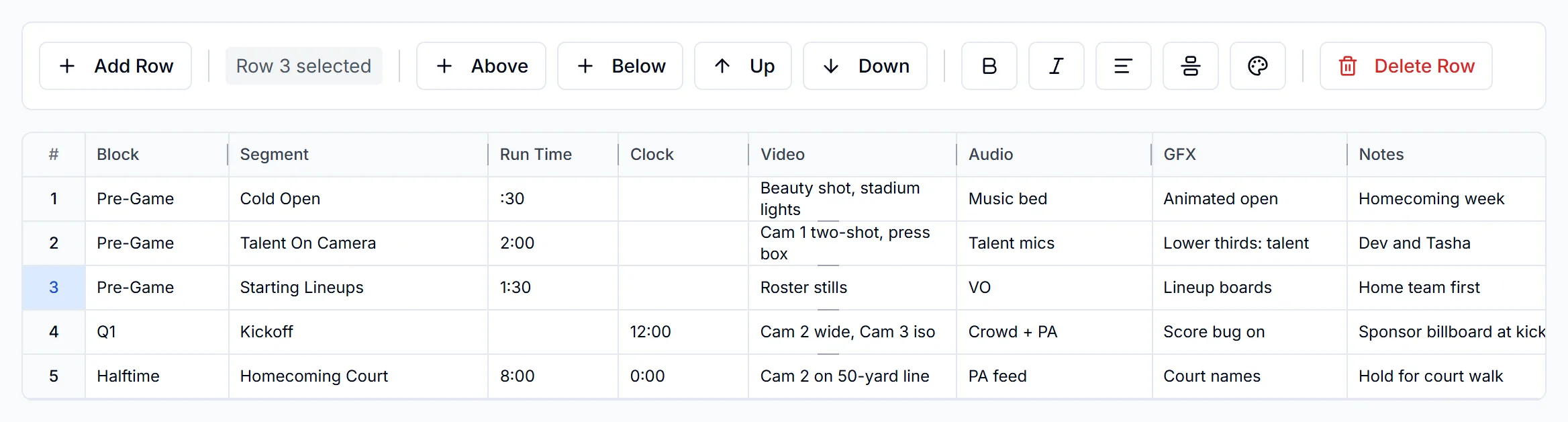
- Add Row in the toolbar adds a blank row at the bottom.
- To add a row in a specific spot, click a row's number in the left column to select the row, then click Above or Below.
- To move a row, select it and click Up or Down, or drag it by its number.
Fill in the cells
- Double-click a cell, or select it and press Enter.
- Type, then press Enter or click away. The cell saves to the server right away, with no Save click.
- Press Escape to cancel an edit.
Every column is plain text. Write lengths and clock times however your crew reads them, for example ":30" or "1:30" for Length and "9:00" for Game Clock. CrewdUp doesn't check the format.
No time math
CrewdUp doesn't add up lengths, show a running time or back-time the show. Length and Game Clock are text columns, so keep your totals yourself.
Work like a spreadsheet
The hint strip above the grid lists the shortcuts:
- Shift+click selects a range of cells. Ctrl+A selects all.
- Delete clears the selected cells.
- Ctrl+C and Ctrl+V copy and paste as tab-separated text, so you can paste a block straight from a spreadsheet.
- Ctrl+Z undoes the last cell edit or clear, up to 20 steps back.
Save the title
The big Rundown Title box at the top of the editor doesn't save on its own. After you change it, click Save. The Save button stays greyed out until there's something to save.
Column changes and row heights also need Save. See customize rundown columns.
Delete rows and rundowns
- A row: select it, click Delete Row, then Delete.
- A whole rundown: on the Rundowns page, click the ... menu on its card, choose Delete, then Delete again. The rows go with it.
Deletes are permanent
Deleted rows and rundowns can't be recovered. To keep a version before a big change, duplicate the rundown first.
Things to know
- Cells save instantly, the title doesn't. If you leave the editor without clicking Save, title, column and row-height changes are lost, and there's no warning.
- Delete and Backspace clear cells. Pressing either key anywhere outside a text box clears whatever cells are selected. Use Ctrl+Z if you hit it by mistake.
- Pasting extra rows doesn't fill them yet. If you paste more rows than the rundown has, CrewdUp adds the extra rows but leaves them blank. Add enough rows before you paste.
- The editor's copy wins. After you copy a cell inside the editor, Ctrl+V keeps pasting that cell until you reload the page, even if you copied something else since.
- The "Updated" date on the list card changes only when you click Save, not when you edit cells.
- Phones: the grid is wide, so it scrolls sideways on small screens.
- Search: the Search rundowns... box on the list matches rundown titles and linked event titles.
When the rundown is ready, link it to an event so it's attached to the tech book email.
Checklist
- Rundown created and opened with Edit
- One row per segment, in show order
- Length, game clock, video, audio, graphics and notes filled in
- Title changes saved with Save
- Linked to its event