

Every rundown starts with eight columns: Segment, Title, Length, Game Clock, Video, Audio, Graphics and Notes. You can rename them and change their widths from the editor, and you can color, bold and reorder rows in the grid itself.
The two kinds of change save differently. Column names and widths wait for Save. Row colors, bold, italic and row order save the moment you make them.
Short version
Open the rundown, click Columns, edit a Column Name or drag a column border, click Done, then click Save. For rows, click the row's number and use Color, Bold or Italic, or drag the row by its number.
Rename a column
- Open the rundown from Rundowns with Edit.
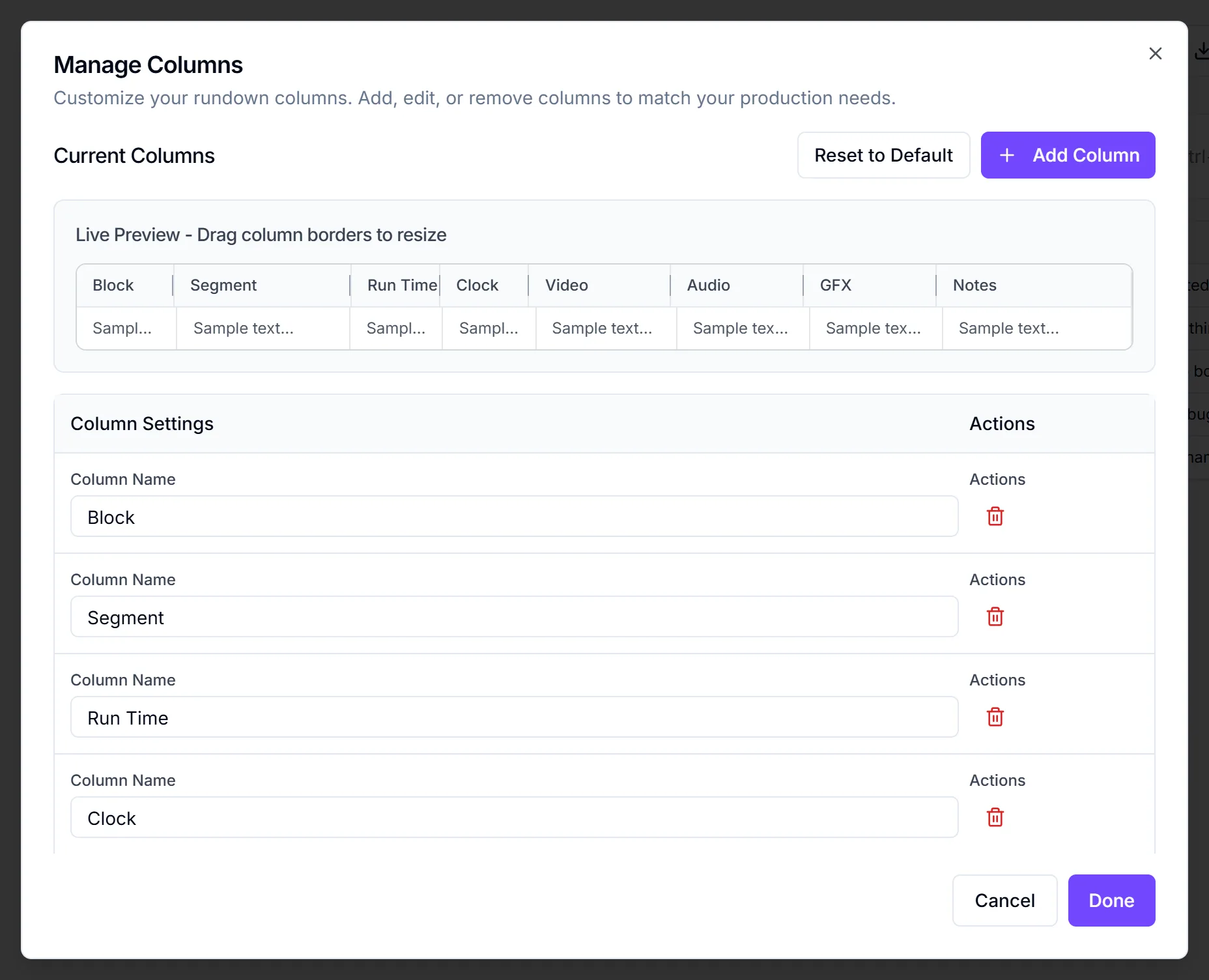
- Click Columns (top right). The Manage Columns dialog opens.
- Edit the Column Name box for the column you want to rename, for example "Graphics" to "GFX".
- Click Done.
- Click Save on the editor.
Done doesn't save
Done and Cancel both just close the dialog. Your column changes stay pending until you click Save on the editor. If you leave the page first, they're lost, with no warning.
Resize a column
Drag a column's right border to make it wider or narrower. You can do this in two places:
- the Live Preview - Drag column borders to resize strip in the Manage Columns dialog;
- the header row of the grid itself.
The minimum width is 60px. The last column has no drag handle, and there's no box to type a width. Click Save when you're done.
Remove or restore a column
There's no way to hide a column. To take one off the grid, click the trash icon next to it in Manage Columns, then click Save. You can't remove the last remaining column.
Removing a built-in column doesn't delete what you typed in it. Reset to Default puts the eight original columns back, with their text.
Color and style rows
- Click a row's number in the left column to select the row.
- Click the palette icon (Color) and pick one of the 32 colors. Use it to mark breaks, commercials or replays.
- Click Bold or Italic in the row toolbar to style the whole row.
These save straight away. No Save click is needed.
Reorder rows and set row heights
- Drag a row: hover over its number ("Drag to reorder row") and drag it onto another row's position.
- Or step it: select the row and click Up or Down.
Both save straight away.
To make a row taller, drag its bottom edge (minimum 32px; the last row has no handle). Row heights need Save, like columns.
Where your changes show up
| Change | Saves | In the editor PDF | In the tech book email PDF |
|---|---|---|---|
| Column names and widths | With Save | Yes | No, always the 8 default columns |
| Row color, bold, italic | Instantly | Yes | Yes |
| Row order | Instantly | Yes | Yes |
The Download PDF option on the Rundowns list menu also uses the 8 default columns. To get your own columns in a PDF, download from inside the editor. See duplicate and download a rundown.
Things to know
- Use the built-in columns for your content. Text typed into a column added with Add Column isn't saved yet, so the cell goes blank. Rename a built-in column instead.
- Cell-level formatting isn't saved yet. Cell bold, italic, cell color, alignment and links disappear when you reload. Use row color and row bold or italic, which do save.
- There's no column reorder. Columns stay in their list order.
- Columns are per rundown. Duplicating a rundown copies its columns; a new rundown starts with the defaults.
Checklist
- Columns renamed to your crew's terms
- Widths set so key columns are readable
- Save clicked after column and height changes
- Breaks and key segments colored
- Rows in show order