

If your gear already lives in a spreadsheet, you don't need to retype it. Import CSV on the Assets page reads a CSV file, lets you match each column to an asset field, shows you a preview with any problems, and then creates the assets. Asset import is on the Pro plan.
Short version
On Assets, click Import CSV, upload your file, map a column to Name, click Preview →, then click Import. Create your categories first.
Before you start
- Create your categories. The import doesn't create categories. A category name in your file has to match one that already exists, or that asset imports uncategorized. See asset categories and custom fields.
- Save your spreadsheet as .csv with a header row. Excel (.xlsx) files aren't accepted.
- Every row needs a name. Rows without one are skipped.
Get the template
In the import dialog, click Download Template. You get assets_import_template.csv with these columns and one example row:
Name, Category, Asset Tag, Status, Location, Manufacturer, Model, Serial Number, Vendor, Purchase Date, Purchase Price, Notes
These 12 are the only fields an import can fill.
Upload and map your columns
- Go to Assets and click Import CSV. The Import Assets from CSV dialog opens.
- Drop your file on the box, or click it to browse.
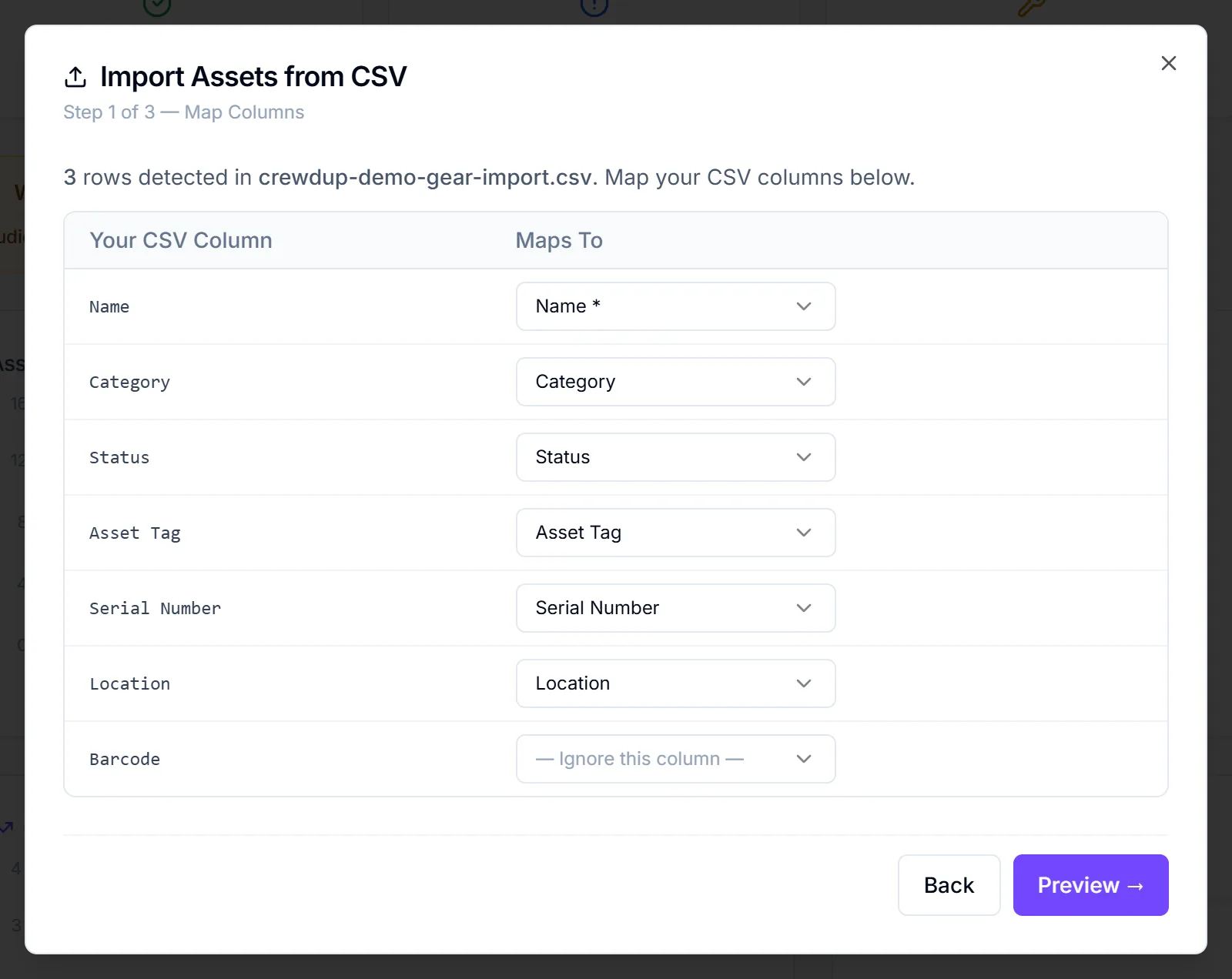
- The Map Columns step lists each of your headers under Your CSV Column, with a Maps To choice next to it. Headers with familiar names are matched for you.
- Check each match. Set any column you don't want to — Ignore this column —.
- Make sure one column maps to Name \*. Until it does, Preview → stays disabled and you'll see
You must map a column to "Name" before continuing. - Click Preview →.
Check the preview
The Preview step shows the first 5 rows, the total row count, and how many errors and warnings were found. A line tells you how many assets will be created.
| You'll see | What it means |
|---|---|
| Name is required | The row has no name. It will be skipped. |
Unknown status "x" — will default to "active" | The status isn't one CrewdUp knows. The asset imports as Active. |
Category "x" not found — will import uncategorized | No category with that name exists. The asset imports with no category. |
Status accepts active, in_field, "in field", maintenance or retired, in any capitalization. Category names are matched regardless of capitalization too.
If the warnings aren't what you want, close the dialog, fix the file or create the missing categories, and start again.
Import
- Click Import (the button shows how many assets will be created).
- The Complete step shows how many assets were imported.
- Any rows that didn't make it are listed under Skipped rows, with the row number and reason. A row that failed on the server shows Failed to save — skipped.
- Click Done.
The new assets appear in your list straight away. No one is notified.
Things to know
- No duplicate check. Importing the same file twice creates every asset twice, even with matching tags or serial numbers. Importing never updates existing assets.
- Avoid line breaks inside cells. A cell with a line break in it, such as a multi-line note, splits that row in two, even in quotes. You'll see shifted columns and Name is required errors. Put notes on one line before you export.
- Some fields can't be imported. Warranty, insurance, description, state, depreciation and custom fields have to be added by editing each asset. See asset records.
- Empty files are rejected with "CSV must have a header row and at least one data row".
Checklist
- Categories created in CrewdUp
- File saved as .csv with a header row
- Every row has a name
- No line breaks inside cells
- A column mapped to Name
- Preview warnings checked before importing