

The Notifications page in the sidebar is where you check what CrewdUp has sent for your team and what's queued to go. It has three tabs: Overview, History and Scheduled. History shows bulk messages and invite activity, but not every email: tech books and reminders don't appear there.
Short version
Go to Notifications → History to see the 50 most recent sent items, and click Export for a CSV. Use Scheduled to see reminders and scheduled messages, and Cancel to stop a pending one.
Open the Notifications page
Click Notifications in the sidebar. Managers and team admins can open it, and you see items for your own team.
Overview
- Total Sent counts every logged item for your team, all time, including ones that failed to send.
- Scheduled counts every scheduled item for your team's events, whatever its status, so it includes items already sent or cancelled.
- Recent Activity shows the five latest rows from History.
Treat the two counts as rough totals rather than exact figures.
History
The History tab shows the 50 most recent items that were sent. Each row has the subject, a status badge, the event and recipient count, and the date and time in your local time zone. Rows with no event show "No Event Associated".
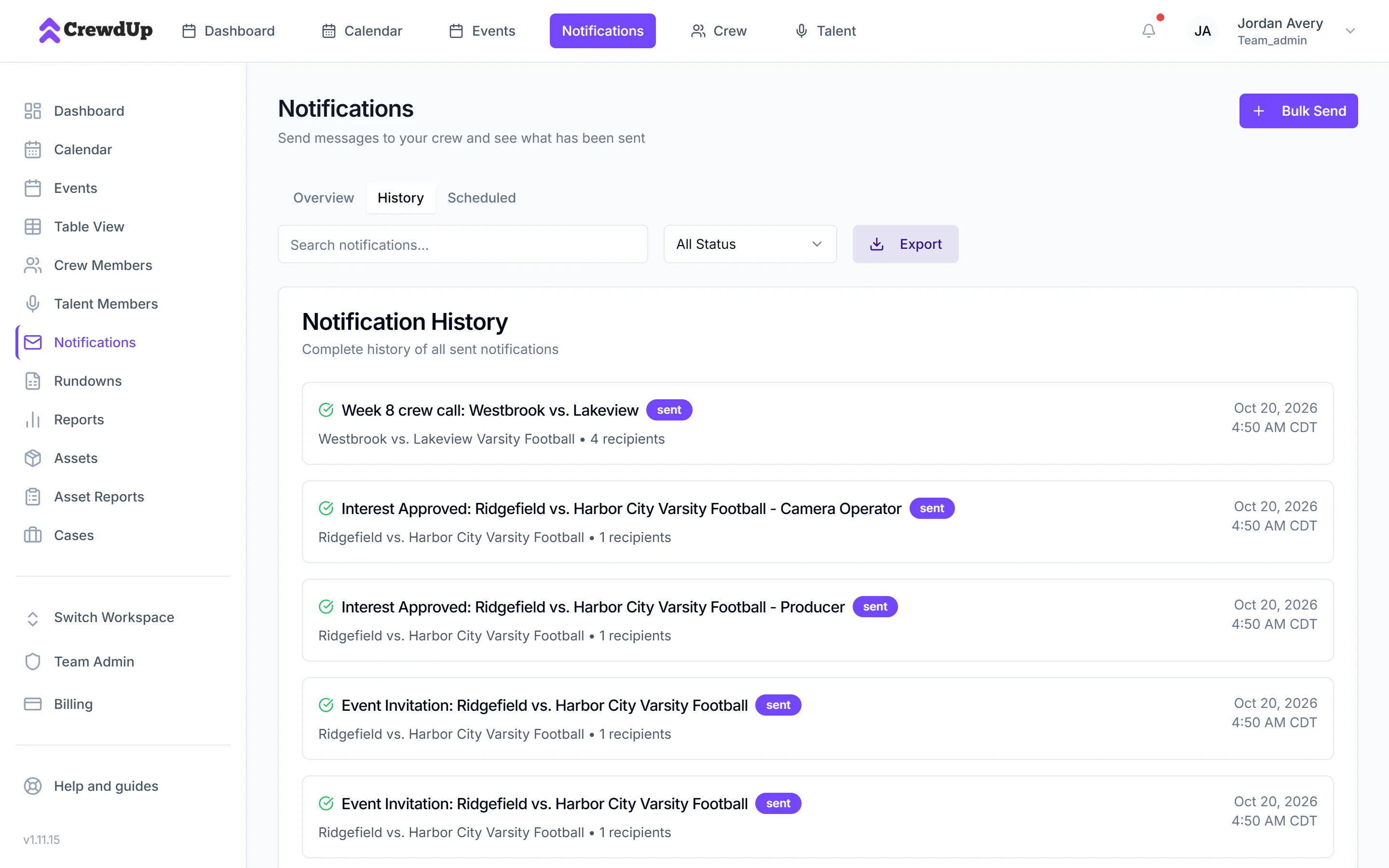
What's in History
- Bulk messages you sent with Send Now
- Crew invites and "Assignment Updated" emails
- Crew confirmation emails, and the row logged when crew answer, such as "Assignment Confirmed: {event}"
- Approval and decline emails for crew who raised a hand
What isn't
- Tech books
- 5-day reminders and tech book reminders
- Scheduled bulk messages, once they've gone out
- Talent emails
- Alert emails to managers
For bulk messages the row lists the real recipients. For other rows it shows the crew member's email from their crew record. History isn't a complete record of every email CrewdUp sent, and it doesn't track opens or delivery.
Export history to CSV
- On the History tab, click Export.
- CrewdUp downloads
notifications_history_{YYYY-MM-DD}.csvand shows Export Complete.
The file has the same 50 rows, with columns id, type, subject, recipients (separated by semicolons), sentAt, status, eventTitle and responseCount. If there's nothing in History, the file is empty, with no header row.
Scheduled
The Scheduled tab lists 5-day reminders, tech book reminders and scheduled bulk messages for your team's events, newest scheduled time first. Each row shows "Scheduled for {date} at {time}" in your local time zone, with a status badge.
Cancel a scheduled email
- Find the row with a pending status.
- Click Cancel. You'll see Notification Cancelled.
Cancelling a 5-day reminder doesn't stick
A cancelled tech book reminder or scheduled message stays cancelled. A cancelled 5-day reminder is created again on the next hourly run, so it still goes out. See automatic reminders.
The Scheduled tab has its own Export, but its dates and details columns currently come out garbled.
Things to know
- Only the last 50 sent items. Older history isn't shown or exported.
- No delivery or open tracking. A row means CrewdUp logged the send, not that it reached an inbox.
- Check the event for answers. The badges on Crew Assignments are the reliable place to see who has confirmed. See track confirmations.
- Talent emails don't show here. Check the Games & Talent tab for talent answers.